❌

Reading view

There are new articles available, click to refresh the page.

Apple TV is adding American Sign Language to some films β€” and you don't need a browser extension

  • Apple is adding ASL support to the Apple TV app
  • It's only for a handful of titles for now
  • Unlike other streamers, the ASL option is integrated on the original title

The millions of deaf and hard-of-hearing people around the world usually have just one option when it comes to watching movies and films: closed captions. American Sign Language (or ASL, and its British counterpart, BSL) can help bring less reading and more visual interpretation to the viewing, but it takes people, time, and technology to integrate it into your favorite streaming services.

Some streamers, like Netflix, employ third-party plug-ins from Google or others to enable ASL overlays. Others, like Disney, Amazon, and HBO, create distinct versions of their content with built-in ASL overlays.

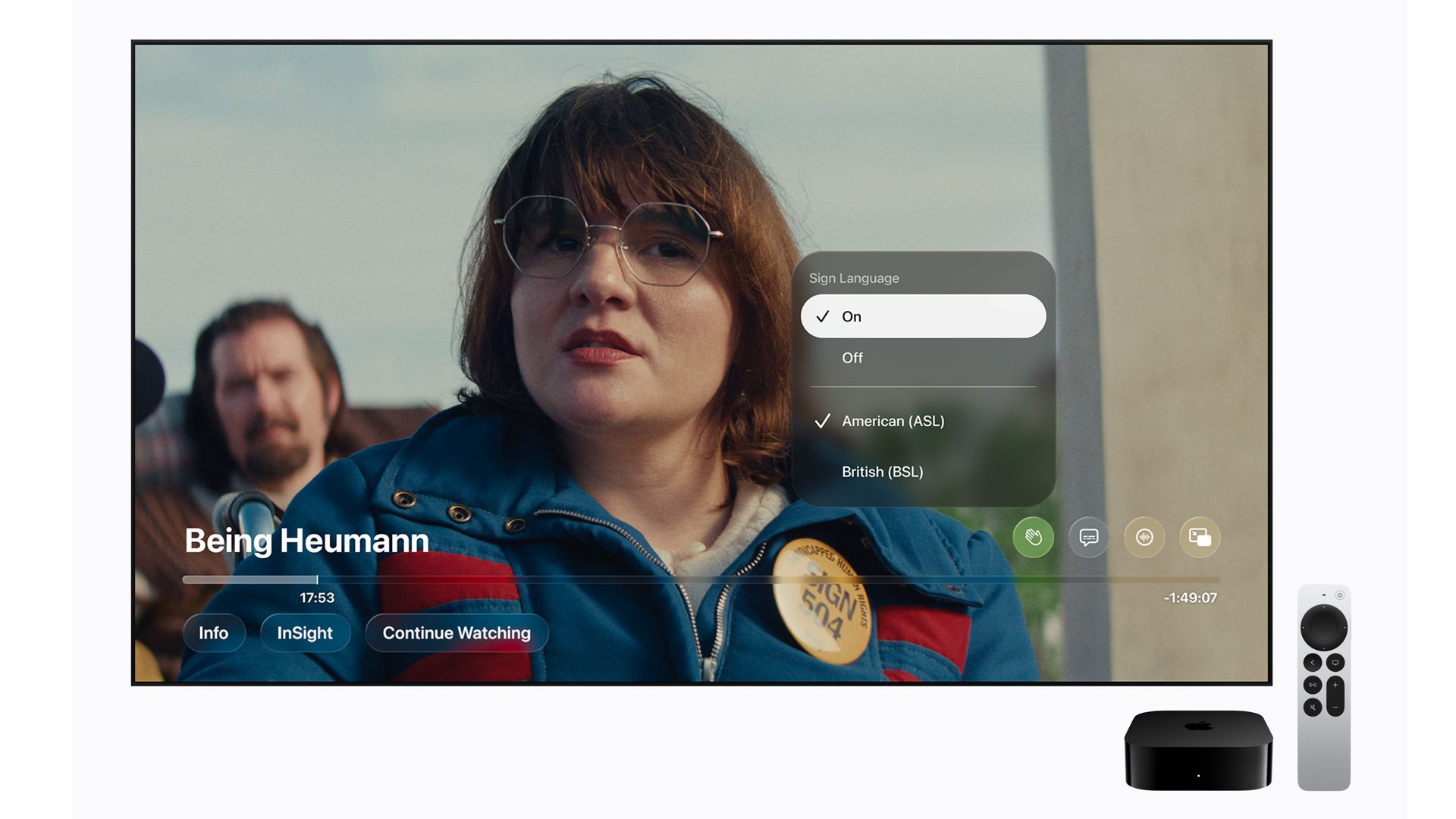
Apple, however, is launching something a little different. A handful of original-content titles will now tap into a new settings toggle (supported in iOS 27.2) that turns on ASL or BSL for films like F1: The Movie, Greyhound, and Way of the Warrior Kid.

The feature is also launching with a new Apple TV film: Being Heumann, which, not coincidentally, is about real-life activist Judy Heumann's efforts in the 1970s to get more rights and accommodations for disabled people.

The controls are found under Settings, and once enabled, the option will appear on these titles as a sign-language icon.

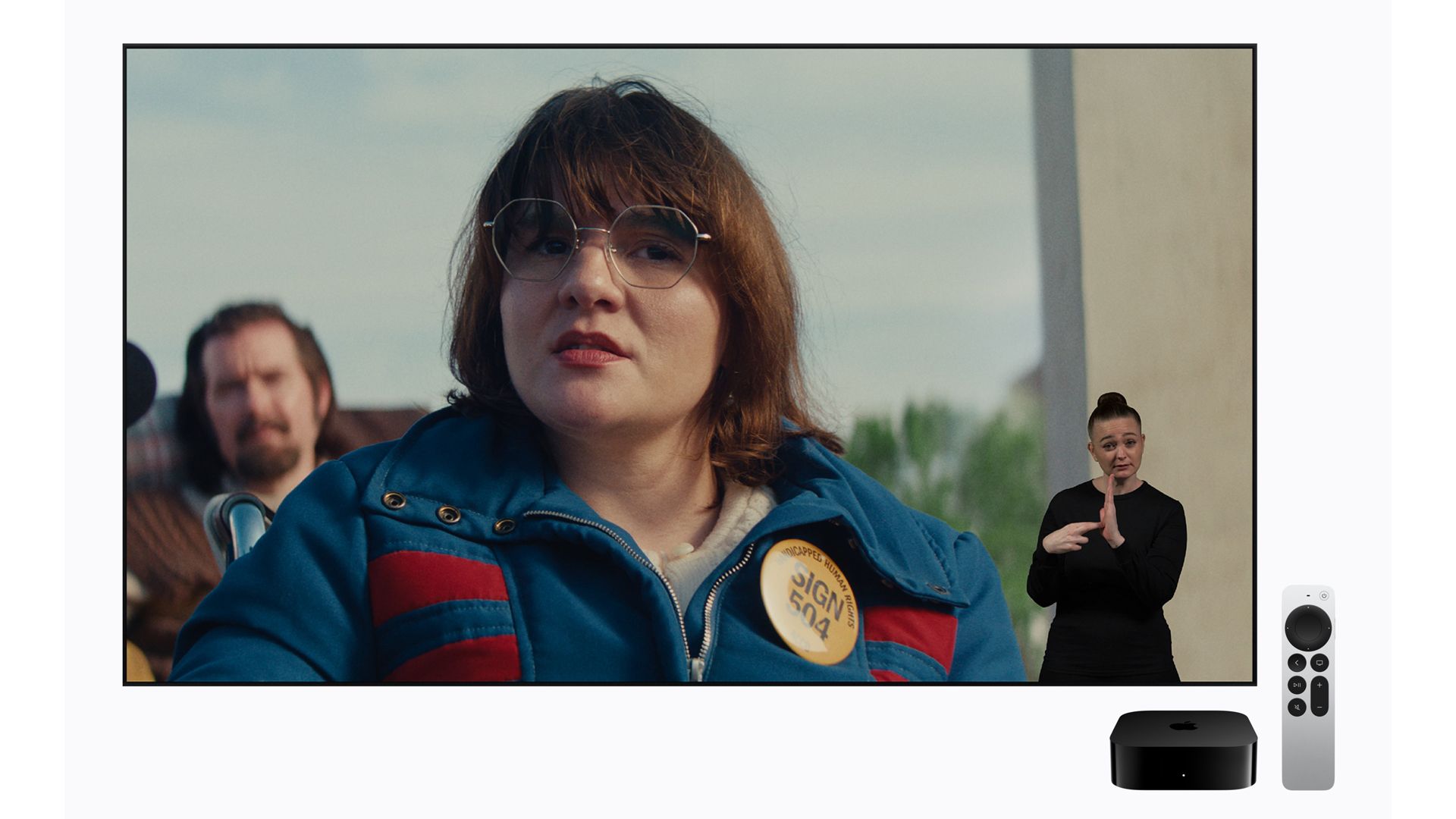
Each ASL interpreter appears as an overlay on top of the Apple TV content, meaning they're not in picture-in-picture boxes.

It's worth noting that the sign-language interpreters are all real people, directed by what's known as Directors of Sign Language or 'Dazzles,' who help them interpret the content. Apple is not, for now at least, using animations or AI to ramp up ASL coverage. No word on whether this might be under consideration.
Apple TV ASL

(Image credit: Apple)

β€œBringing sign language interpretation to Apple TV is an exciting step forward in making the viewing experience more accessible and inclusive for Deaf audiences,” said Sarah Herrlinger, Apple’s senior director of Global Accessibility Policy and Initiatives in a press release. β€œAccessibility is a core value at Apple, and we’re proud to continue creating experiences that allow more people to enjoy the content they love.”

For now, the launch consists of very few titles and, oddly, doesn't even include Apple's Academy Award-winning Best Picture, CODA, which is about a young aspiring singer whose parents are deaf β€” though it's probably a safe assumption that the film will soon be added to the ASL-supported list.

Did you know TechRadar now has membership?

Various tech product cutouts next to the words 'Insider TechRadar Learn More'

(Image credit: Future)

Become a TechRadar Insider by simply clicking 'Join Now' at the top of this page. Have a question? Please email membership@techradar.com
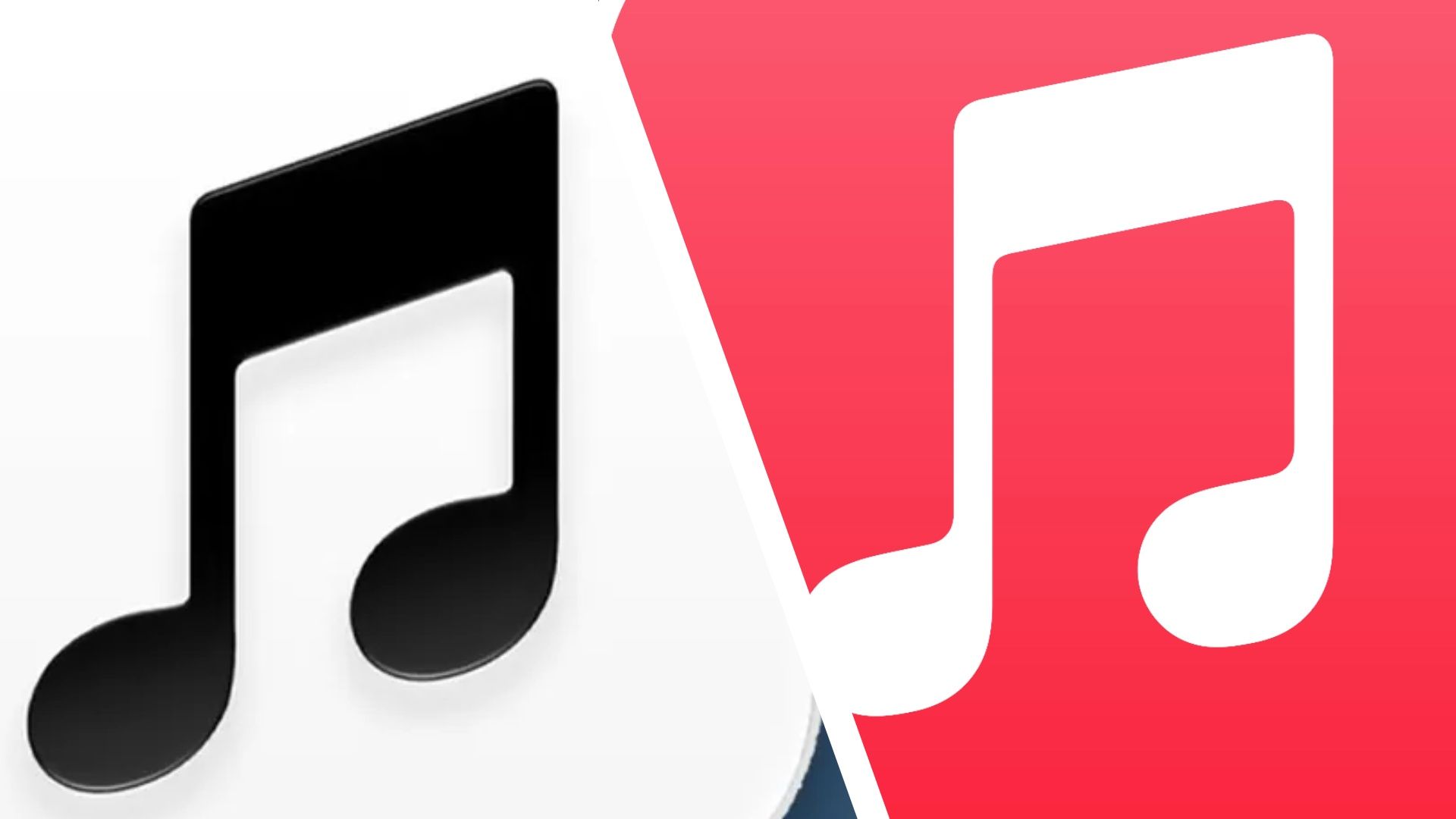
Don’t like Apple Music’s new white icon? Me neither β€” let's change it

Installing a small β€˜point’ update, like iOS 27.2, is a pretty routine operation these days. Just accept the update when your iPhone tells you it’s here, your iPhone restarts after it's been downloaded, and you’re good to go.

The latest iOS27.2 restarted as normal for me, but I wasn't expecting it to have changed my Apple Music icon. When I tried to listen to some music I initially thought my Apple Music app had vanished. Instead, what has happened is that Apple has, rather frustratingly, decided to change the icon to a white one instead of the familiar red one that I’m used to seeing.

It took me a few seconds, but I finally found it on my Home Screen. And to be honest, I’m not a fan of the new white icon. The red one was iconic (pun intended), and still represents Apple Music, to me. Frankly, this new white icon is terrible. It may sit better with the other official Apple apps on my iPhone, like Calendar and Clock, which are also white, but I hate it.

That’s when I decided to change it back.

How to change Apple Music back to a red icon

Step 1

Apple Music red icon.

(Image credit: Apple)

Apple's Shortcuts app is the key to this, but the first thing you’ll need is an image of the old red icon to save to your Photos app on your phone.

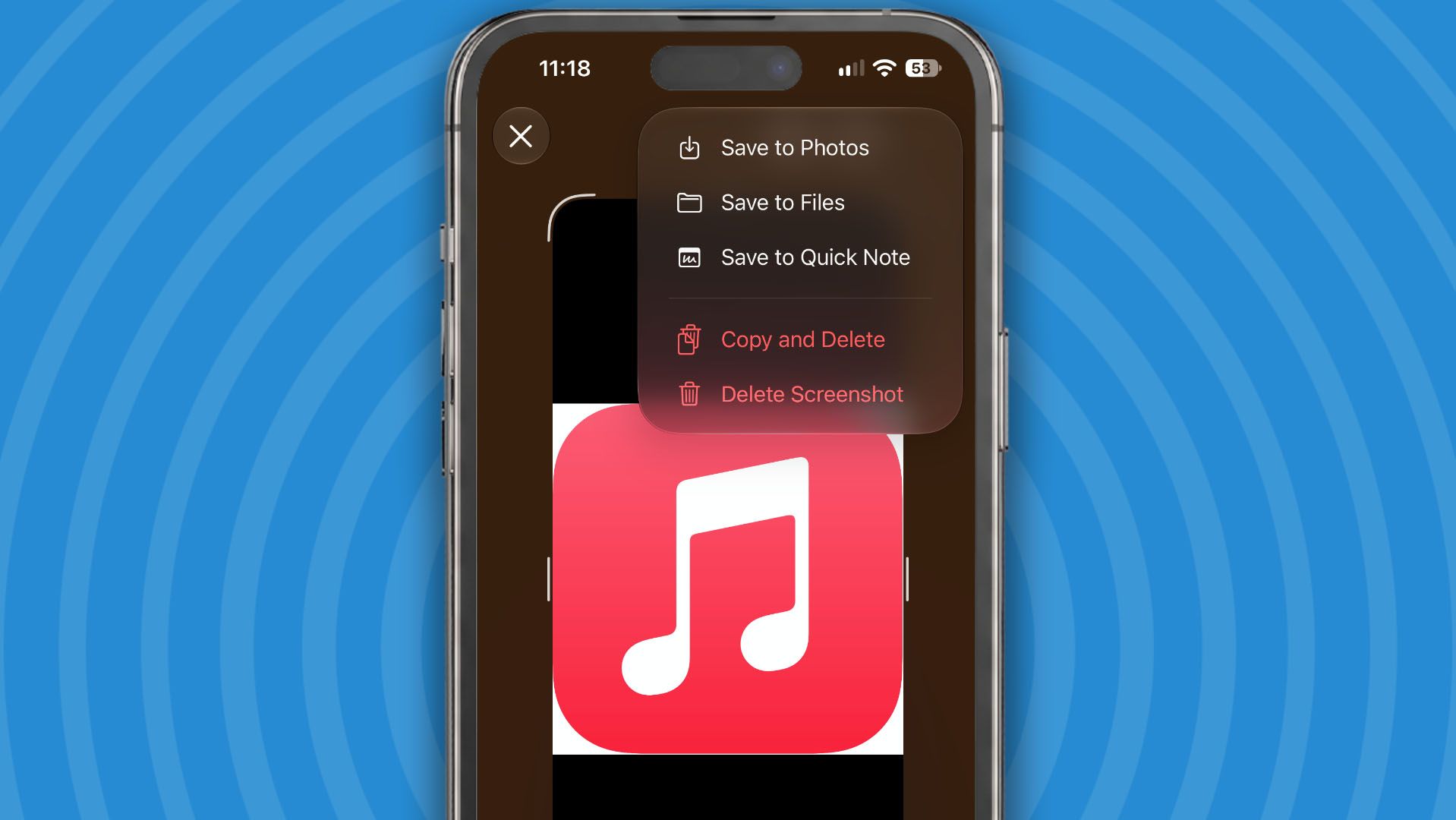
You can search for it online, or do what I did and ask ChatGPT to show it to you. All you need to do is screenshot it if you can make it big enough, then tap the tick icon followed by Save to Photos.

It doesn’t have to be a transparent image, because iOS 27 will make it transparent for you, so it can have white around the edges.

Step 2

Shortcuts app on iPhone.

(Image credit: Apple)

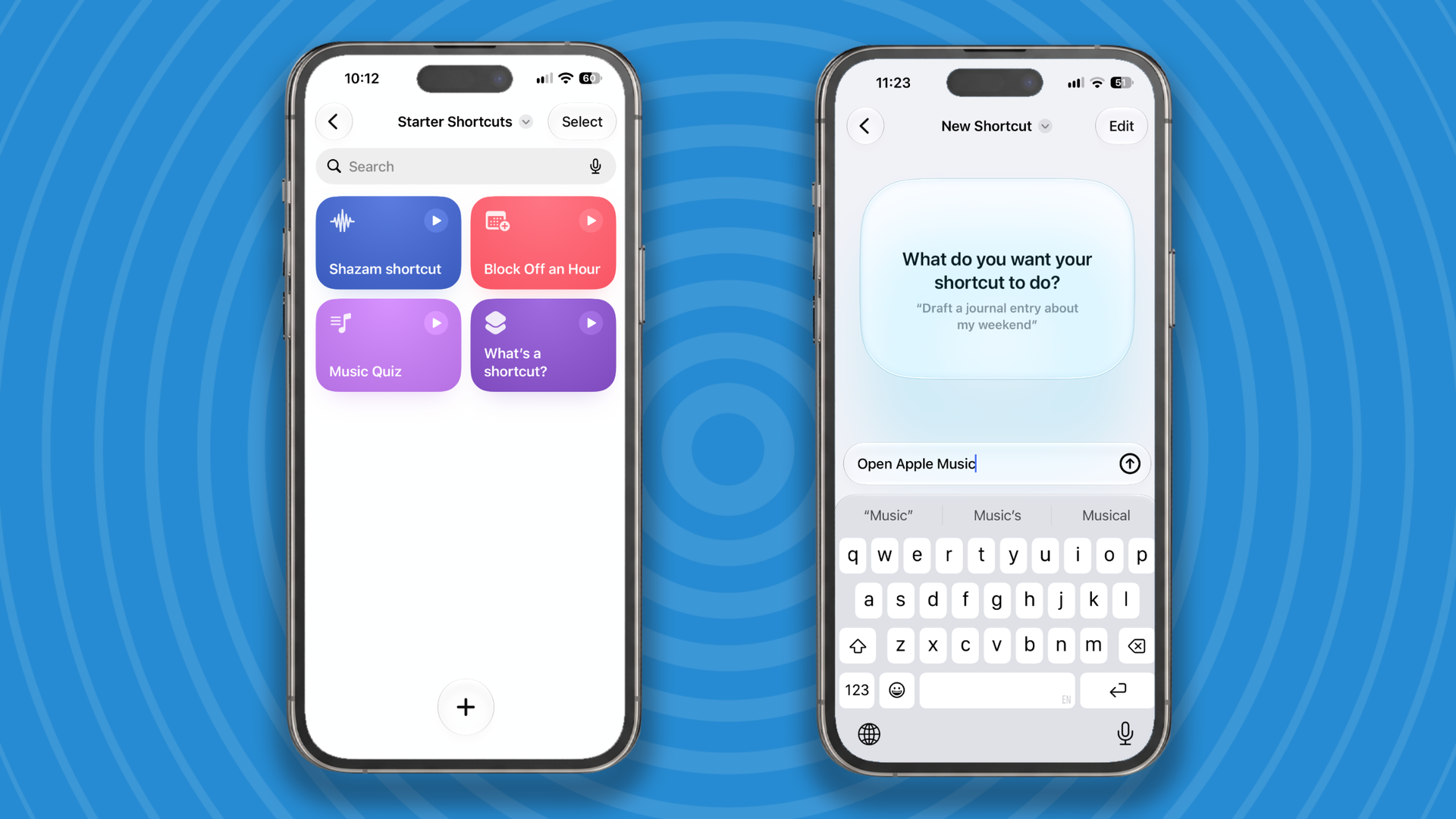
Next you need to load up the Shortcuts app and tap the + button at the bottom of the screen to create a new shortcut. Type β€œOpen Apple Music”, when it asks you what you want the app to do.

Step 3

Apple Shortcuts on iPhone.

(Image credit: Apple)

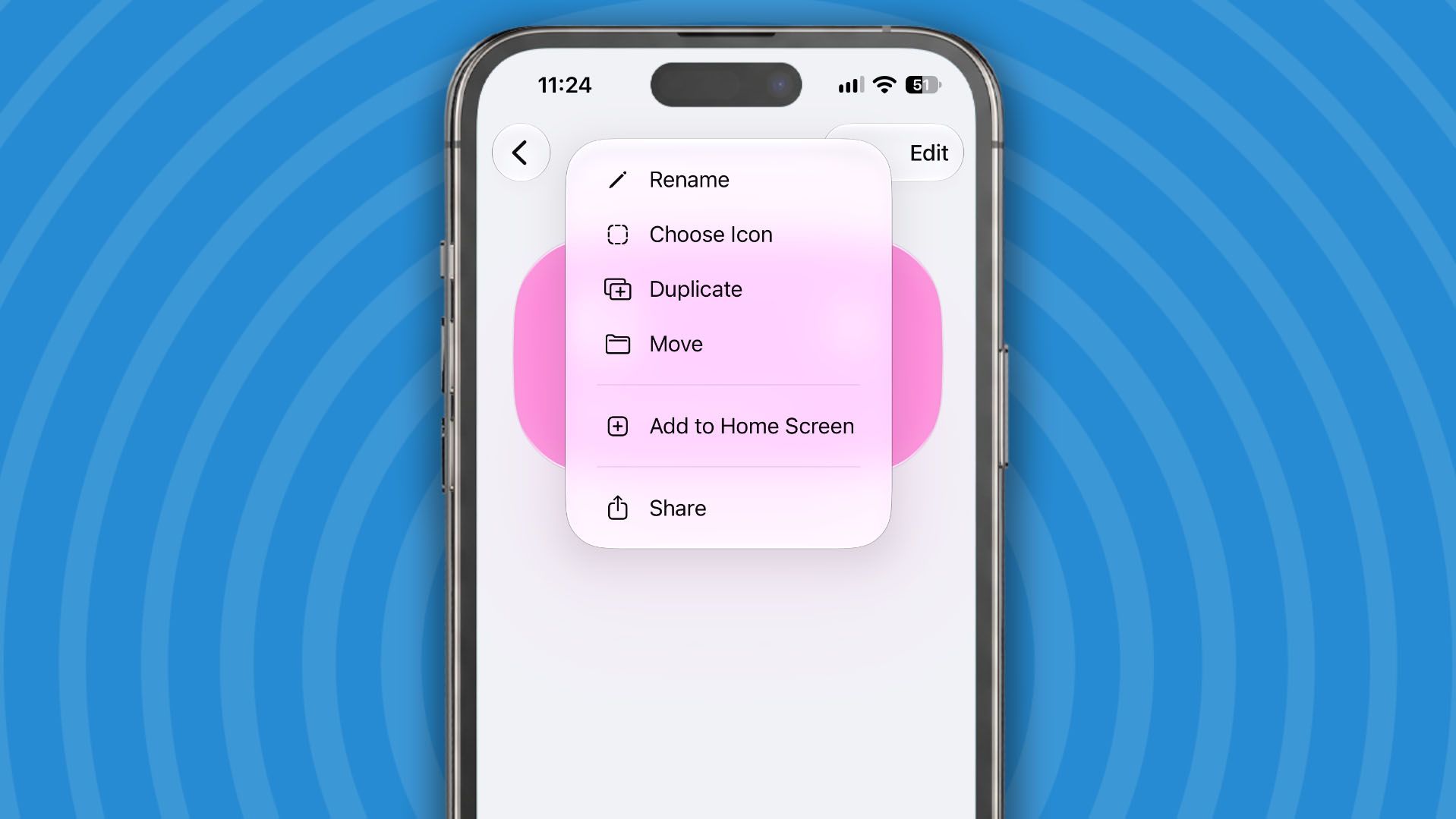
After a couple of seconds, iOS27 will create the shortcut. Now you need to add it to your Home Screen. Tap on the Open Apple Music name at the top of the screen and from the menu that appears choose Add to Home Screen.

Step 4

Using the Shortcuts app on iPhone.

(Image credit: Apple)

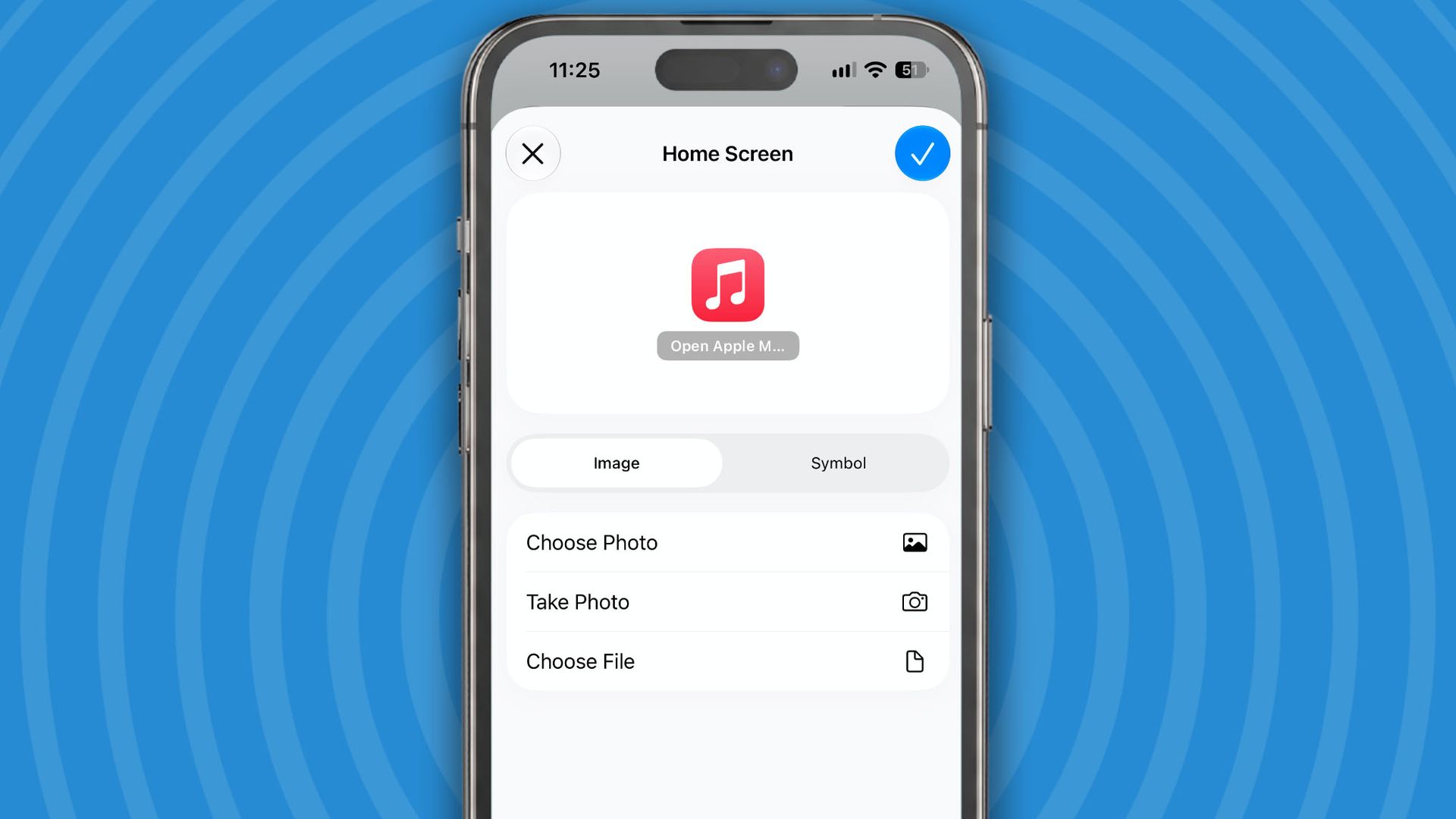
You now get the chance to add your screenshot as the icon for the new Shortcut you've created. Tap on Image then Choose Photo, and select the red Apple Music icon image, then Choose. Now tap on the blue tick icon and you’re done.

Step 5

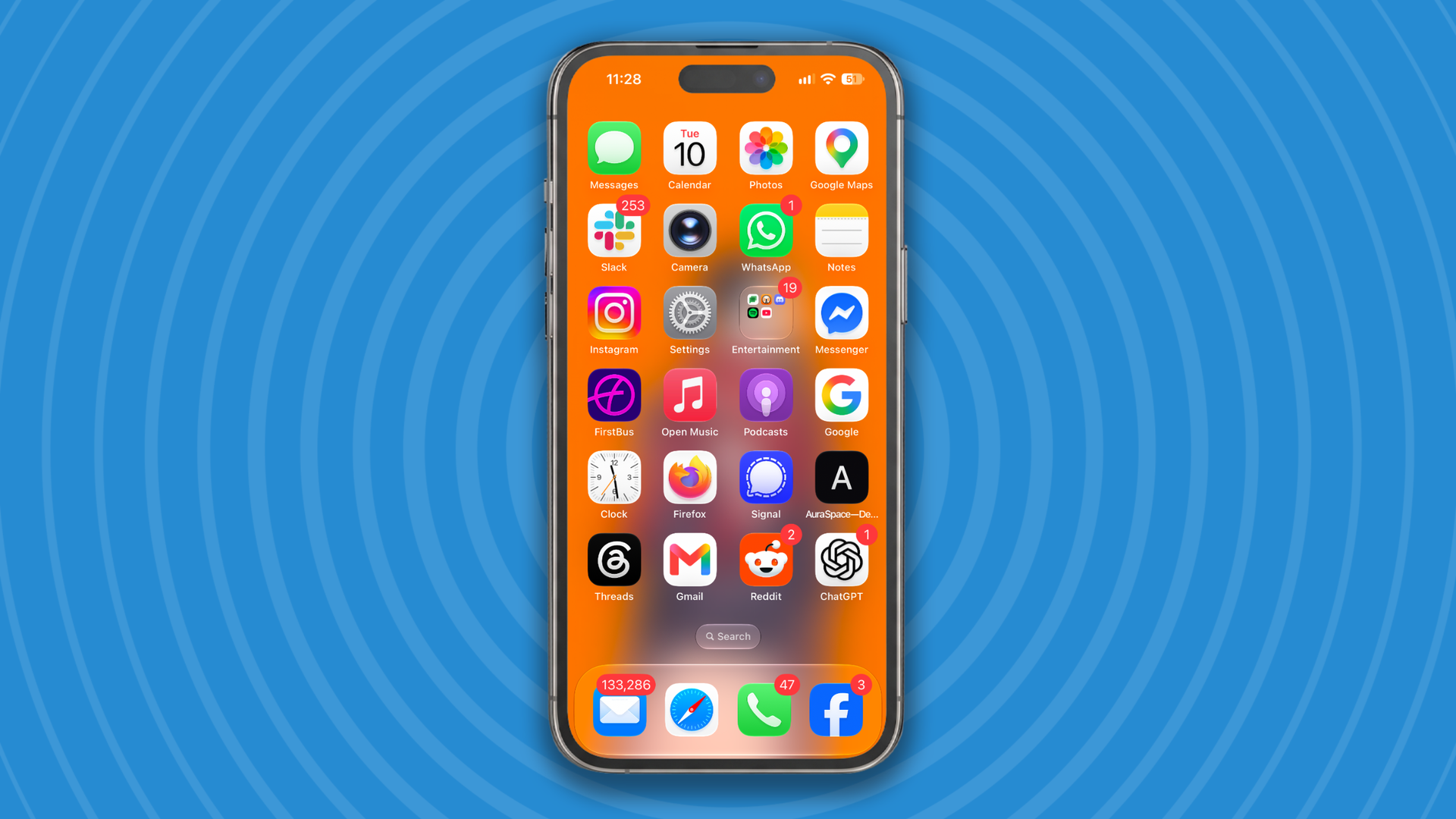
Now you have the old Apple Music icon back on your Home Screen. Just press and hold on any icon and select Edit Home Screen from the menu that appears to move the new icon where you’d like it to go. For me that’s on the first page.

iPhone.

(Image credit: Apple)

So, after a few short actions you should have got your red Apple Music icon back. Apple might be able to change their icons on a whim, but thanks tot he Shortcuts app you can always change them back.

Let me know how you get on trying this in the comments below.

❌