❌

Reading view

There are new articles available, click to refresh the page.

Don’t like Apple Music’s new white icon? Me neither — let's change it

Installing a small ‘point’ update, like iOS 27.2, is a pretty routine operation these days. Just accept the update when your iPhone tells you it’s here, your iPhone restarts after it's been downloaded, and you’re good to go.

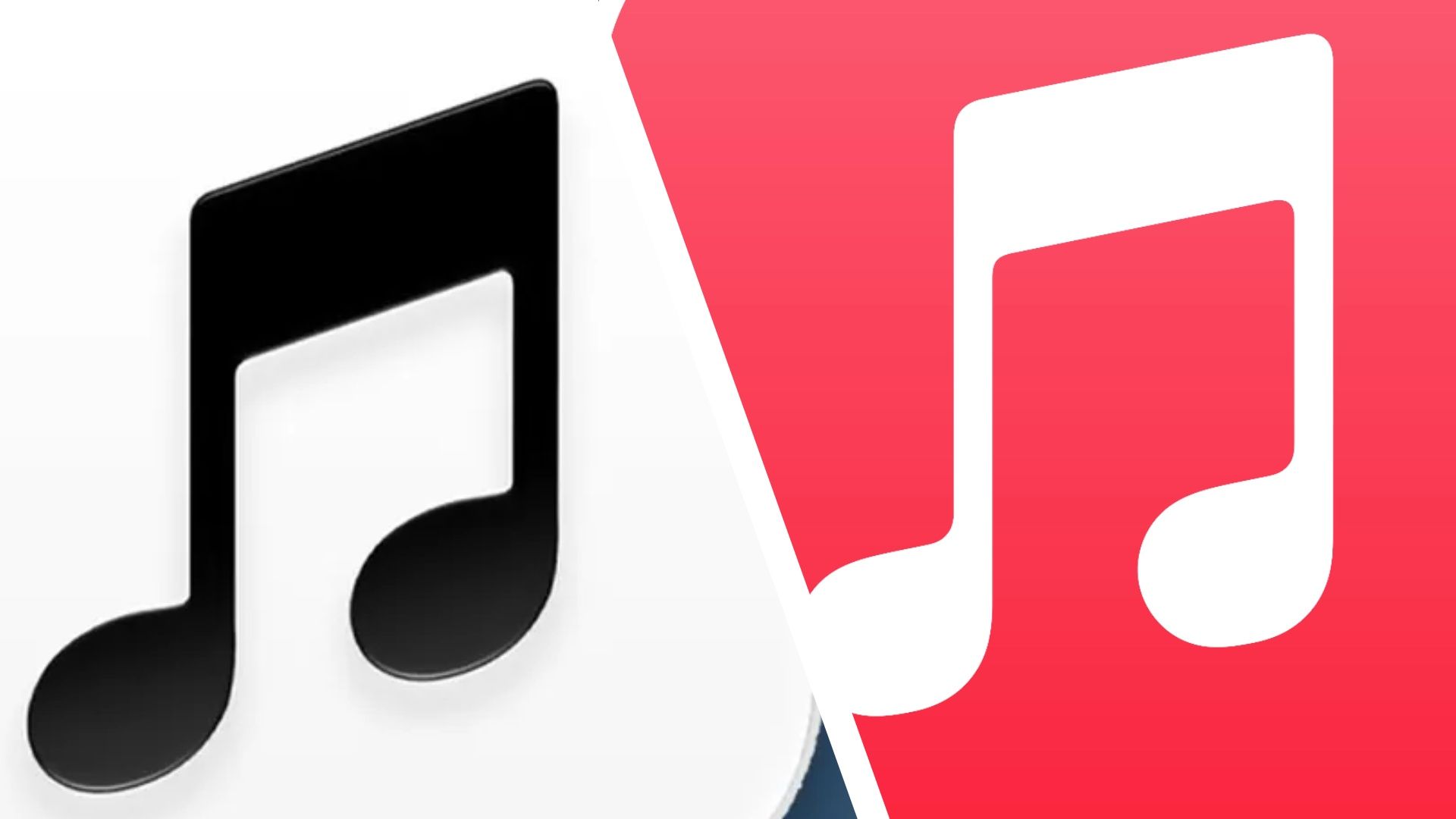
The latest iOS27.2 restarted as normal for me, but I wasn't expecting it to have changed my Apple Music icon. When I tried to listen to some music I initially thought my Apple Music app had vanished. Instead, what has happened is that Apple has, rather frustratingly, decided to change the icon to a white one instead of the familiar red one that I’m used to seeing.

It took me a few seconds, but I finally found it on my Home Screen. And to be honest, I’m not a fan of the new white icon. The red one was iconic (pun intended), and still represents Apple Music, to me. Frankly, this new white icon is terrible. It may sit better with the other official Apple apps on my iPhone, like Calendar and Clock, which are also white, but I hate it.

That’s when I decided to change it back.

How to change Apple Music back to a red icon

Step 1
Apple Music red icon.

(Image credit: Apple)

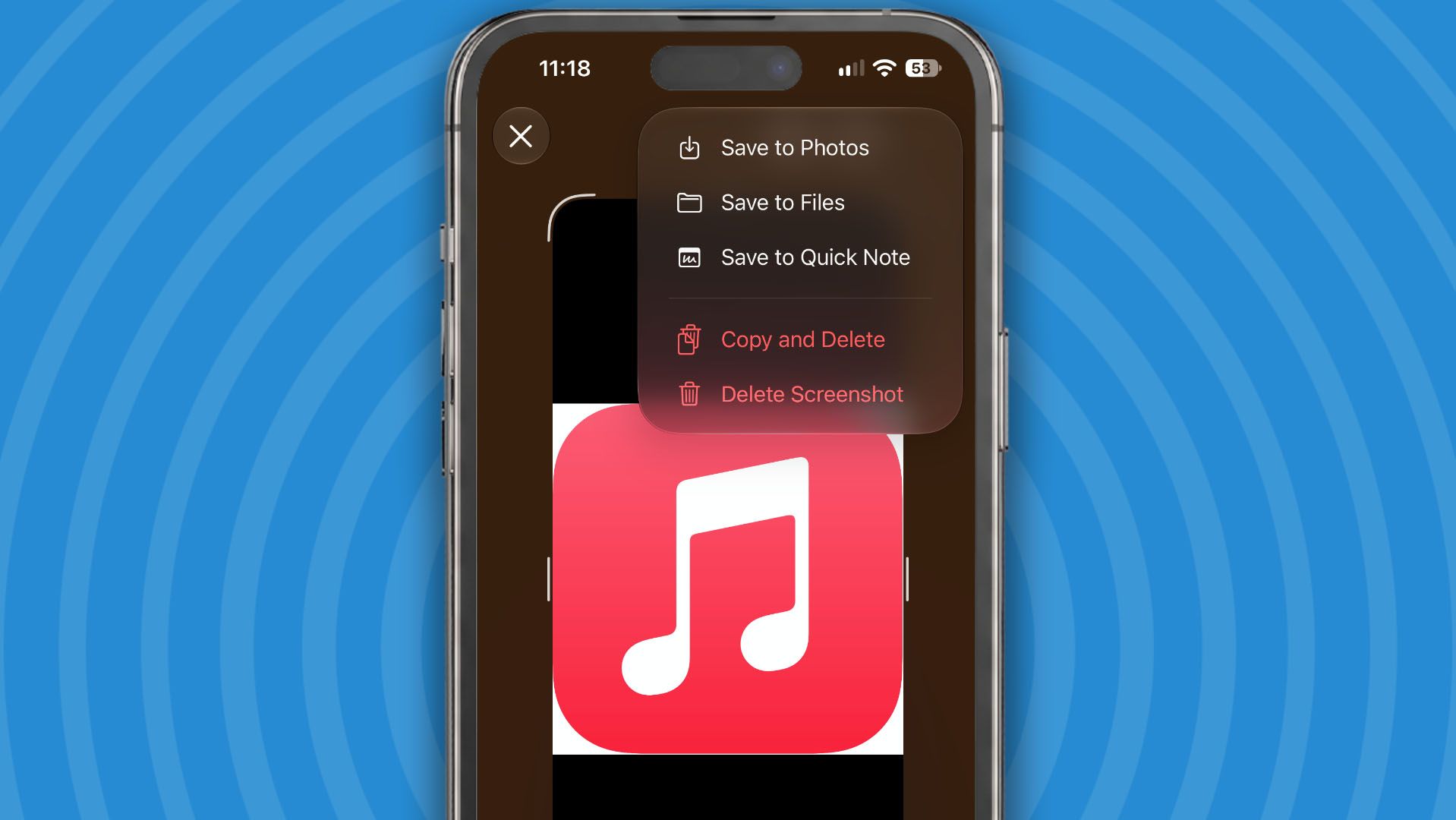
Apple's Shortcuts app is the key to this, but the first thing you’ll need is an image of the old red icon to save to your Photos app on your phone.

You can search for it online, or do what I did and ask ChatGPT to show it to you. All you need to do is screenshot it if you can make it big enough, then tap the tick icon followed by Save to Photos.

It doesn’t have to be a transparent image, because iOS 27 will make it transparent for you, so it can have white around the edges.

Step 2
Shortcuts app on iPhone.

(Image credit: Apple)

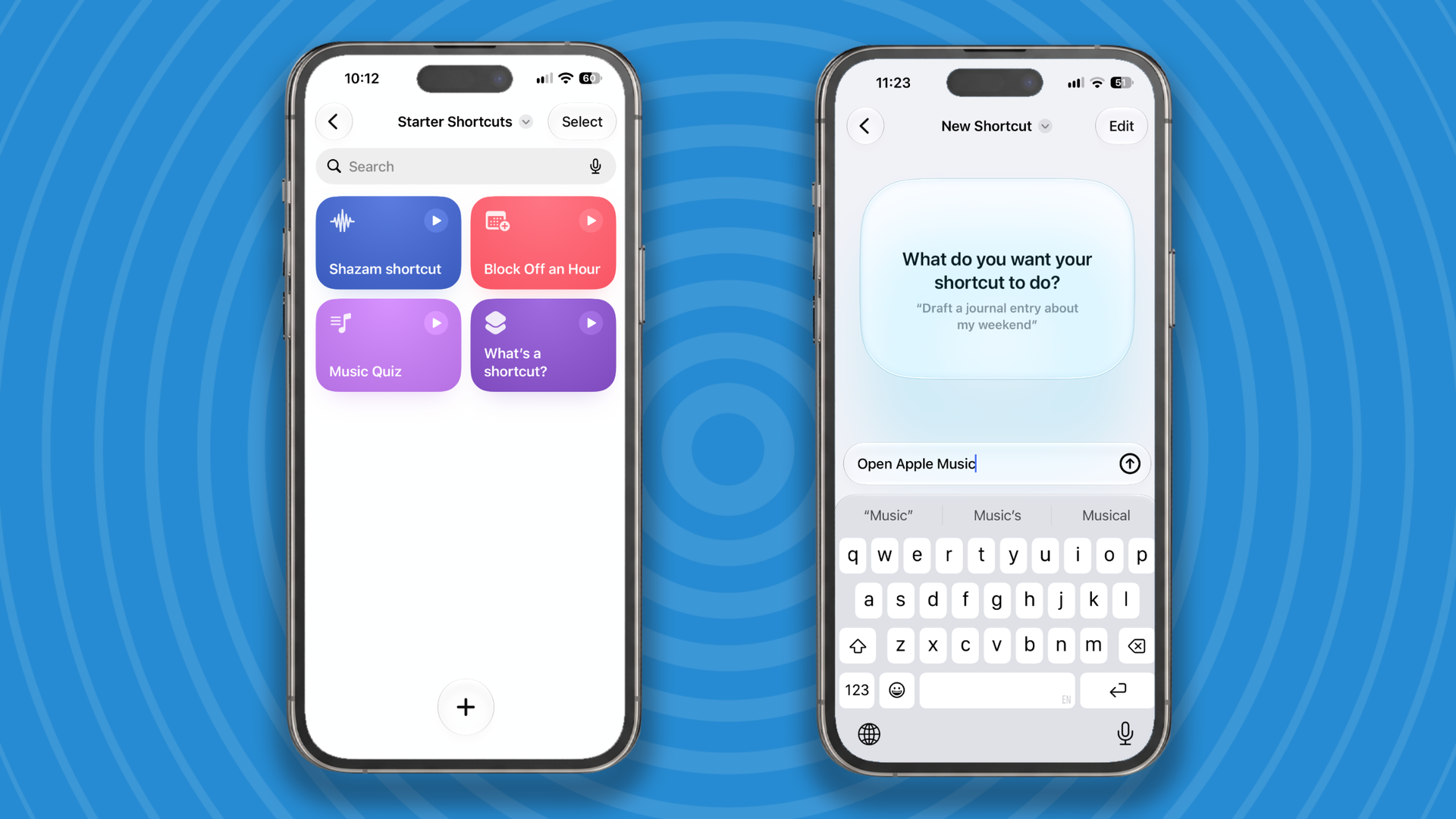
Next you need to load up the Shortcuts app and tap the + button at the bottom of the screen to create a new shortcut. Type “Open Apple Music”, when it asks you what you want the app to do.

Step 3
Apple Shortcuts on iPhone.

(Image credit: Apple)

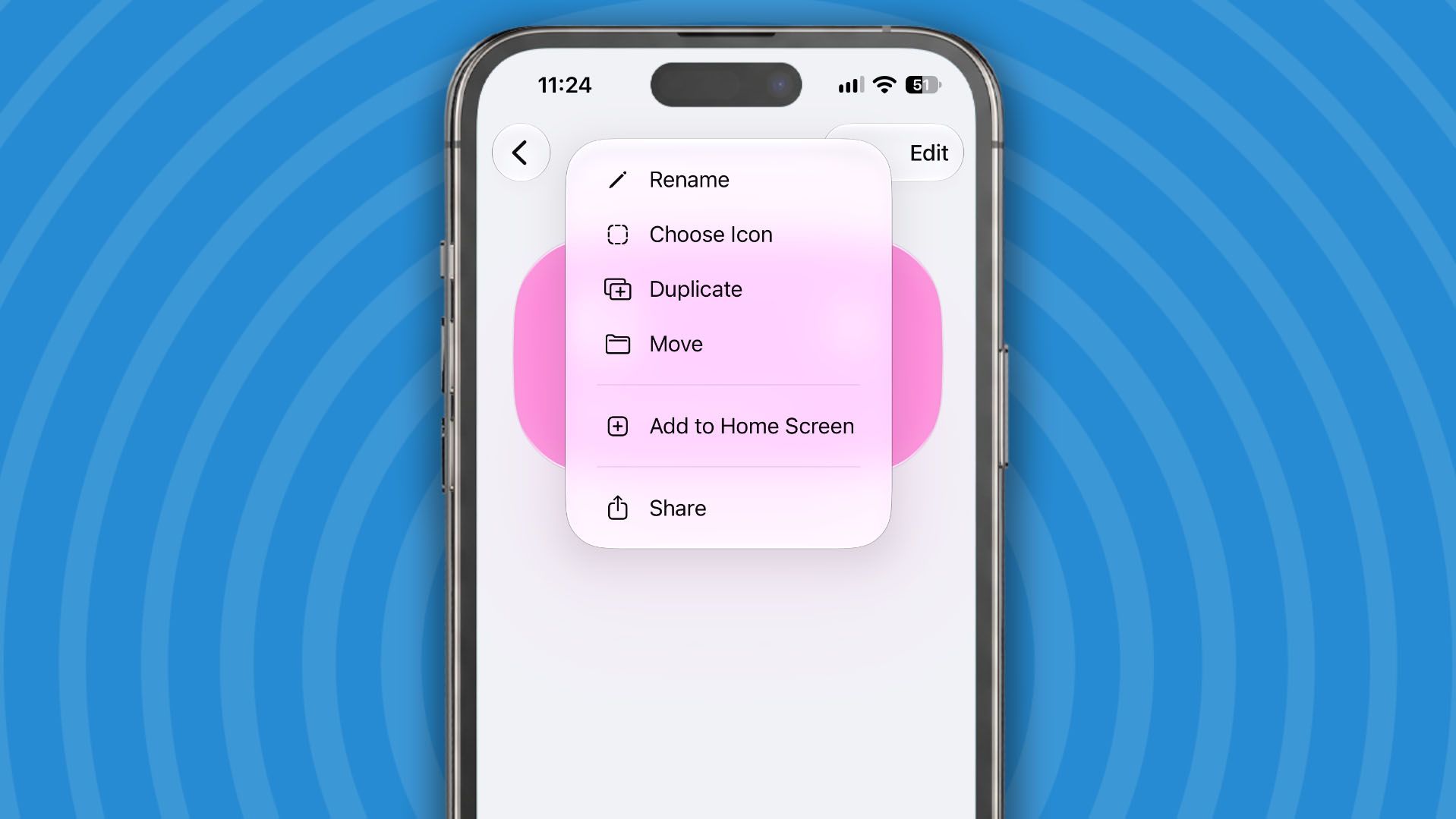
After a couple of seconds, iOS27 will create the shortcut. Now you need to add it to your Home Screen. Tap on the Open Apple Music name at the top of the screen and from the menu that appears choose Add to Home Screen.

Step 4
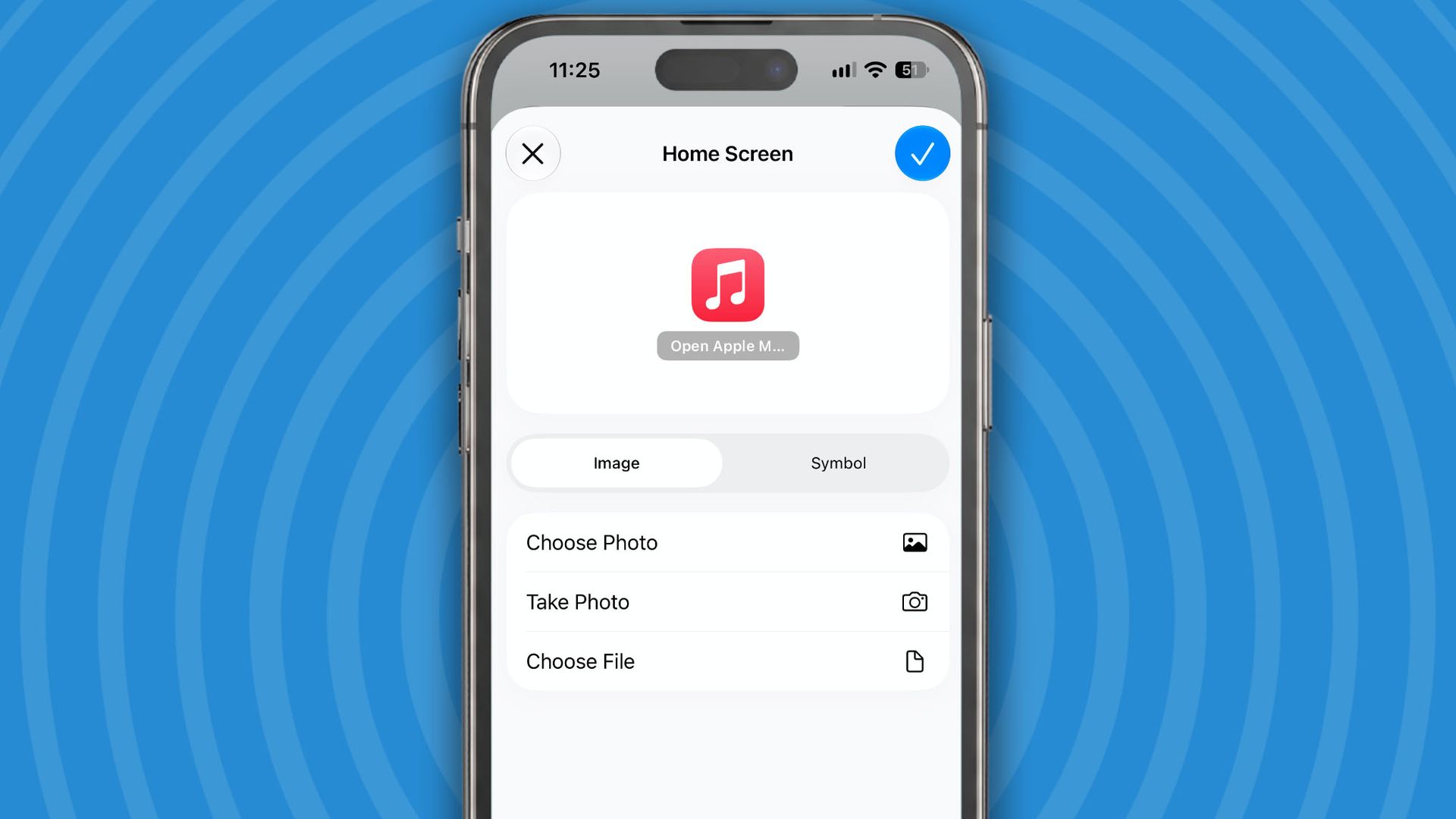
Using the Shortcuts app on iPhone.

(Image credit: Apple)

You now get the chance to add your screenshot as the icon for the new Shortcut you've created. Tap on Image then Choose Photo, and select the red Apple Music icon image, then Choose. Now tap on the blue tick icon and you’re done.

Step 5

Now you have the old Apple Music icon back on your Home Screen. Just press and hold on any icon and select Edit Home Screen from the menu that appears to move the new icon where you’d like it to go. For me that’s on the first page.
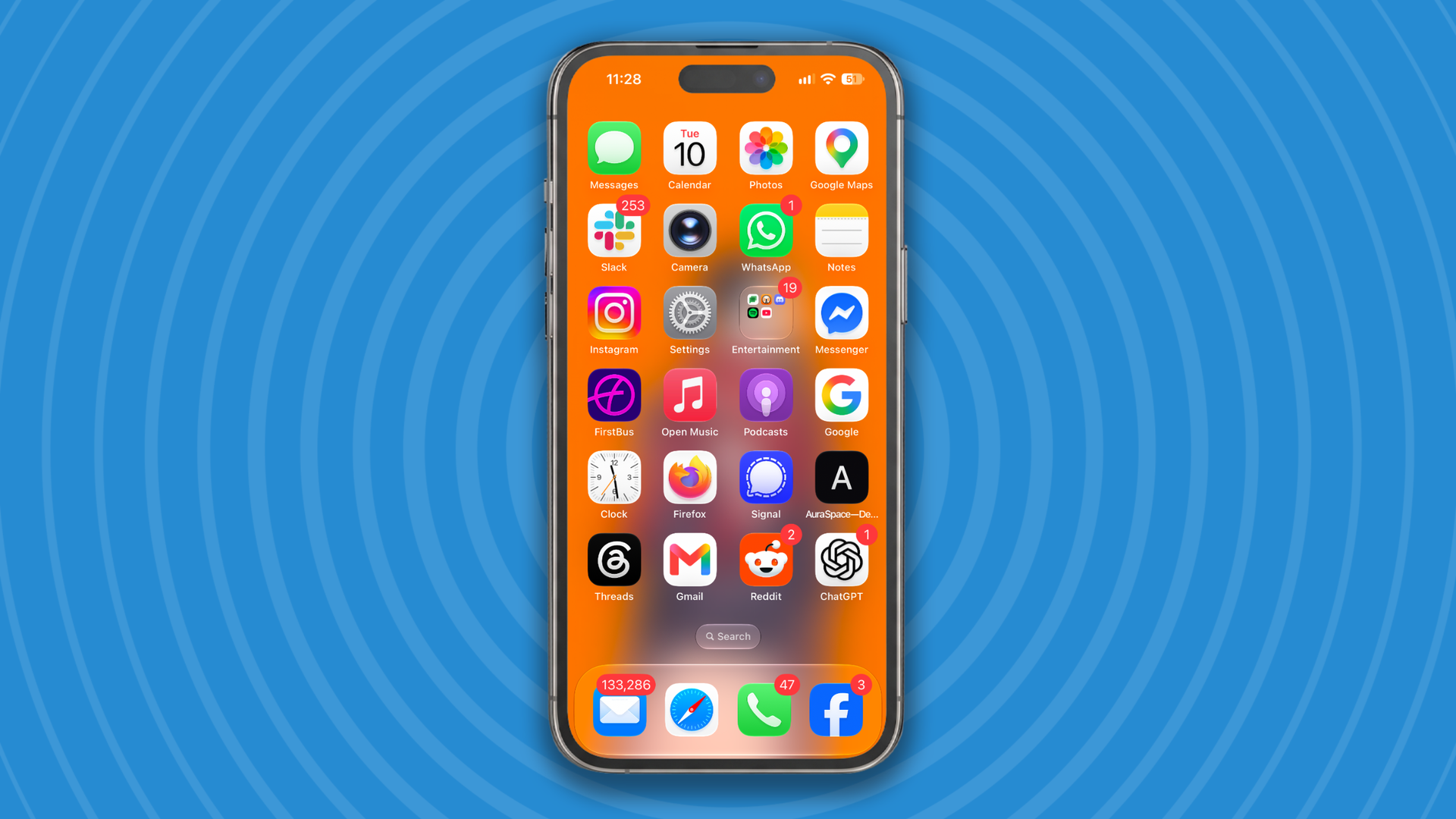
iPhone.

(Image credit: Apple)

So, after a few short actions you should have got your red Apple Music icon back. Apple might be able to change their icons on a whim, but thanks tot he Shortcuts app you can always change them back.

Let me know how you get on trying this in the comments below.
1 in 8 Brits have used AI to write their Christmas cards

  • 1 in 8 Brits have used AI to write their Christmas cards
  • A psychologist warns that there’s a big difference between using AI to spark an idea and getting it to write the whole message
  • 80% of Brits say a handwritten card feels more special than a digital message

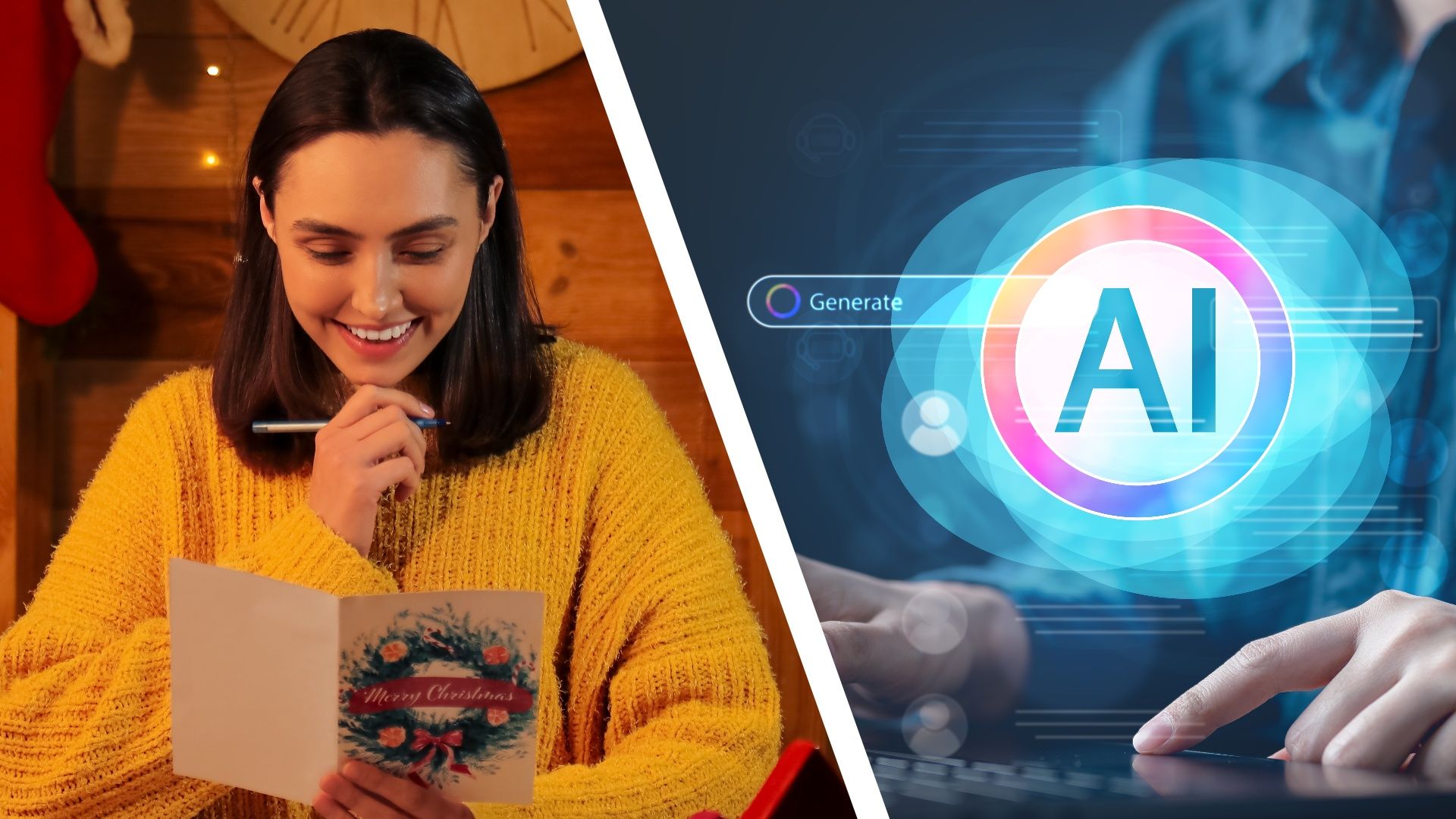
There's something undeniably special about receiving a handwritten Christmas card at this time of year; but according to a new survey of 2,000 adults, around one in eight Brits (that’s an estimated 8.3 million people) say they’ve used AI tools to help them write sentimental messages in their cards.

The question is, should we really be handing over such a personal task to AI? While I agree that rituals like writing Christmas cards can help to get you in the festive mood, and some people find writing them calming and stress reducing, it’s also a bit of a chore for some; so I can sympathize with people wanting to outsource the job to AI. However, it does feel like there's something inherently wrong with using AI for this task.

Psychologist Eloise Skinner warns that there’s a big difference between using AI to spark an idea and getting it to write the whole message. “Challenging oneself to write a heartfelt, emotional message from their own perspective is much more rewarding and meaningful”, she says. “Many of us will have strong memories of childhood Christmas activities, and it might also make us remember previous family gatherings or positive associations we had in past years.”

Christmas is coming

The study, from festive family holiday specialist Santa’s Lapland, also found that even though the tradition of writing Christmas cards is becoming less popular, with 66% of Brits admitting that they write fewer cards than they used to, there’s a new trend for sending a digital Christmas card, with 46% saying they’re more likely to send an electronic greeting either by social media, text or email.

Once you’re sending a digital message at Christmas, it becomes so much easier to get AI involved, since you’re only a copy and paste away from a message you don't need to devote mental headroom to thinking of yourself. Perhaps that’s another good reason for continuing to send handwritten cards this year — it makes it so much less tempting to turn to AI for help.

Further evidence

If you need any further evidence that you should be writing your own Christmas cards by hand, the study also revealed that four in five (80%) say a handwritten card feels more special than a digital message, while more than six in 10 (61%) say writing cards helps them get into the festive spirit.

If you need some tips, then Skinner recommends starting by listing the things you genuinely want to say to someone, then identifying the ideas that matter most. She also suggests drafting the message in a notes app or journal before writing it in the card, arguing that taking your time is part of what makes the experience meaningful.

After all, if you’re getting ChatGPT to express in words how you genuinely feel, how is that different to simply signing your name under the prewritten message in a card?

ChatGPT Images 2.6 is here, and it can turn your photos into animated GIFs

OpenAI has just released ChatGPT Images 2.6 across all subscription levels, including Free. It’s only a 0.1 upgrade to the previous Images 2.5, so it should come as no surprise that not that much has changed. In fact, there are only two new features, but they’re both worth your attention.

Firstly, you can now use ChatGPT to make animated GIF images, and second, you can now upload a persistent reference image, so you don’t need to keep uploading it when requesting a lot of different edits.

The first change is perhaps the most immediately interesting, but the second one could become more useful in the long run.

More cat GIFs, please

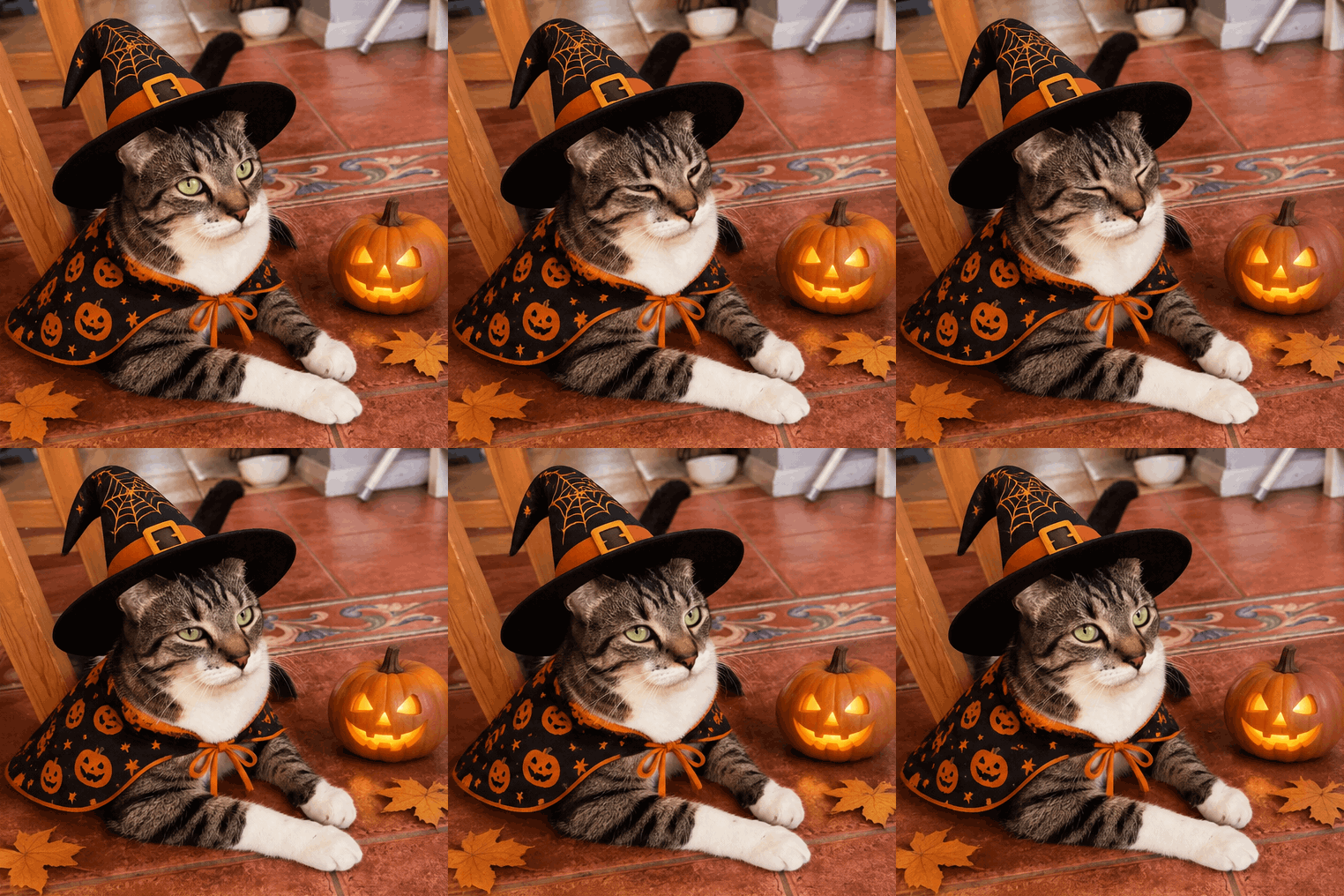
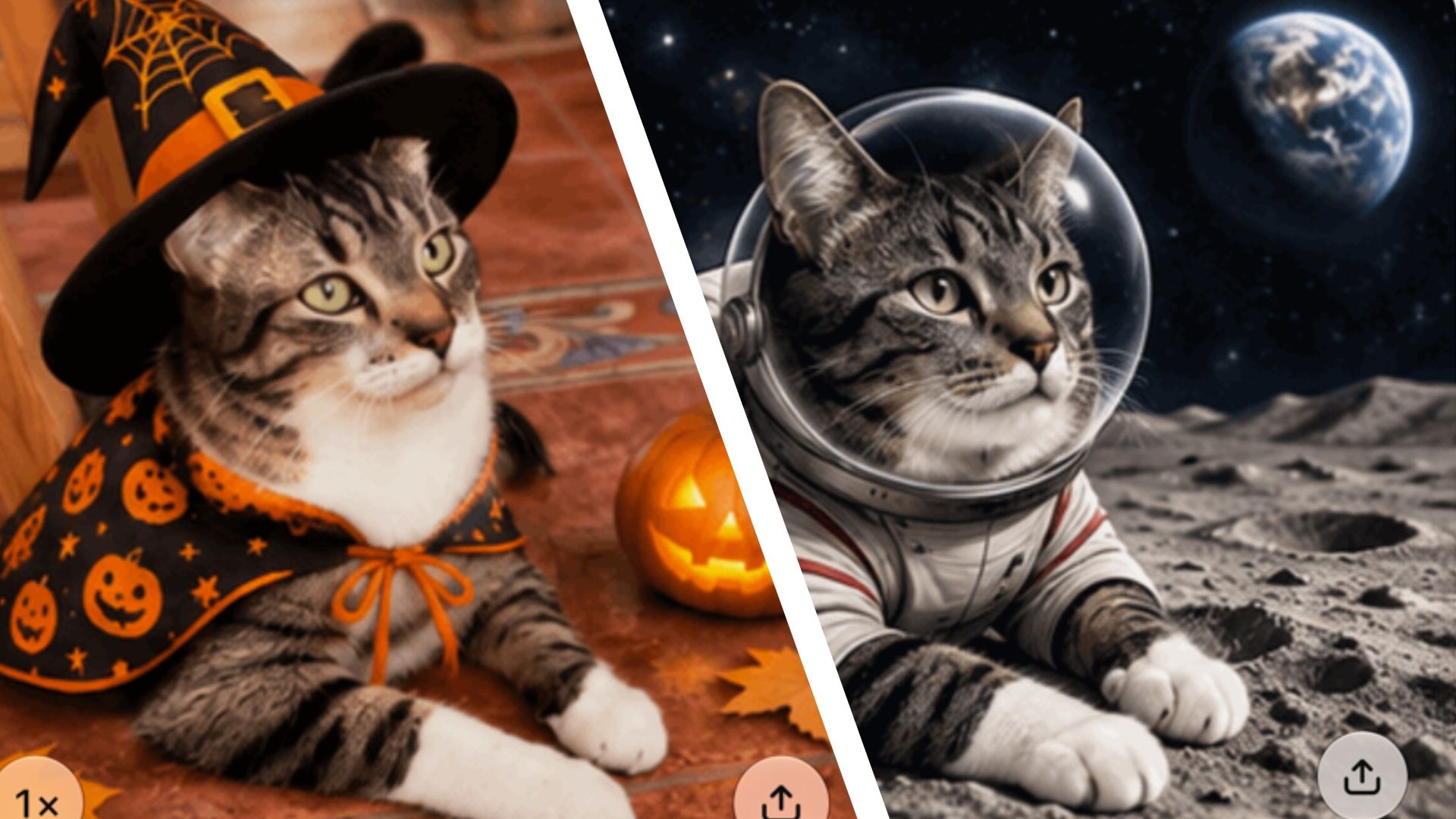
The Internet can never have enough cat GIFs, so naturally I decided to try the new feature on a photo of my cat, Chester. While Halloween has just been and gone, I thought I’d use that as inspiration for the sort of image I wanted to make of my cat. I used a fairly simple prompt: “Can you make a Halloween GIF of my cat to share with family?”

ChatGPT obliged without any objection, and transformed my cat into a feline wearing a Halloween-themed hat and cape and blinking slowly as a pumpkin flickered in the background. It’s especially fun for my family because there’s no way he’d ever let a human dress him up like this.

Once you’ve created your GIF it gives you a shareable link, so you don’t need to host it anywhere if you want to link people to it. Alternatively, you can download it or share it straight to X, LinkedIn and Reddit.

Slow-blinking cat for Halloween.

(Image credit: OpenAI / Graham Barlow)

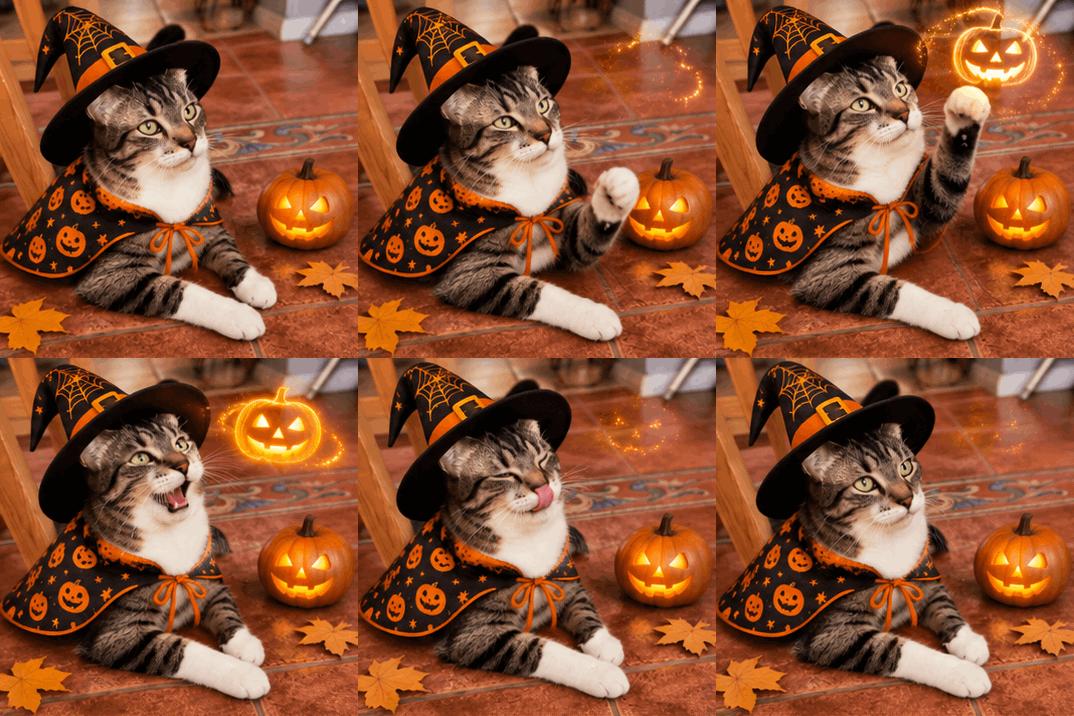
What ChatGPT produced was ok, but it was hardly going to set the Internet on fire, so I followed up with “That's cool, but it's not very active, can you make it more active please? Get creative.”

“Now we're talking!”, replied ChatGPT. “Your cat's gone full witch mode — casting a spell with a raised paw, conjuring a floating, glowing pumpkin, then giving a triumphant little meow before licking their lips. A proper bit of Halloween mischief!”

Animated cat for Halloween.

(Image credit: OpenAI / Graham Barlow)

Indeed, the resulting GIF was much better, and Chester's movements looked realistic. I think this shows how important your prompt writing is — don’t be afraid to ask ChatGPT to get creative.

Time and time again

Of course, I might want to produce a GIF of this photo for a different occasion in the future so I asked ChatGPT: “Can you save the original photo as Chester so I can reference it again?”

After thinking for a second, it saved the photo as a reference image called Chester. It made a point that it was saving the original snap, not the Halloween versions, and said “In future chats, you can simply say something like: ‘Create a picture of @Chester dressed as a pirate.’ And I'll be able to use his original appearance without you needing to upload the photo again.”

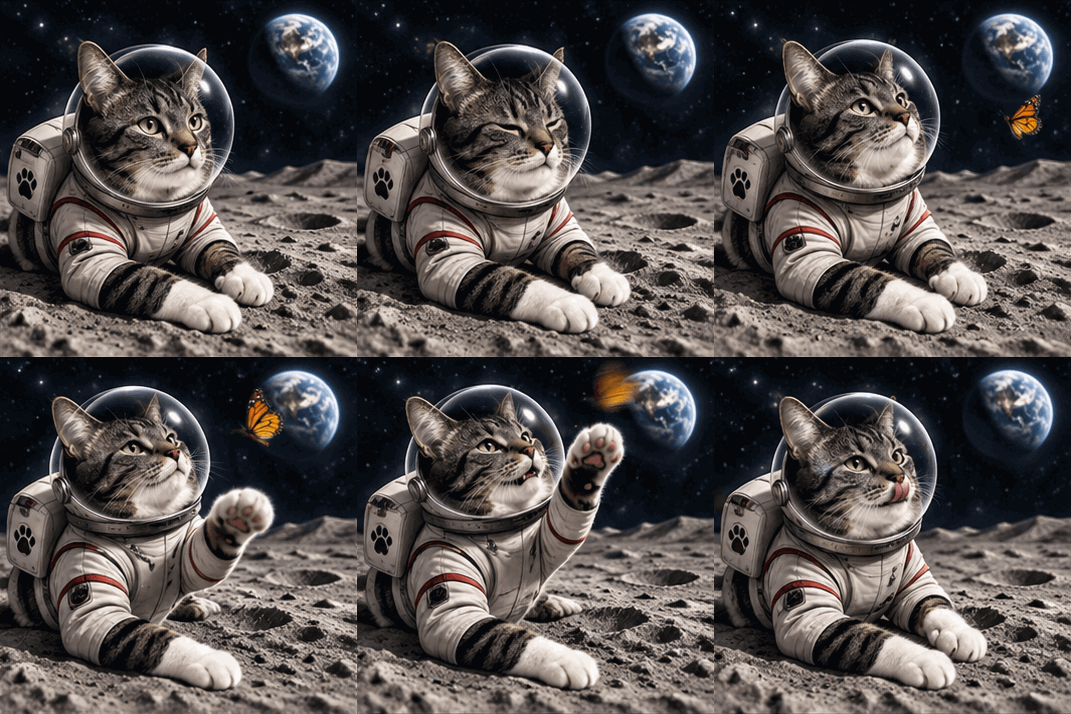
I tested it with the prompt “Make a GIF of @Chester on the moon” and it provided one of Chester as an astronaut chasing a butterfly. How the butterfly was surviving on the moon, and how Chester was surviving when his ears poked through his space helmet, I don’t know, but I’ll go with it anyway.

Chester's lunar butterfly chase

(Image credit: OpenAI / Graham Barlow)

Saving a reference image is a genuinely useful new feature. It might not be as flashy as the GIF creation, but I think it’s going to come in handy for the future. Overall I’m pretty happy with the Images 2.6 update. Nothing major has changed, but it’s nice to know I can now create a GIF from an image whenever I want, using ChatGPT’s natural language input method.

The best thing about Images 2.6 is how little effort it takes to get something fun out of it. I didn't need animation software, any technical knowledge or even a particularly clever prompt. All I needed was a picture of my cat and a willingness to let ChatGPT get creative. And now that Chester is saved as a reference image, I suspect this won't be his last starring role.

❌