❌

Reading view

There are new articles available, click to refresh the page.

Snap Specs are big, bold, and quirky, but they can't turn me into Tony Stark

I’ve gotta hand it to Snap. Making Robert Downey Jr., A.K.A. Tony Stark/Iron Man, the honorary Chief Customer Experience Officer for its sixth-generation Specs AR glasses, is a stroke of genius. The move instantly transformed the chunky glasses from an object of derision to one of possible envy. After all, if Tony Stark, who fictionally built a robot suit from scratch and compressed access to all his core technology into E.D.I.T.H. sunglasses, loves them, then the AR-capable Specs must be pretty good.

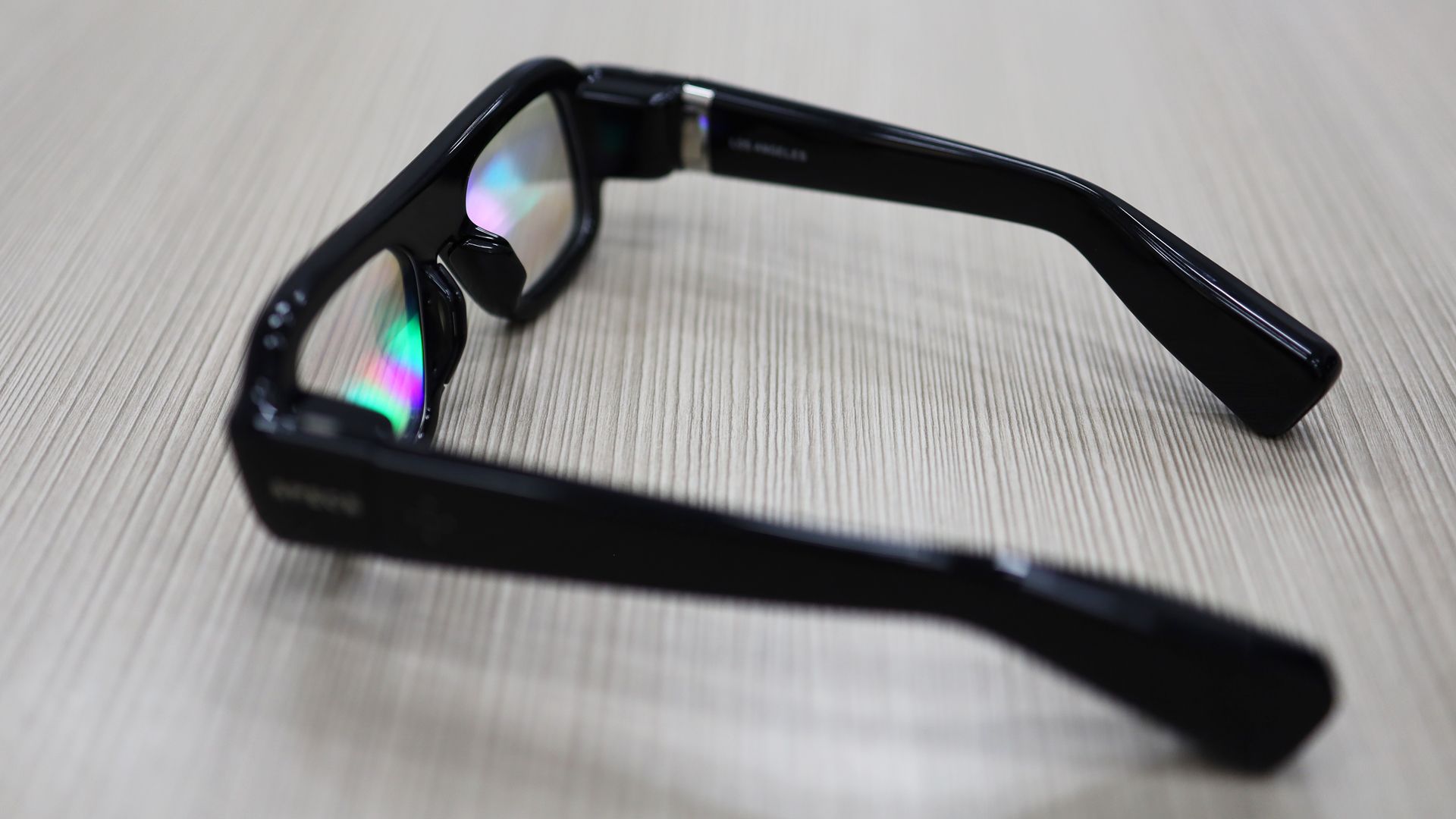
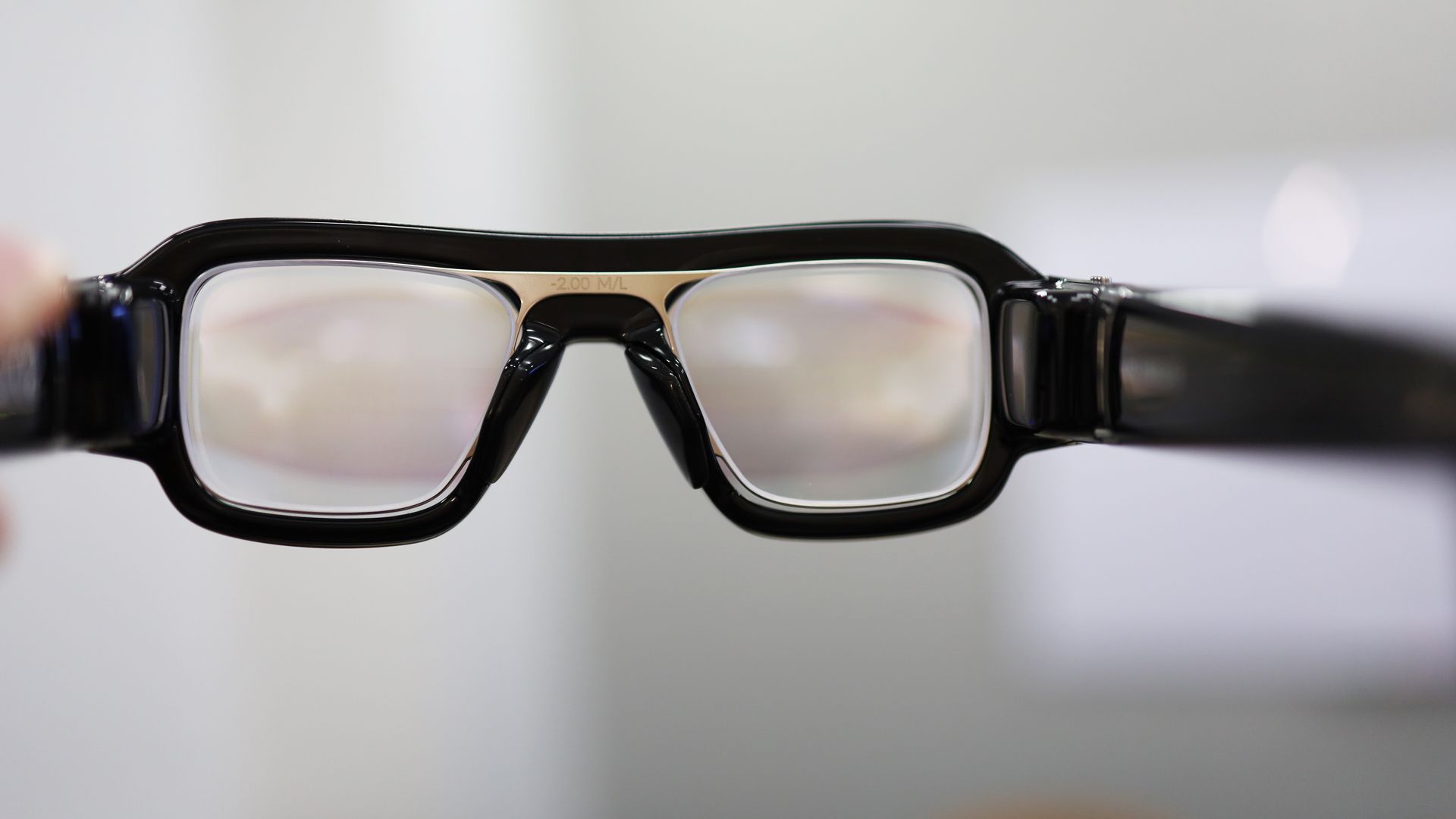
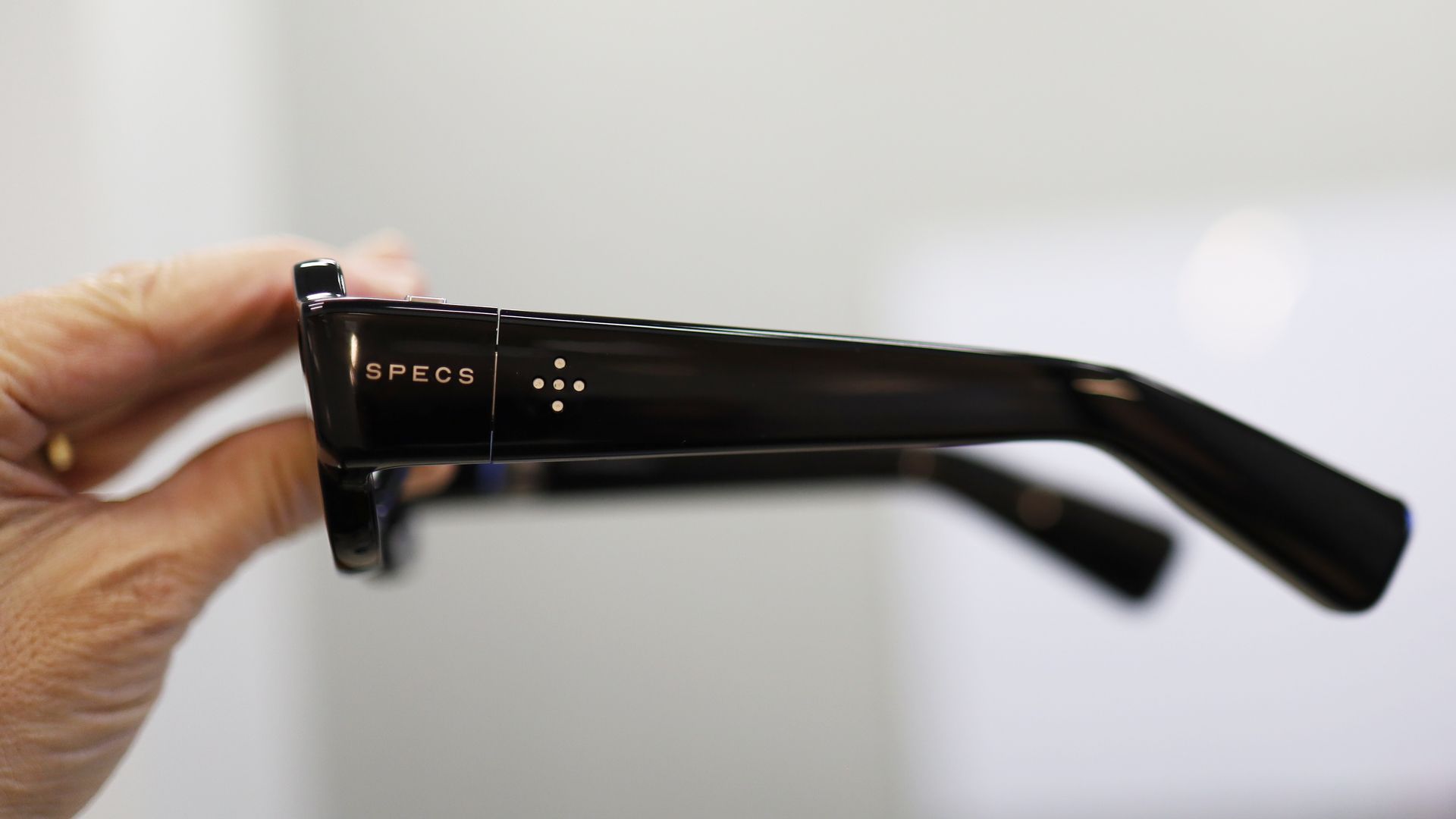
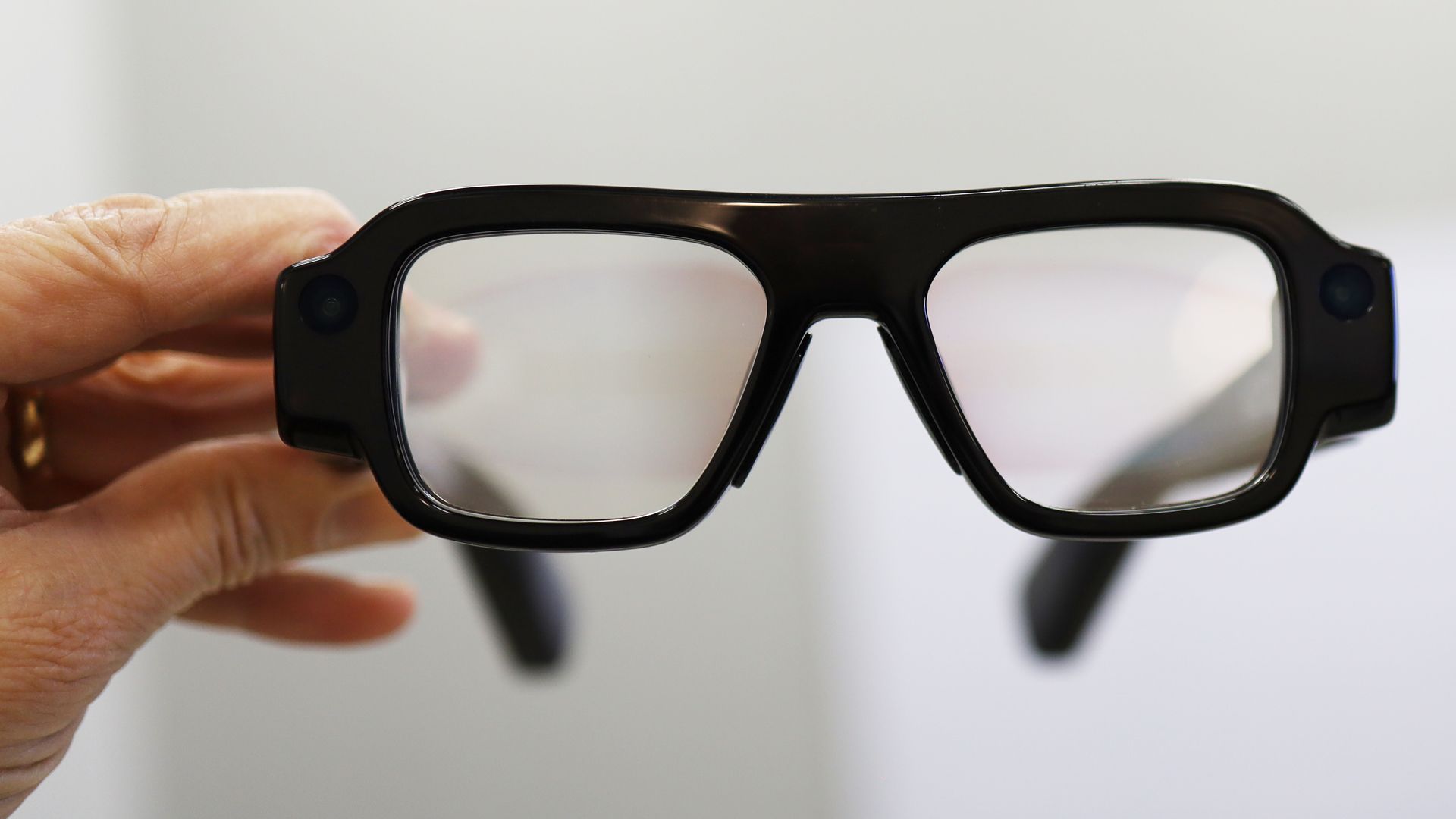
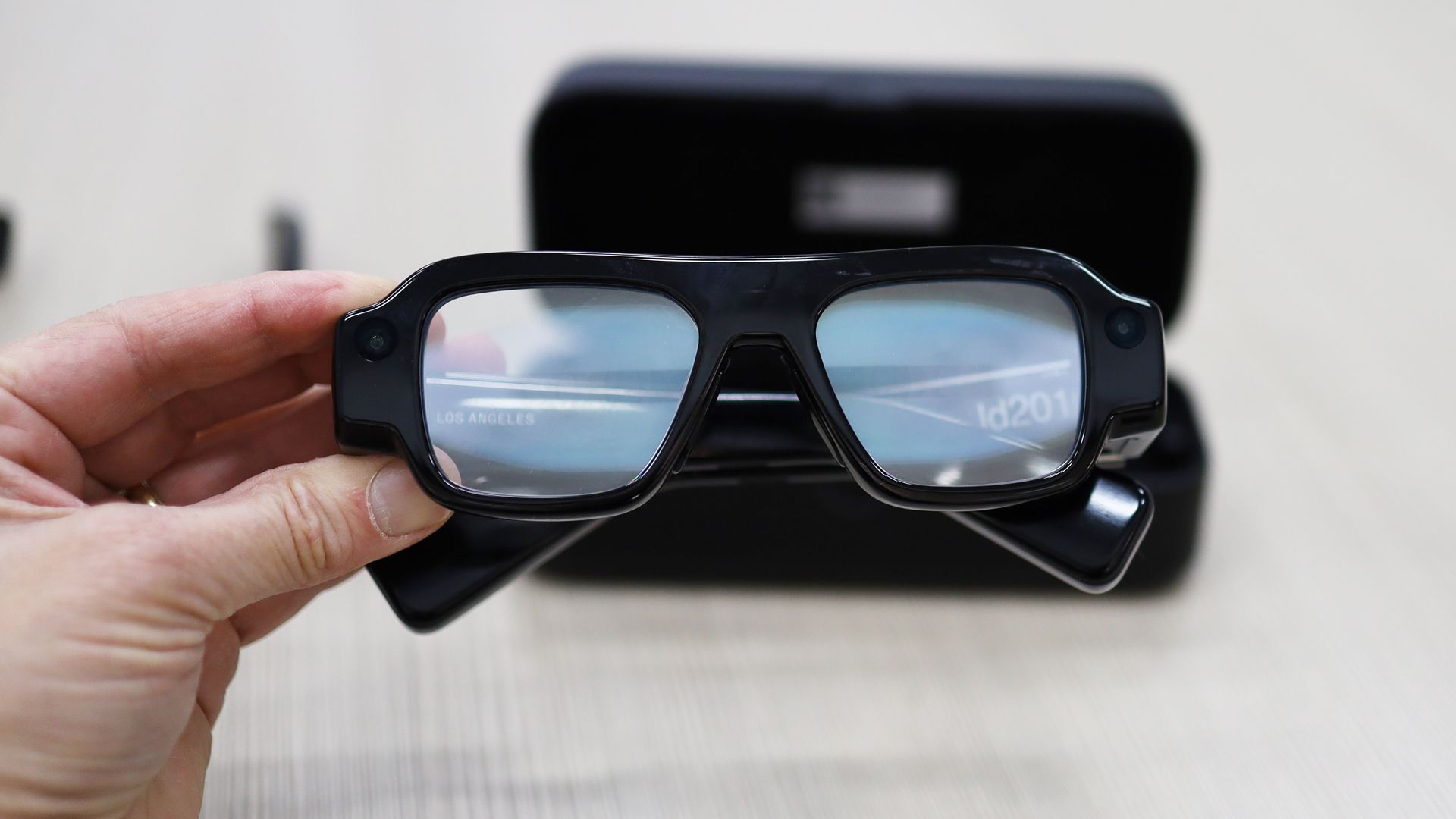
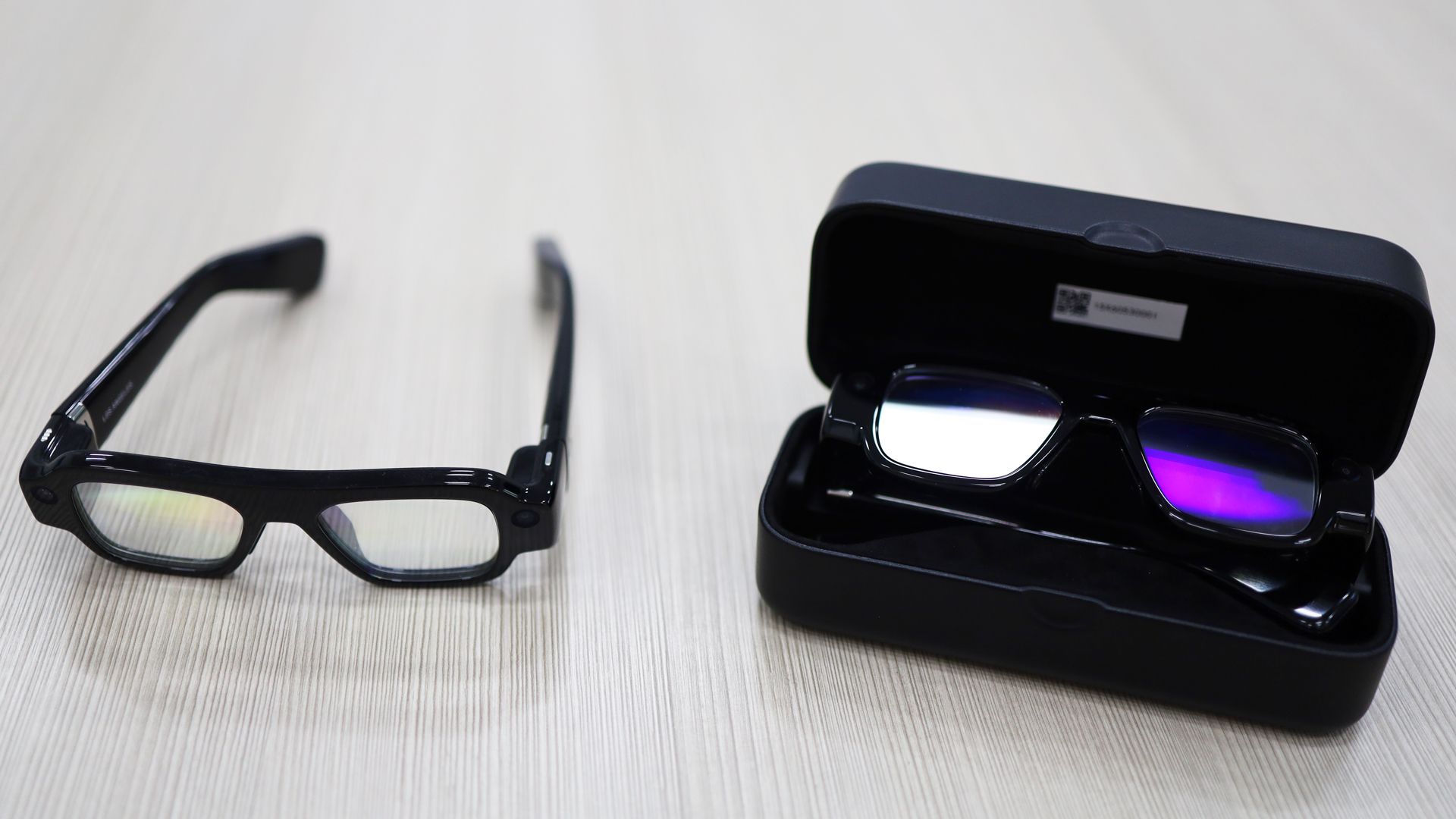
Of course, leaving aside the celeb and hero worship, the truth falls somewhere in the middle. The all-black Snap Specs, announced in July and which I tried this week, are so thick that you can’t help but make a statement about fashion choices when wearing them; they look even more extreme in profile. To be fair, Snap is not pitching its wearable glasses as permanent eyeglass replacements. Sure, the pair I wore accepted snap-in prescription lenses from Lensly ($100), and you may wear them outside, where the electrochromic lenses will auto-dim, and then let them give you directions or guidance on your golf swing, but you won’t be wearing them all the time.
Snap Specs experience
Lance Ulanoff / Future
Snap Specs experience
Lance Ulanoff / Future
Snap Specs experience
Lance Ulanoff / Future
Snap Specs experience
Lance Ulanoff / Future
Snap Specs experience
Lance Ulanoff / Future

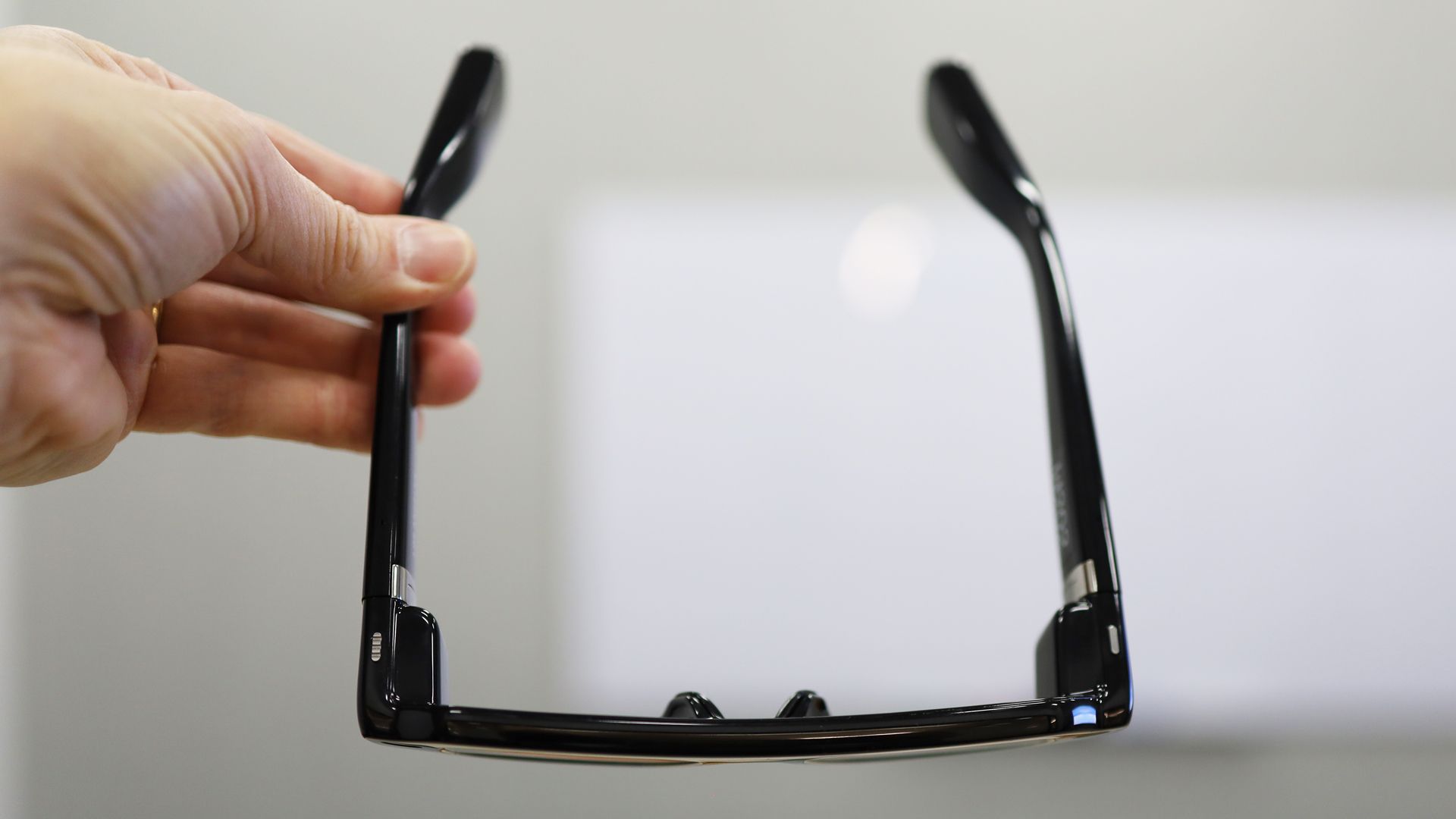
Though Snap has slimmed down the Specs with each successive generation, they are still big and thick enough to hold all your technology, including a pair of Qualcomm Snapdragon CPUs, storage, and battery. Not having a tethered battery and technology puck is a trade-off even Tony Stark might appreciate, but putting them on does feel a bit aggressive. The good news is that, at 132g, they are lighter on the face than they look, and I might even call them comfortable to wear.

A time and a place to boldly wear them

I appreciate the somewhat limited scope of this enterprise as compared to, say, Meta Ray-Bans or even Meta Ray-Ban Display smart glasses, and as I used them, I could see the potential but also the limits.

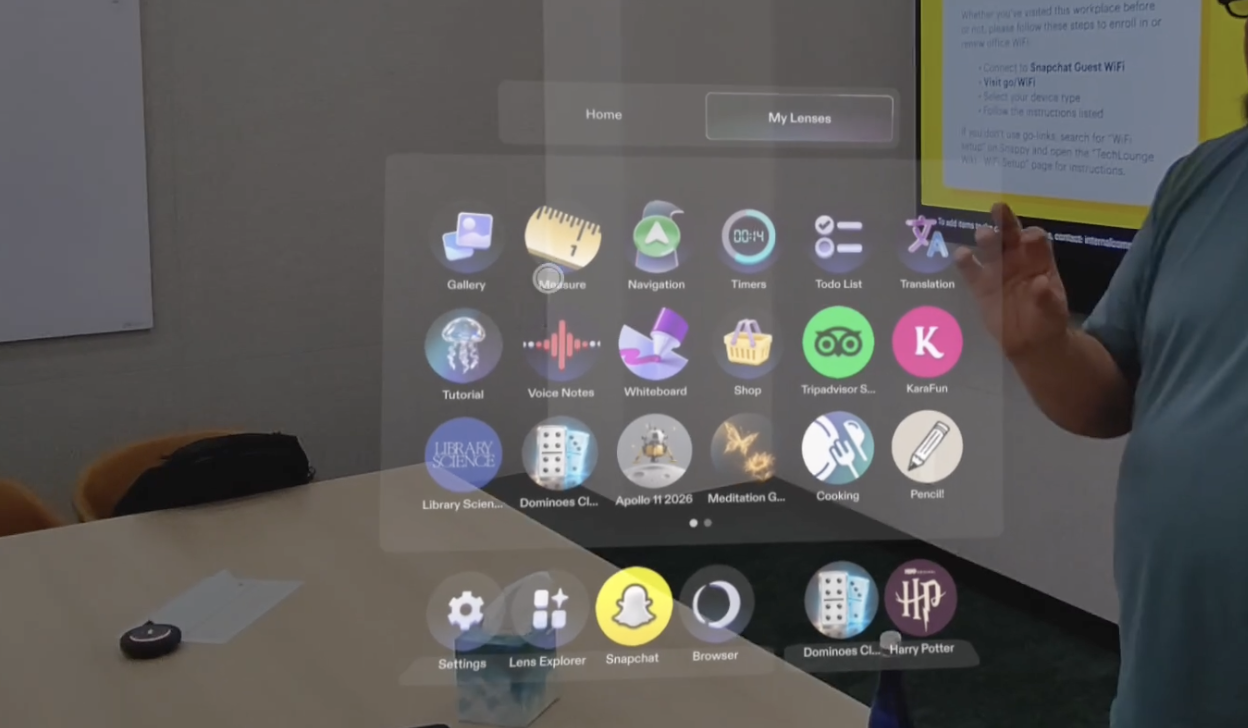
Unlike the Meta VR Glasses I wore last week, Snap Specs are not immersive. Instead, the Liquid Crystal on Silicon (LCoS) Waveguide lenses offer a relatively narrow 51-degree field of view (an improvement over the last generation). That floating window can stay fixed or follow your head turns, but in my experience, there were many times when my gaze slipped outside the relatively sharp visuals.
Snap Specs experience

(Image credit: Lance Ulanoff / Future)

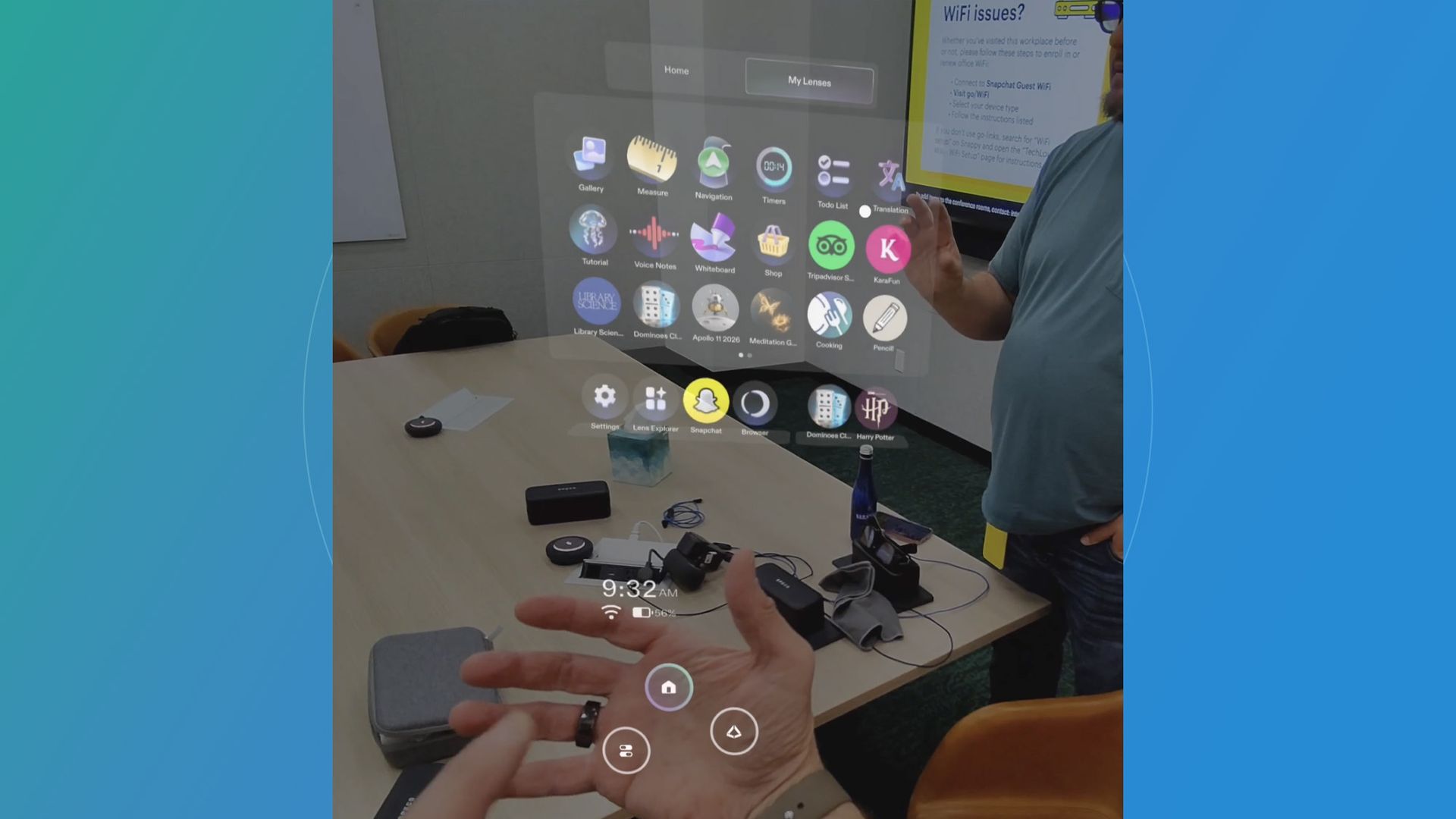
The control metaphors are similar to some VR/AR glasses I’ve tried: During the tutorial, I saw floating jewels that I had to reach out and pinch, and a jellyfish that I grabbed and dragged around before throwing it away. Point, press, pinch, and drag are your primary controls. Unlike many VR glasses (think Meta VR, Apple Vision Pro, Samsung Galaxy XR), there’s no gaze tracking, meaning Snap Specs have no idea where you’re looking.

Snap has spent years perfecting what I think is quite an intuitive gesture-based interface. I quickly got used to pinching and holding to activate, touch and press, and grab or press and drag. The main controls were in the palm of my hand; I turned over my hand, looked at my palm, and there was the home button.
Snap Specs experience

(Image credit: Lance Ulanoff / Future)

Specs uses its two black-and-white cameras, which sit just outside each lens, for world reading and tracking your hands. A third color camera sits in the middle of the frame for capturing photos and videos. Snap has not detailed the resolution on those captures.

To snap a photo, I long-pressed a control button on the top left edge. A quick press launched a 30-second video capture. At some point, I may have filled up the storage because I could no longer capture photos and video.

An AR app journey

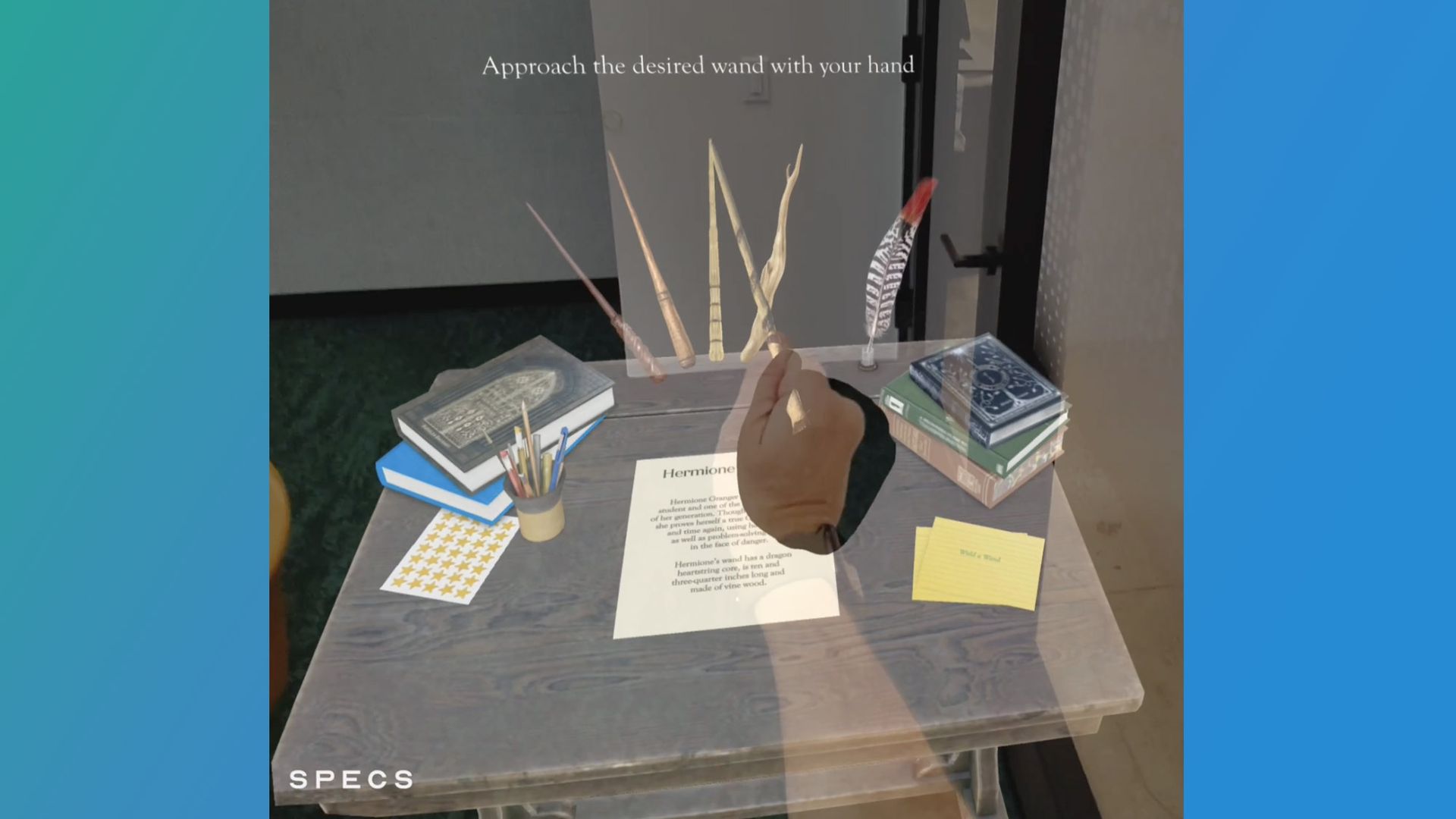
I tried several custom-built apps, including a Harry Potter adventure. Like many of the apps, Specs often starts by asking you to find a surface and stare at it long enough for the smart glasses to read its geometry and place an augmented reality element on it.

For Harry Potter, I placed a mailbox slot on the far wall and out flew dozens of letters. I held out my hand and one landed in it. I could use both hands to open it and see the letter telling Harry he was invited to Hogwarts. I also made a desk appear, selected a wand, and practiced spell motions (I'm no wizard, Harry). There was even an owl that would land on my arm, and that I could pet and feed.
Snap Specs experience
Lance Ulanoff / Future
Snap Specs experience
Lance Ulanoff / Future
Snap Specs experience
Future

I also navigated to the browser and opened YouTube, where I watched a cute cat video. The audio, which came through the stems, was loud and rich.

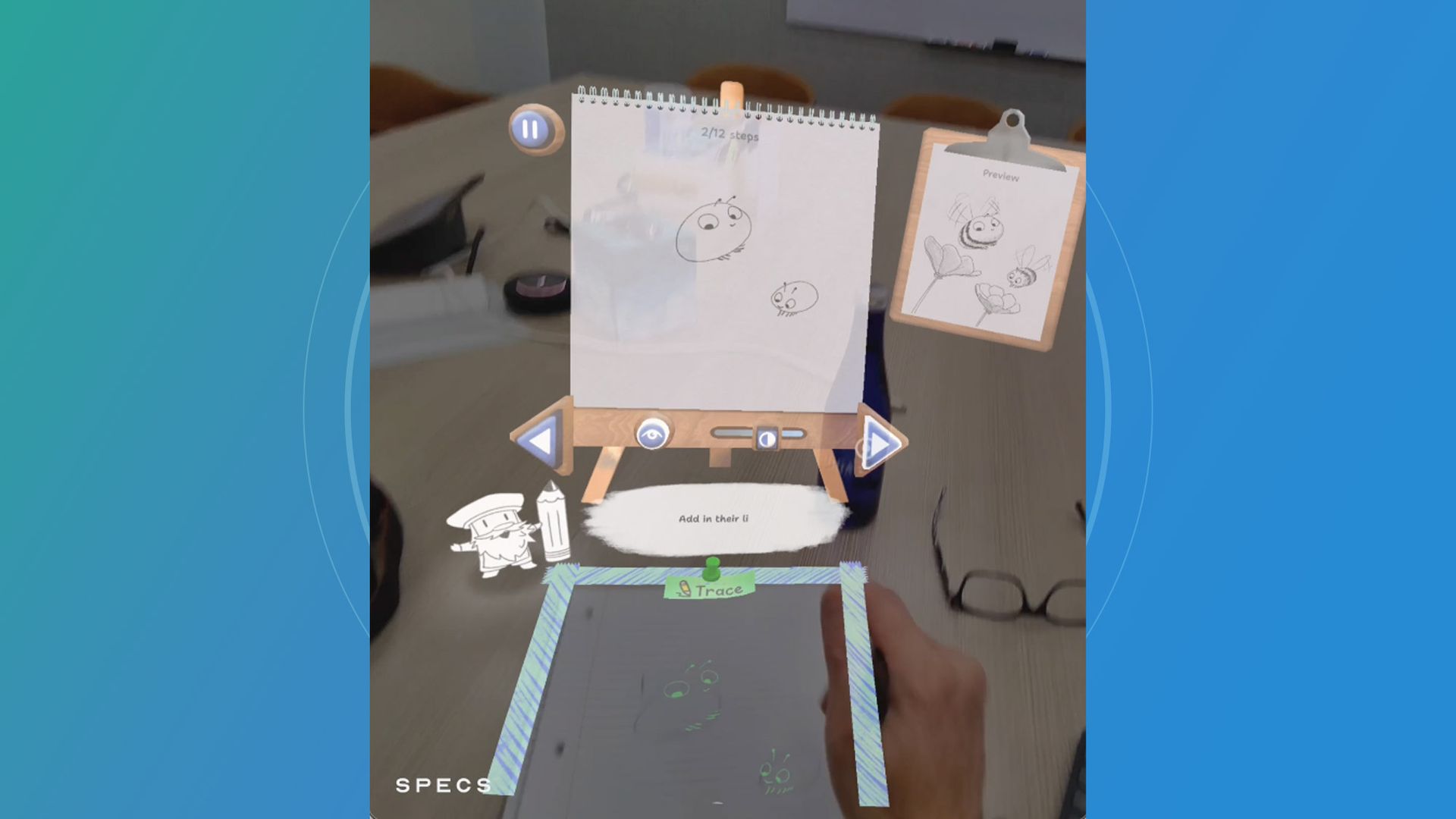
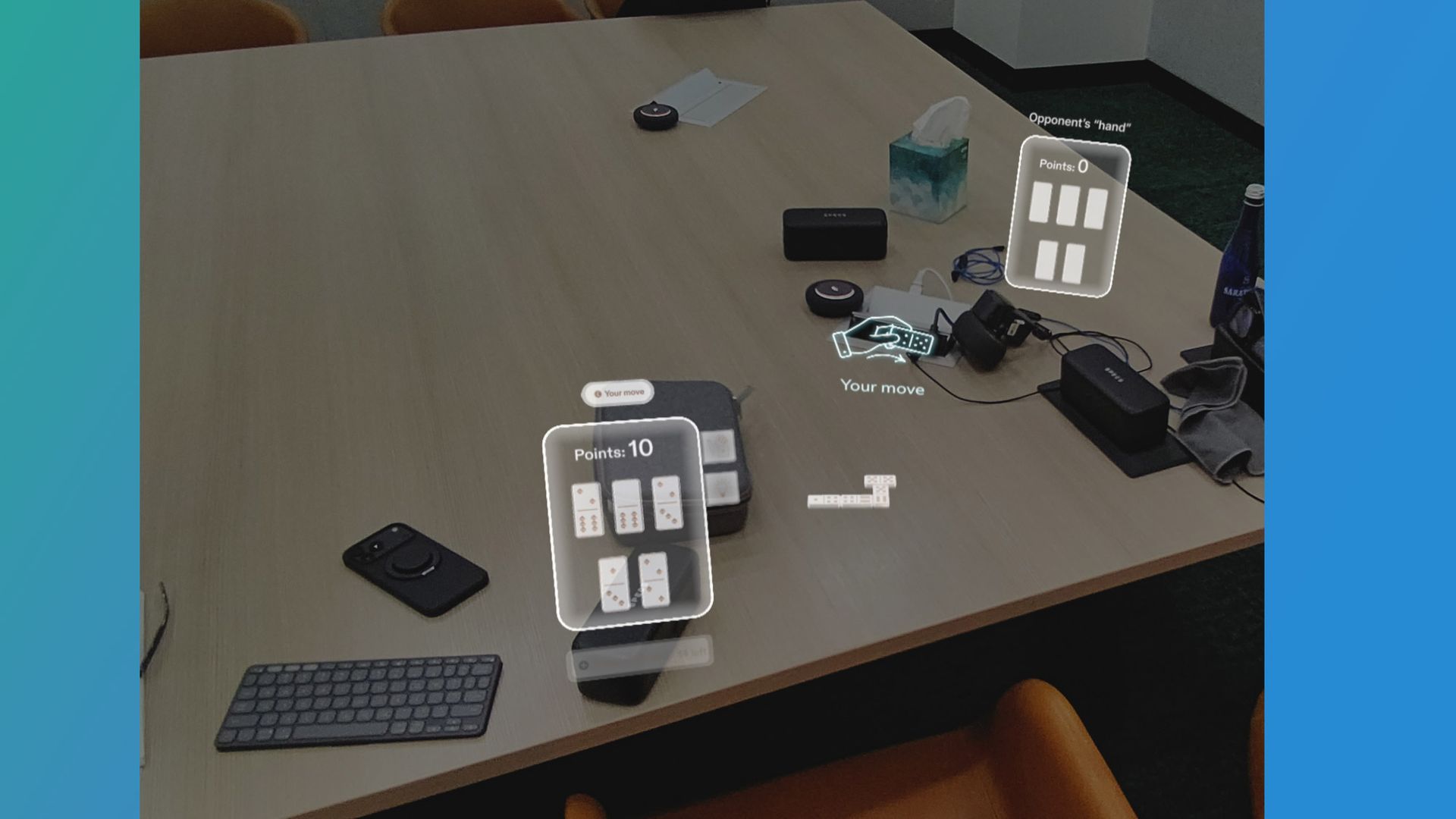
I played dominoes, measured some real-world objects, and practiced drawing. For the latter, I placed a real piece of paper on the table and recreated a tutorial image by following projected guidelines that appeared on my sheet.

Snap Specs are not necessarily designed for productivity, but you can, as I did during my demo, connect a physical Bluetooth keyboard. I'm a terrible typist, but honestly found the experience of trying to touch type while watching the smallish virtual screen unnerving. Unlike a physical screen that you can glance up at without really moving your head, you have to look up to see the virtual display. Trust me, you will not be typing your magnum opus on Snap Specs.

More refinement needed

Despite the two AR chips, some of Snap Specs operations seem a bit slow and pokey. I sometimes felt like I was waiting too long for apps to load, and it didn’t always seem to keep up with my hand motions.

Also, the drawing app made it clear that the AR anchoring technology needs some work. I noticed that my guidelines didn’t stay perfectly still, which made my bad artwork even worse.
Snap Specs experience
Lance Ulanoff / Future
Snap Specs experience
Lance Ulanoff / Future
Snap Specs experience
Lance Ulanoff / Future

I liked that the relatively narrow window could follow my head, but I still think that a 51-degree FoV is a bit small. Then there’s also the quality of the imagery. While Snap has not specified the screen resolution, I noticed that everything looked sharp and color-rich (16M colors), but I also saw some faint rainbowing, which I think might be a product of the waveguide technology.

I didn’t get to try it, but if you want a more contrasty image and do not need to see as much of the real world, you can activate the electrochromic lenses, which basically makes them semi-opaque and look like sunglasses, but also helps for viewing, say, movies and films.

Real world questions
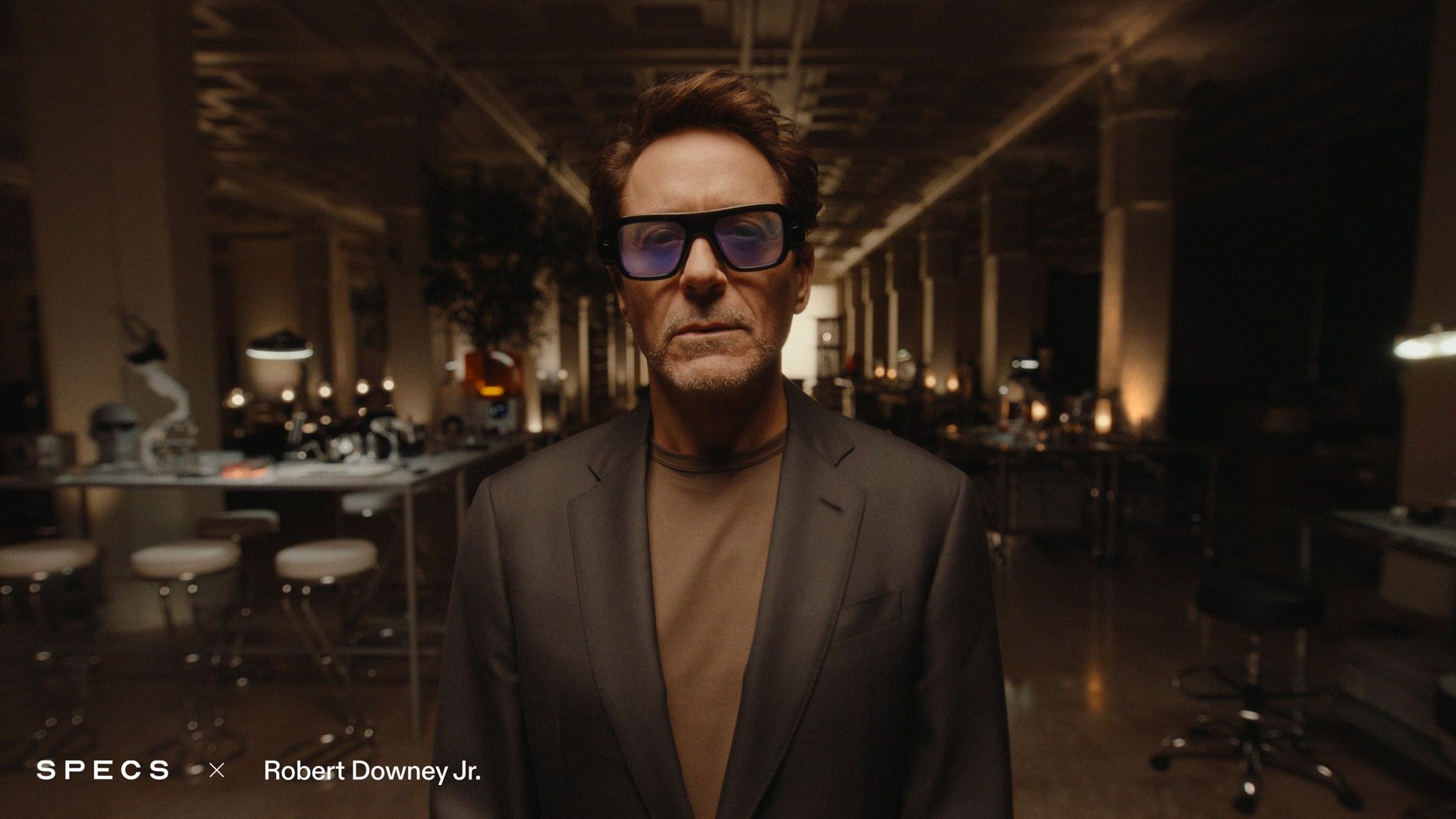
Robert Downey Jr. wearing Snap Specs

Robert Downey Jr. wearing Snap Specs (Image credit: Snap)

Snap Specs last about four hours on a charge, though I noticed that the lenses I was trying started around 50% and within 45 minutes were down to 13%. The chunky case will add four more charges.

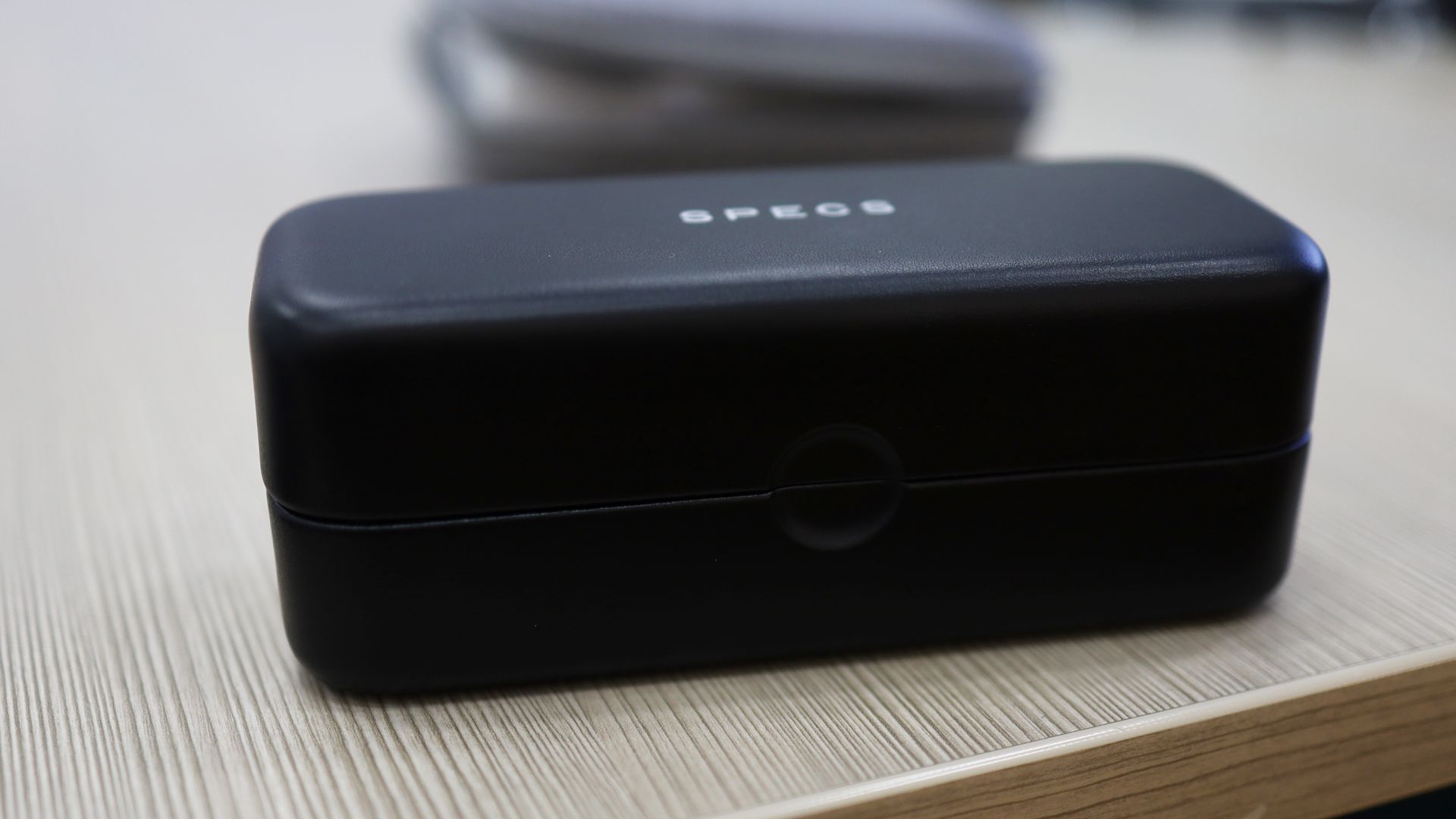
Oddly, Snap chose to put the LTE connectivity option inside that case, which means if you want on-the-go calling and connectivity, you need the case with you. Unless you have big coat pockets, you’ll need a bag or backpack to carry around that case.
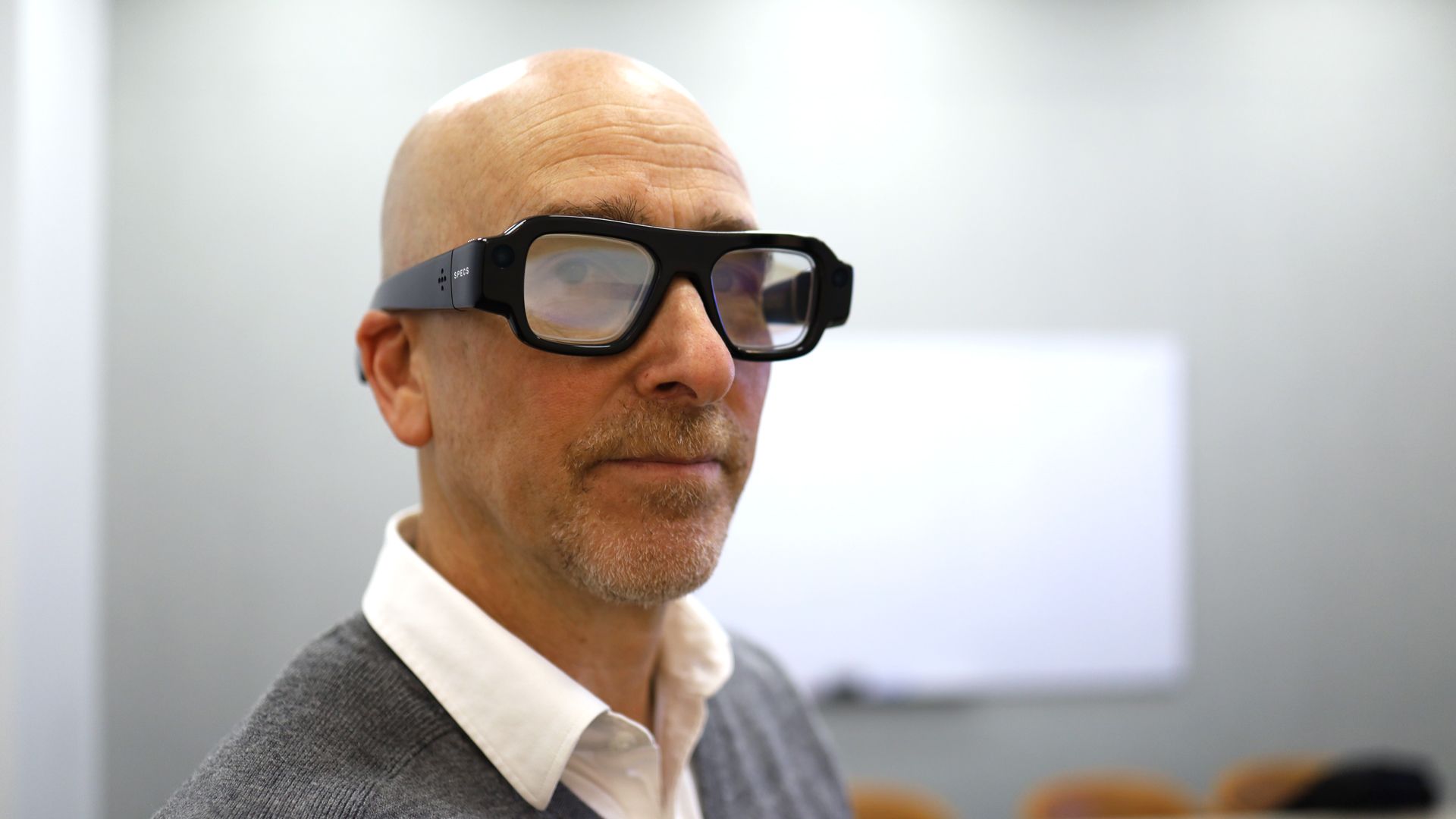
Snap Specs experience

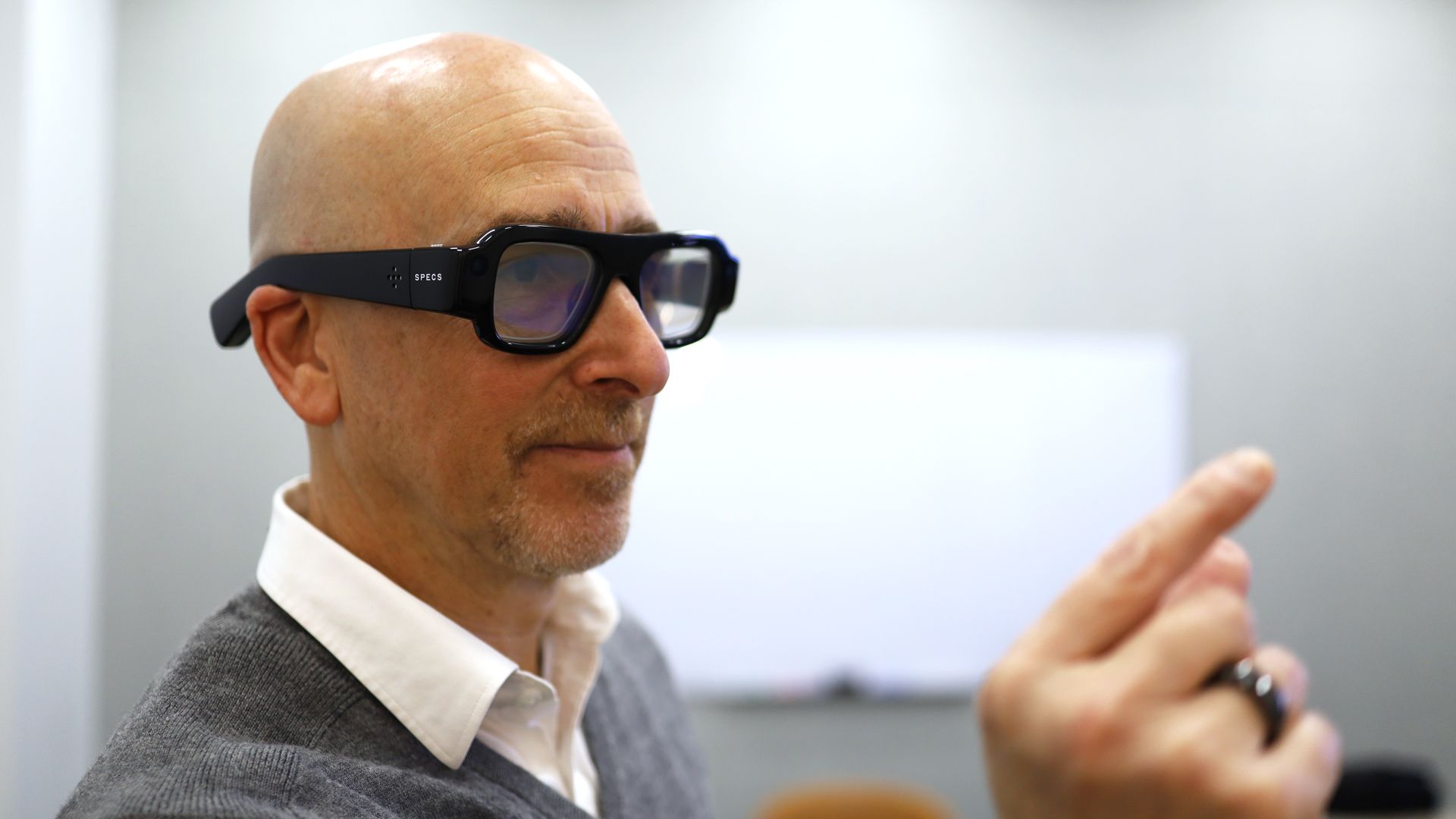
Your author wearing Snap Specs (Image credit: Lance Ulanoff / Future)

Snap Specs will start at an eye-watering $2,195, a price that clearly reflects the effort it took to keep all that technology inside the frames. If you want the LTE case option, it adds another $300. They’re already accepting preorders ($200 down payment) and expect to ship the glasses before the end of 2026.

The frames will also ship in the UK and France for £1,995 and €2,295, respectively. By contrast, the thinner, lightweight, and more immersive Meta VR Glasses start at $1,299, though they do have all the power and compute in a tethered puck.

There’s no question that Robert Downey Jr. makes these frames look cool, but in the real world, Snap Spec owners will have to decide where and when it’s appropriate to wear these camera-sporting smart frames, and if on-your-face compute that doesn’t really approach E.D.I.T.H. levels is worth $2,195.

Did you know TechRadar now has membership?

Various tech product cutouts next to the words 'Insider TechRadar Learn More'

(Image credit: Future)

Become a TechRadar Insider by simply clicking 'Join Now' at the top of this page. Have a question? Please email membership@techradar.com
Apple TV is adding American Sign Language to some films — and you don't need a browser extension

  • Apple is adding ASL support to the Apple TV app
  • It's only for a handful of titles for now
  • Unlike other streamers, the ASL option is integrated on the original title

The millions of deaf and hard-of-hearing people around the world usually have just one option when it comes to watching movies and films: closed captions. American Sign Language (or ASL, and its British counterpart, BSL) can help bring less reading and more visual interpretation to the viewing, but it takes people, time, and technology to integrate it into your favorite streaming services.

Some streamers, like Netflix, employ third-party plug-ins from Google or others to enable ASL overlays. Others, like Disney, Amazon, and HBO, create distinct versions of their content with built-in ASL overlays.

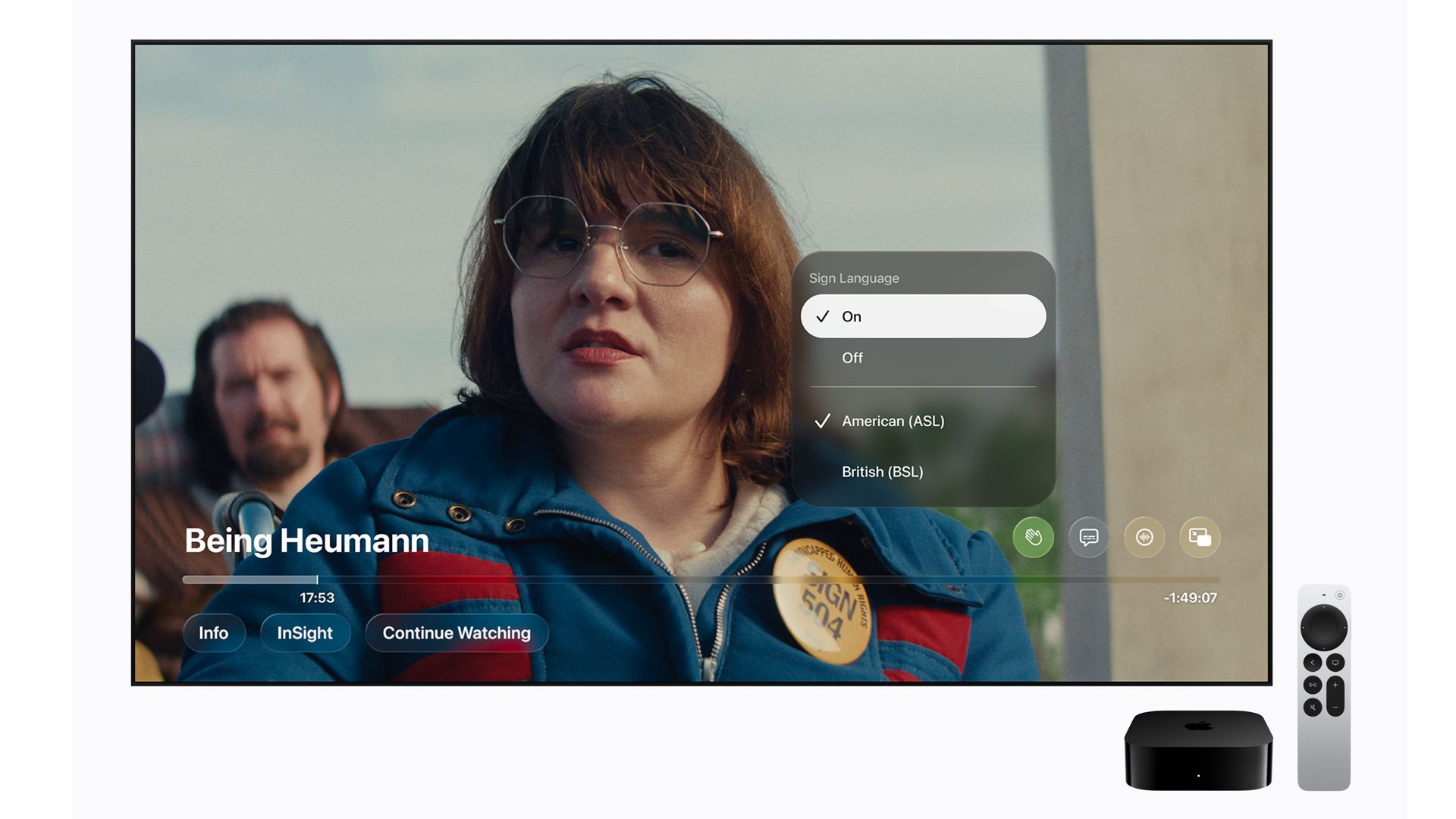
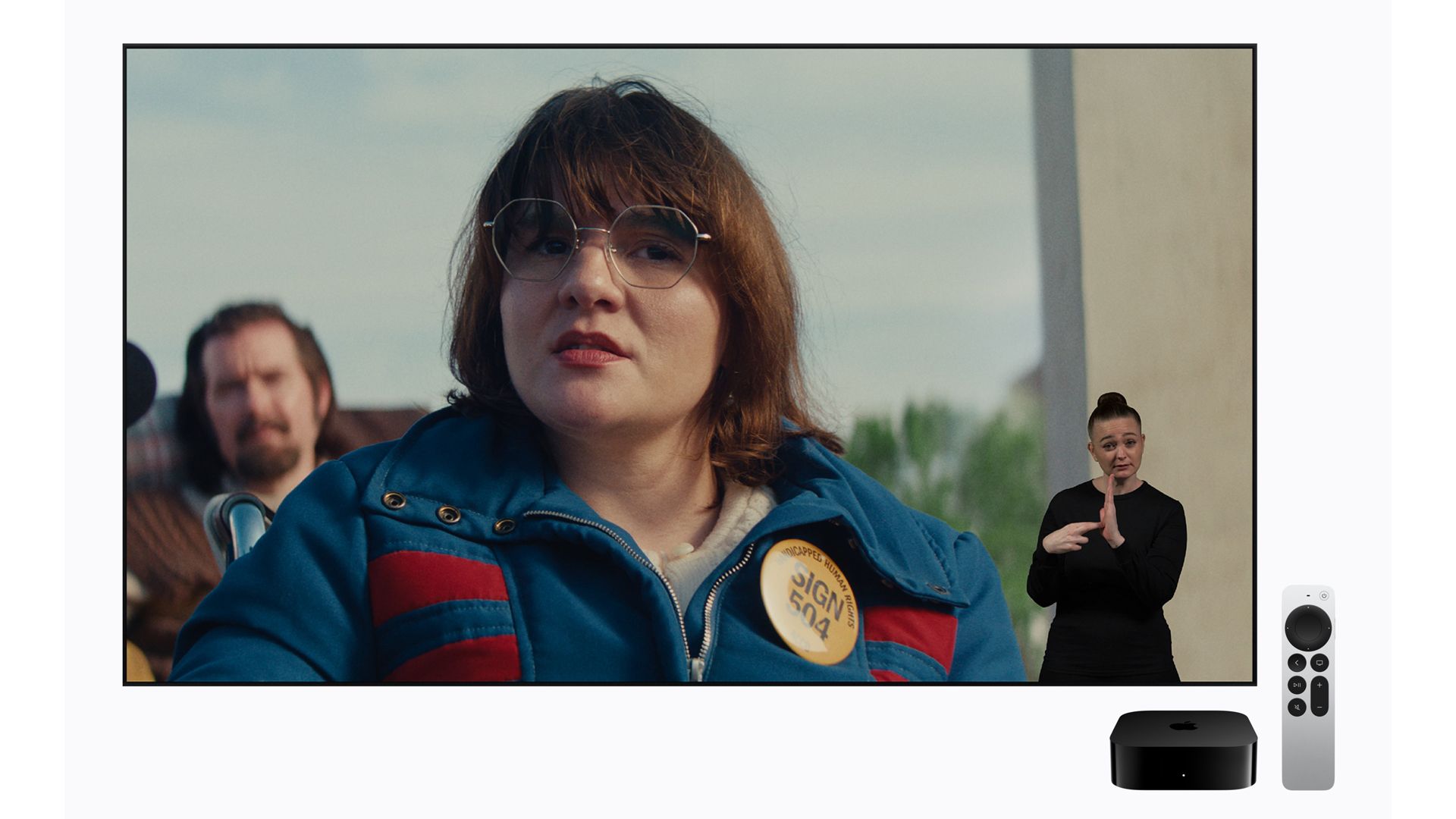
Apple, however, is launching something a little different. A handful of original-content titles will now tap into a new settings toggle (supported in iOS 27.2) that turns on ASL or BSL for films like F1: The Movie, Greyhound, and Way of the Warrior Kid.

The feature is also launching with a new Apple TV film: Being Heumann, which, not coincidentally, is about real-life activist Judy Heumann's efforts in the 1970s to get more rights and accommodations for disabled people.

The controls are found under Settings, and once enabled, the option will appear on these titles as a sign-language icon.

Each ASL interpreter appears as an overlay on top of the Apple TV content, meaning they're not in picture-in-picture boxes.

It's worth noting that the sign-language interpreters are all real people, directed by what's known as Directors of Sign Language or 'Dazzles,' who help them interpret the content. Apple is not, for now at least, using animations or AI to ramp up ASL coverage. No word on whether this might be under consideration.

Apple TV ASL

(Image credit: Apple)

“Bringing sign language interpretation to Apple TV is an exciting step forward in making the viewing experience more accessible and inclusive for Deaf audiences,” said Sarah Herrlinger, Apple’s senior director of Global Accessibility Policy and Initiatives in a press release. “Accessibility is a core value at Apple, and we’re proud to continue creating experiences that allow more people to enjoy the content they love.”

For now, the launch consists of very few titles and, oddly, doesn't even include Apple's Academy Award-winning Best Picture, CODA, which is about a young aspiring singer whose parents are deaf — though it's probably a safe assumption that the film will soon be added to the ASL-supported list.

Did you know TechRadar now has membership?

Various tech product cutouts next to the words 'Insider TechRadar Learn More'

(Image credit: Future)

Become a TechRadar Insider by simply clicking 'Join Now' at the top of this page. Have a question? Please email membership@techradar.com
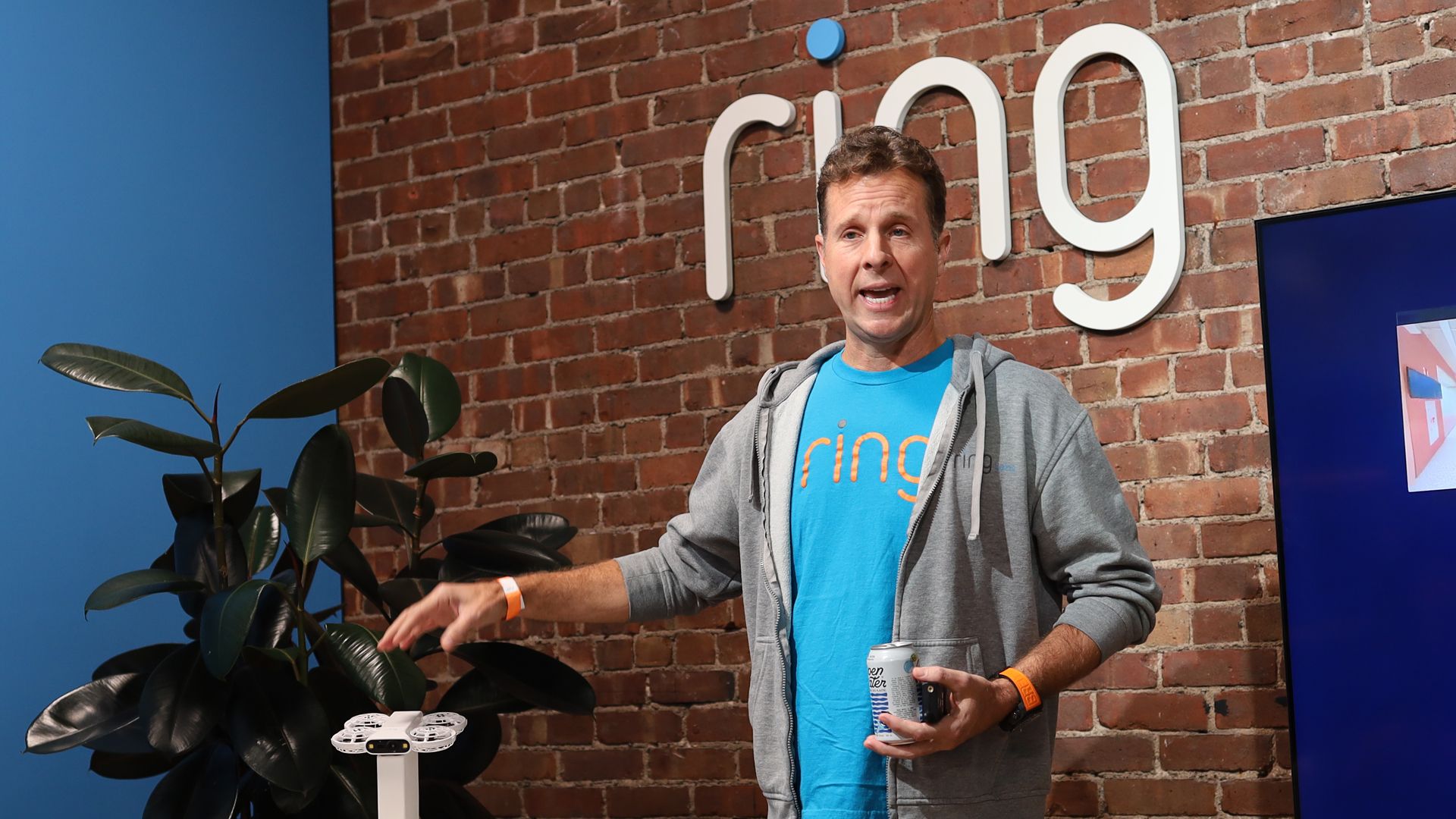
AI or SI? 'I mean, there’s different names for it,' says Ring's Jamie Siminoff, as the company launches an 'AI Pilot' for its home-surveillance drone

  • Ring just launched AI Pilot
  • That should not be read as long-term support for the term 'artificial Intelligence', though
  • Company CEO Jamie Siminoff insisted it was not tying "to make any statements"

In its struggle to deliver an effective home-surveillance drone to consumers, Ring struggled with how to balance local intelligence with consistent flying skills. Turned out that the answer was in the cloud, or more specifically, cloud AI.

But in the time it took for Ring to solve that riddle, and launch both the Ring Drone Cam and its AI Pilot, no less a figure than the President of the United States President decided to rename 'artificial intelligence' to 'super intelligence'.

It's been almost two months since Donald Trump stood before the United Nations and announced that the US Government would be renaming AI to SI because, "It sounds much better, and it's much more accurate.... there's nothing artificial about it."

Forget that huge swaths of the tech industry have already hung their company names and branding around 'AI' (you may have heard of a small company called OpenAI, or maybe Apple's Siri AI); Trump sought to make the change official.

What's more remarkable, though, is that tech giants like Google's Sundar Pichai, Meta's Mark Zuckerberg, and Nvidia's now-beleaguered CEO Jensen Huang fell into line.

Over at Ring's parent company, Amazon, though, the picture is less clear.

Ring Drone Cam

(Image credit: Lance Ulanoff / Future)

Amazon founder Jeff Bezos said he agrees with Trump, telling Fox News last month, "I do like SI because artificial is not a very flattering thing."

Meanwhile, Amazon CEO Andy Jassy conducted a recent earnings call in which he used "AI" over and over again.

Getting tech execs to choose, though, isn't easy.

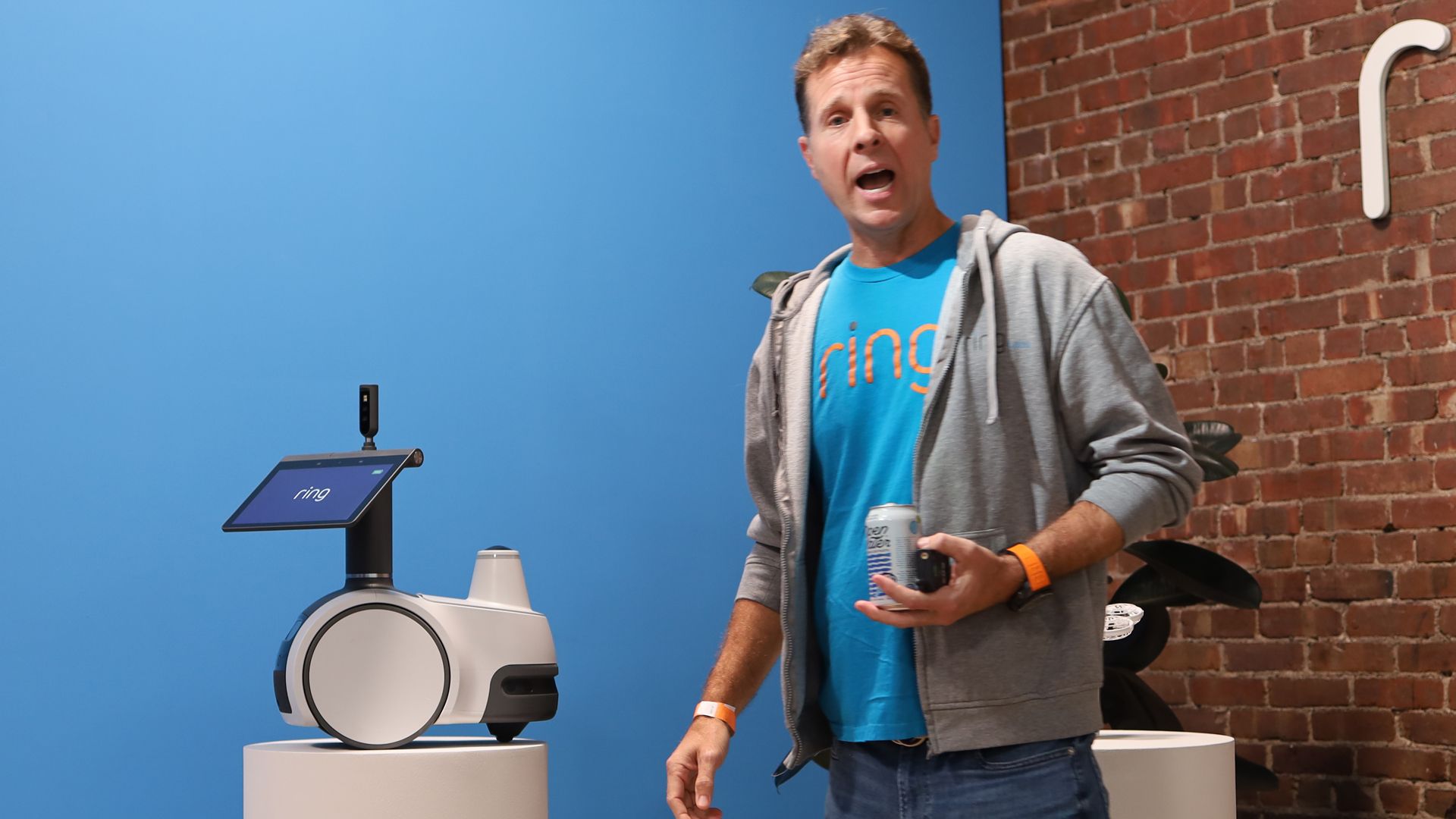
During the Ring Drone Cam launch event, I asked Ring CEO Jamie Siminoff about the use of 'AI' in AI Pilot. Would the company be changing the name?

Siminoff smiled like he'd been expecting the question, and replied, "I mean, there’s different names for it. Certainly we’re not trying to make any statements by how we’re using that.”

But in a nod to how quickly the landscape can change under your feet, Siminoff added, "But the AI Pilot was named earlier.” So, there are currently no plans to change it, but also no indication that Ring won't, someday, have an 'SI Pilot' guiding the Ring Drone Cam through your home.

I pressed, and asked if we were safe to keep calling it 'artificial Intelligence.' Simioff would only reiterate, "I think people are using different names for it, and so we’re gonna — uh, but right now it is the AI Pilot”

Super unclear

Siminoff's response is not surprising. After all, the tech industry seems somewhat split on whether to follow Trump's Executive order, which demands that all government agencies "use 'Super Intelligence' and 'SI' in place of 'Artificial Intelligence' and 'AI' in official correspondence, public communications, websites, reports, policy documents, and other non-statutory documents within the executive branch."

But, outside the halls of the White House, there's little agreement on whether the world should be switching from AI to SI.

As Siminoff points out, "The AI Pilot was named earlier." There was no way for Ring to know that Trump would attempt to rename an entire tech sector while it was trying to figure out how to make a drone light and efficient enough to navigate and surveil your home.

Who knows? The next version of AI Pilot may very well be SI Pilot. On the other hand, it took years for Ring to get this right. By the time the next Ring Drone Cam arrives, Trump will likely be out of office, and we may be done talking about AI vs. SI.

Did you know TechRadar now has membership?

Various tech product cutouts next to the words 'Insider TechRadar Learn More'

(Image credit: Future)

Become a TechRadar Insider by simply clicking 'Join Now' at the top of this page. Have a question? Please email membership@techradar.com
'Let's take all the intelligence out': How Ring finally built its home surveillance drone

  • Ring is finally ready to ship its home-surveillance drone
  • The Ring Drone Cam is lighter than some smartphones
  • A cloud-based AI Pilot does all the driving

Third time may be the charm for Ring's long-gestating security drone efforts — and Ring CEO Jamie Simioff insists that the new Ring Drone Cam is just what his customers want.

"When people stop me on the street, it's what they ask, 'Where's the drone?'" Simioff told me.

After a decade of effort, which traces back to before Ring became a part of the giant Amazon device family, Ring is finally ready to deliver a home security drone that makes sense.

Sure, perhaps we've heard this before, and Siminoff wasn't shy about recounting Ring's abortive drone history. That history started with an idea in 2016, which led to a drone that Siminoff said launched in 2021 but not to customers. "They were in boxes and ready to go," he added (design trade-offs, limited flight time, privacy concerns, and other issues ultimately scuttled that launch). By 2025, Ring was ready with another attempt, but that drone also never shipped.

Ring Drone Cam

(Image credit: Lance Ulanoff / Future)

As Sminioff described it, Ring was overcomplicating the drones, building in too many capabilities. A smart drone — basically a flying robot with all the attendant sensors — was the wrong approach. So Ring went back to the drawing board but with a critical learning: "The more sensors you take off, the lighter you can go, because you’re using less power."

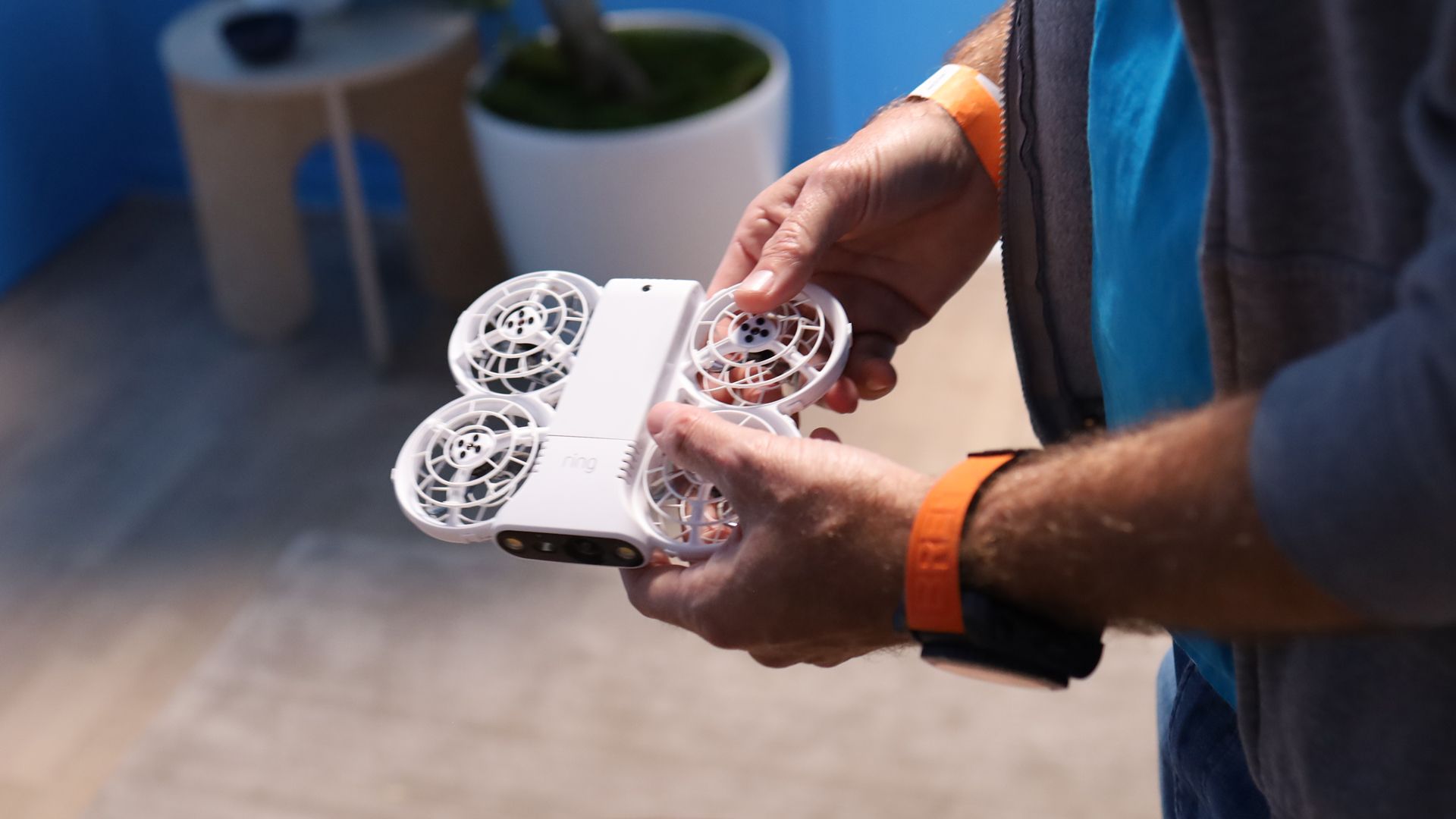
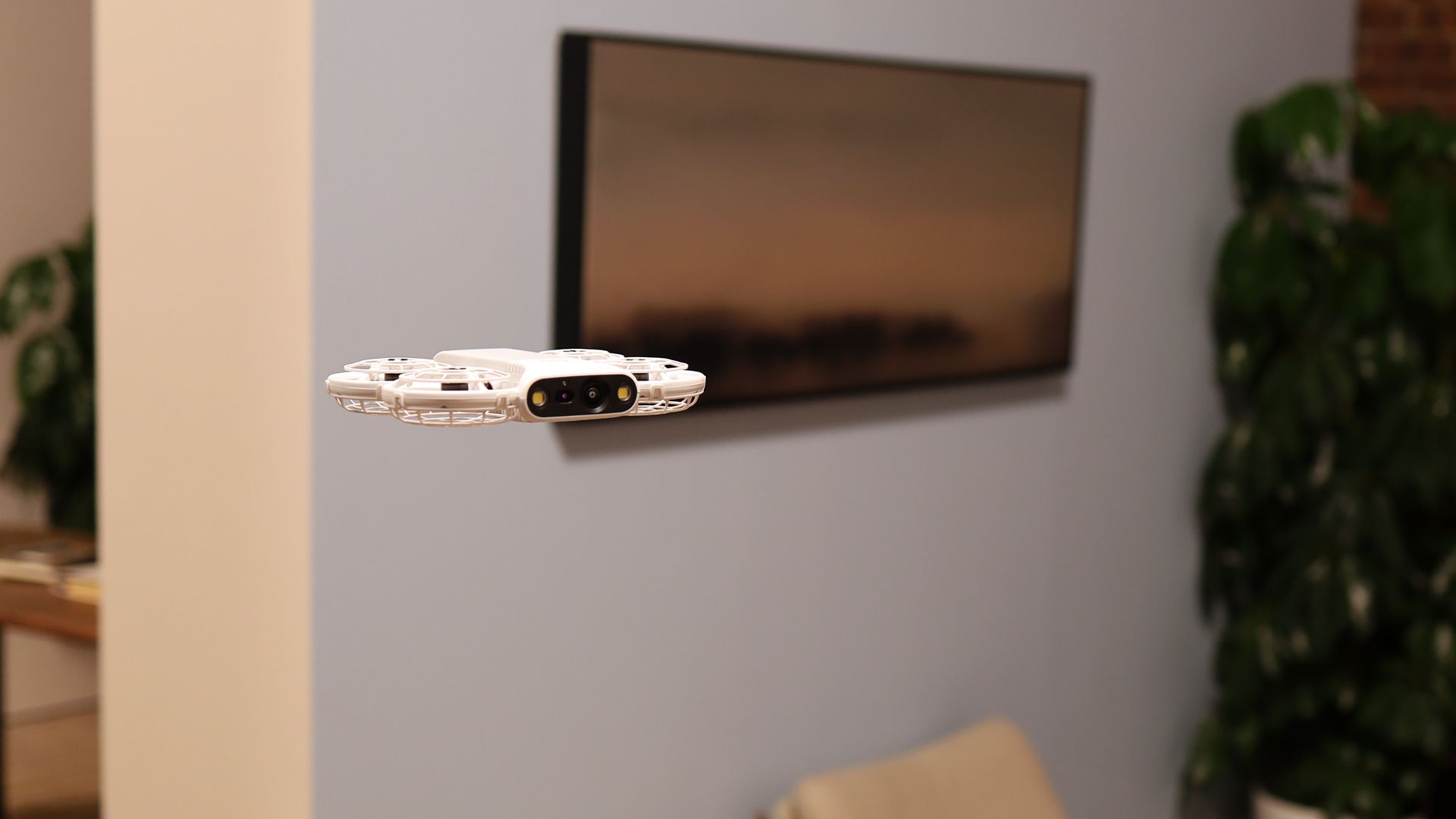
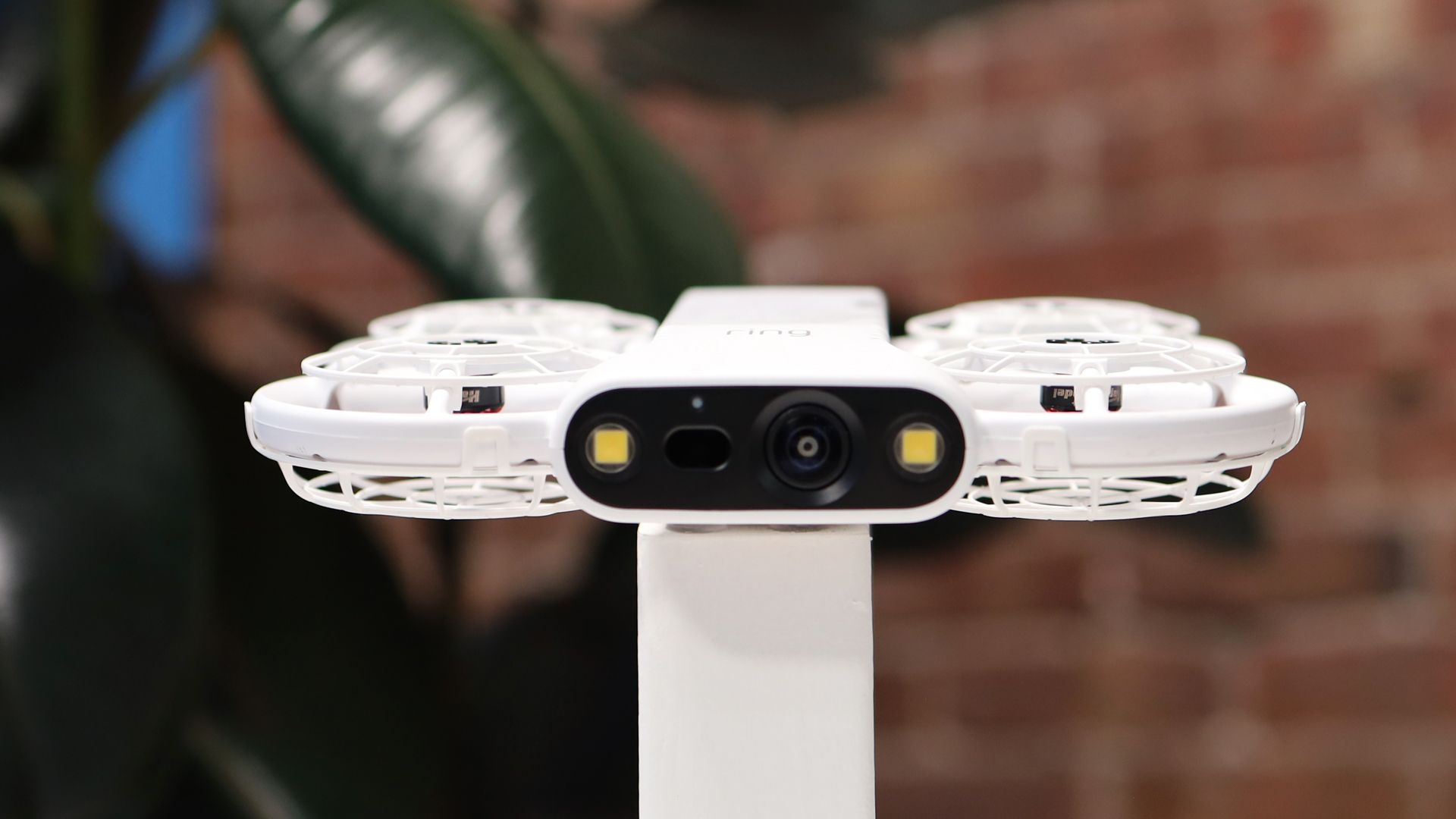
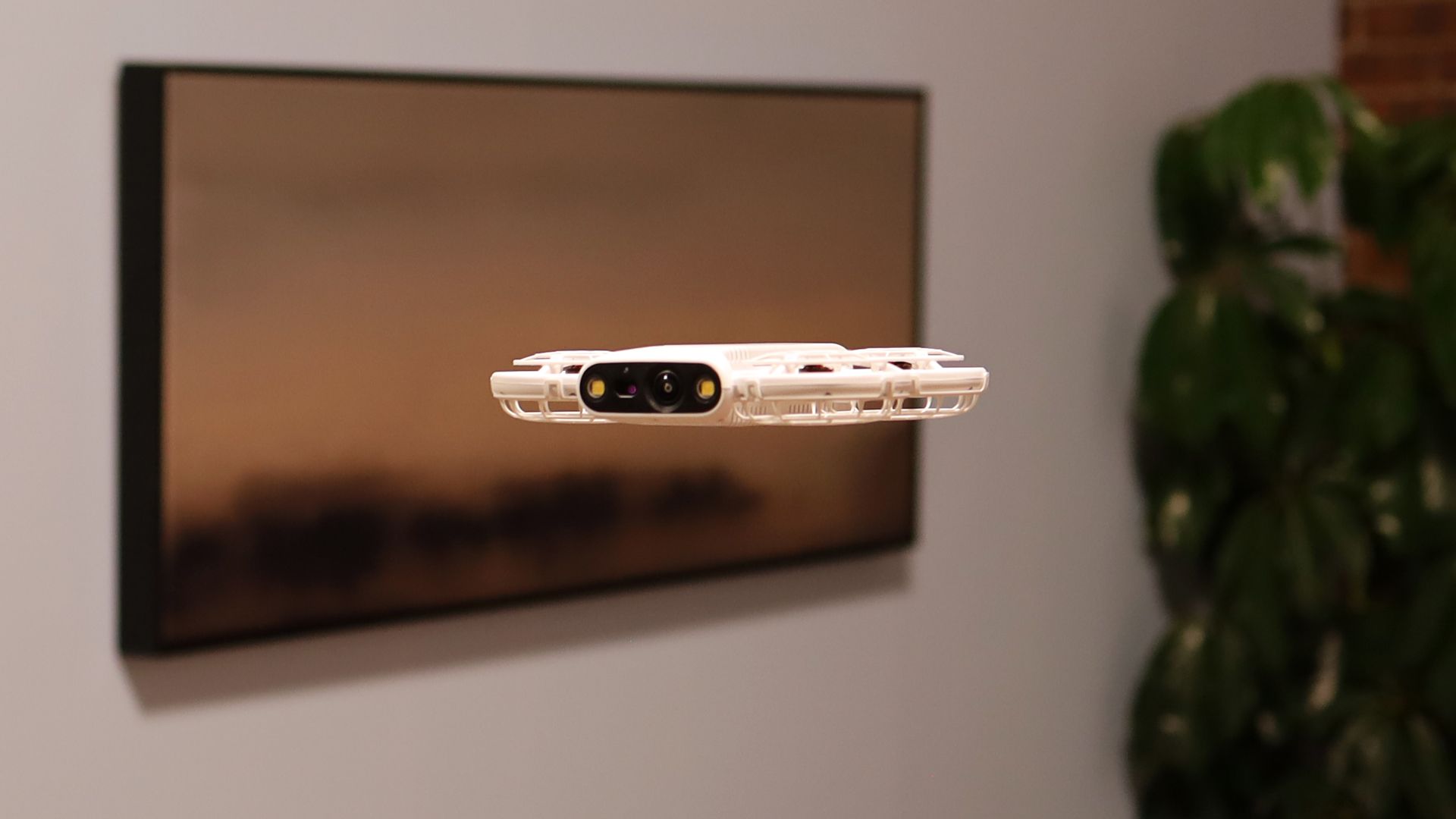
He said Ring decided to "take all the intelligence out" and shifted it to the cloud. The resulting security drone is ultra-light (around 160 grams) and has just a few native skills, which include knowing how to land and how to connect via Wi-Fi to the app.

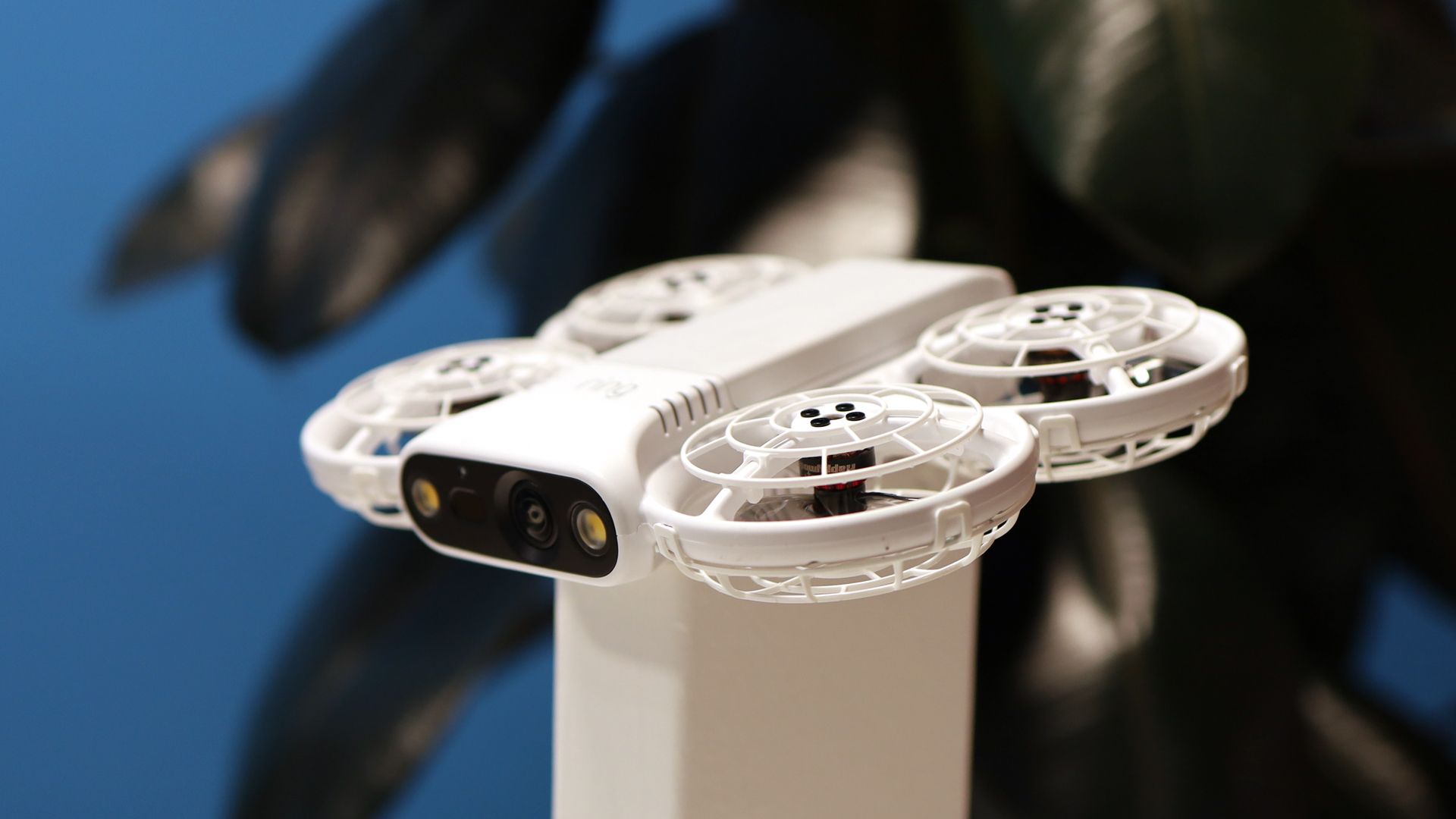
The App connects to Ring's new AI Pilot, which uses cloud-based, silicon-powered agents to control the drone. Not that the drone is flying blind. It has a front camera, a base camera, and the guidance of the AI Pilot, which is using a brand-new home map.

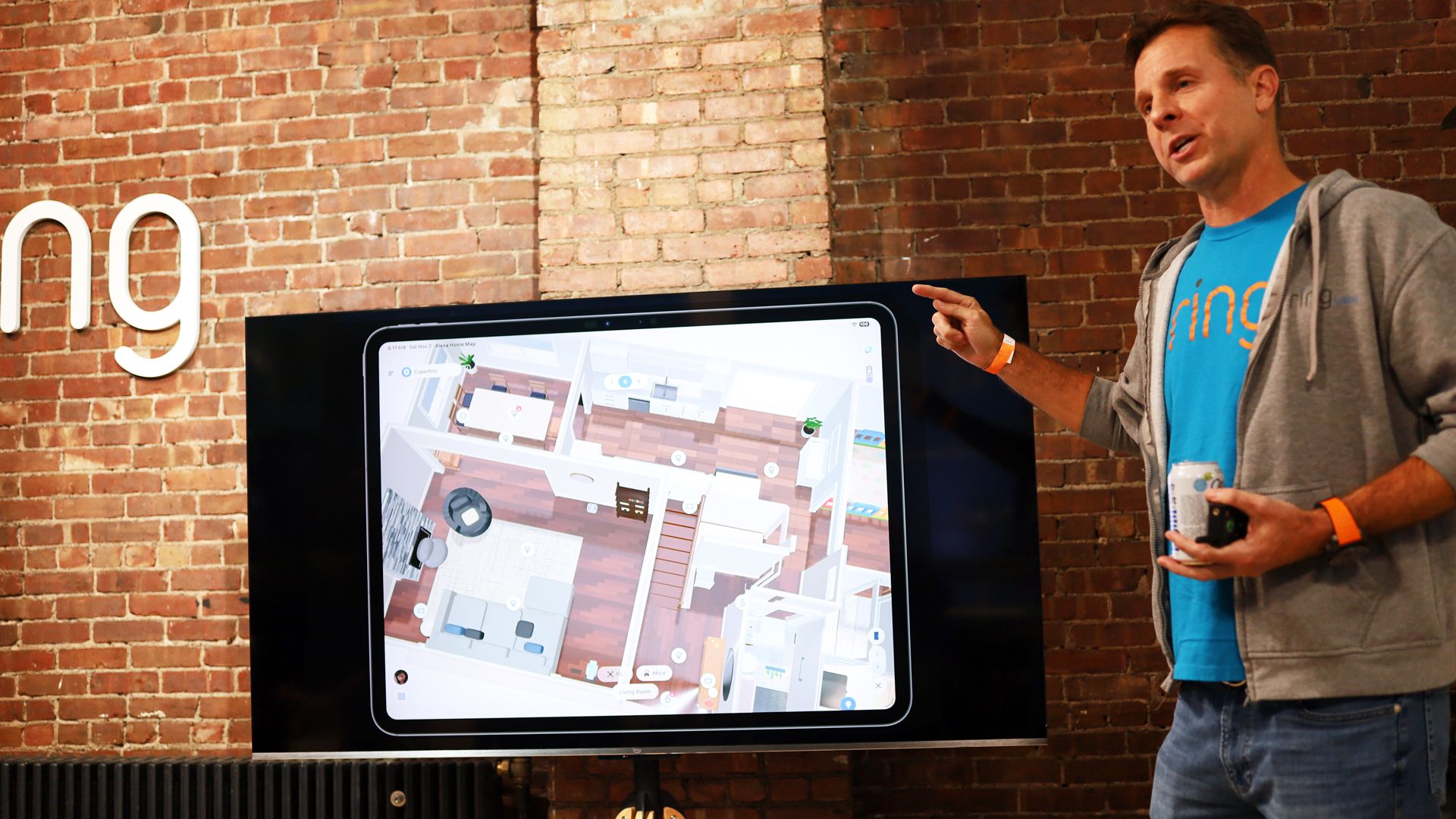
Ring Drone Cam owners will be able to use the drone to walk through their home and build a detailed map, which Siminoff described as a "digital twin" of your space.

Ring Drone Cam

A look at the new Ring Home map (Image credit: Lance Ulanoff / Future)

If, for instance, you detect a rear door open or a window ajar in your home (via one of Ring's sensors that they assume you'll have throughout your home), you can tap on the location in the digital house map and the Ring Drone Cam will lift off from its home charge base and fly directly to it.

The AI Pilot knows the map of your home, so it won't be bouncing off walls and, if someone does happen to be in the way, the Ring Drone Cam will know how to get around them. Siminoff admitted, though, that the drone is simply not smart enough to come up with an alternative route to get around, say, a group of people.

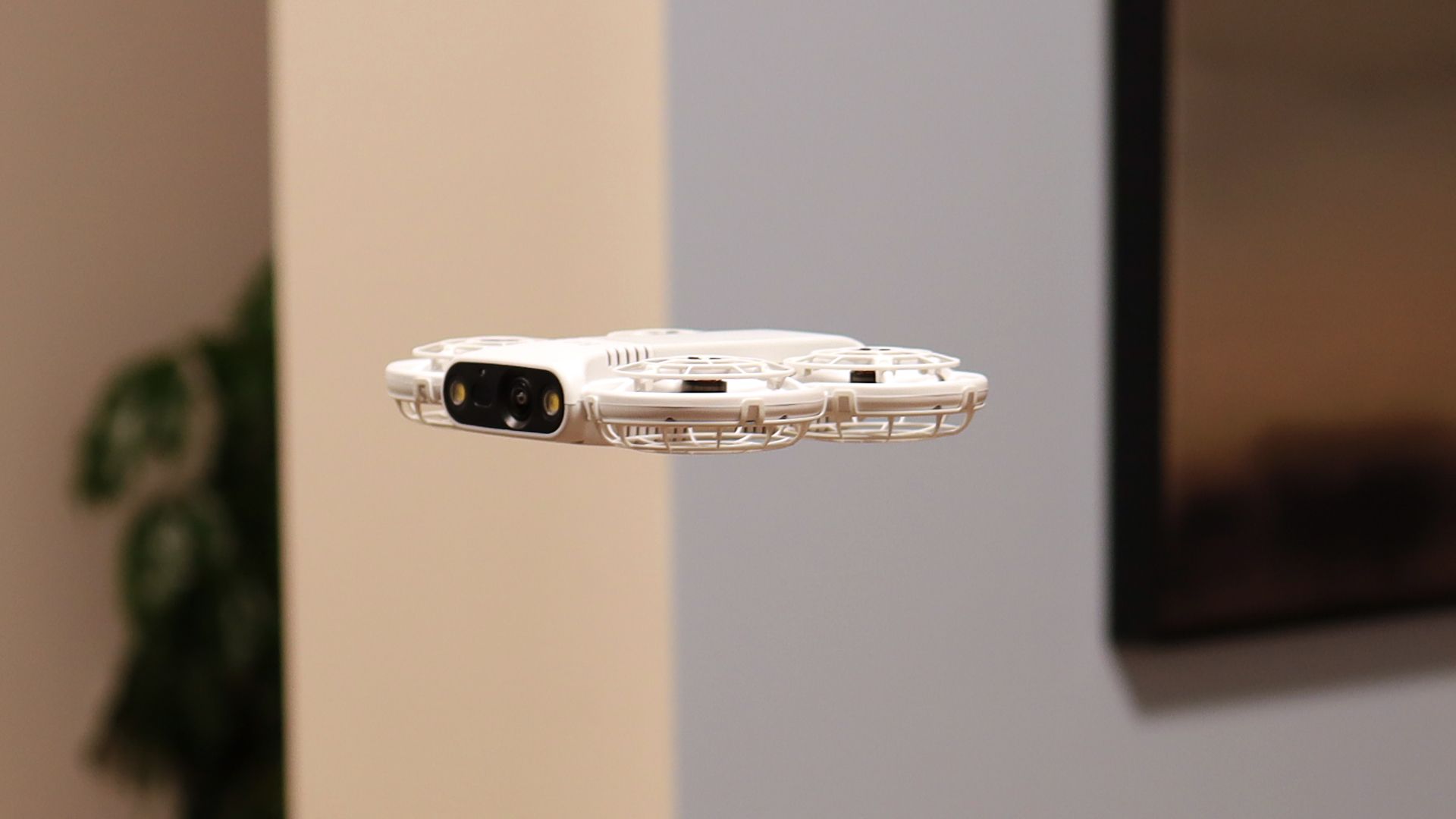
A relatively simple and lightweight flyer, the Ring Drone Cam is quite loud, and Siminoff says that's intentional. "It’s loud — we think that’s a feature. This thing is not gonna sneak up on you."

In fact, the use case he envisions is when nobody is home, though he agreed that if you're home asleep and there's movement downstairs, it could come in handy then, too. The sound alone might scare off intruders.

Ring Drone Cam
Lance Ulanoff / Future
Ring Drone Cam
Lance Ulanoff / Future

The Ring Drone Cam is not designed to go outside, but it can peer out of a window. Imagine that someone approaches your front door, and the Ring Doorbell detects them. The Drone Cam could get the alert, lift off, and shine its LED spotlights out the window.

I asked Siminoff if the Ring app would support split-screen, so you could see the Drone and Doorbell footage side-by-side. He said it didn't, but that he liked the idea.

In the app, Ring Drone Cam owners can schedule automated home patrols that include multiple floors, since this drone can traverse stairways. The drone keeps track of the ground below but has no sensor for the ceiling. It also depends on that Wi-Fi connection for navigation. If your home internet cuts out, the Drone will basically land where it is, assuming it's safe to do so.

Ring Drone Cam
Lance Ulanoff / Future
Ring Drone Cam
Lance Ulanoff / Future
Ring Drone Cam
Lance Ulanoff / Future
Ring Drone Cam
Lance Ulanoff / Future
Ring Drone Cam
Lance Ulanoff / Future

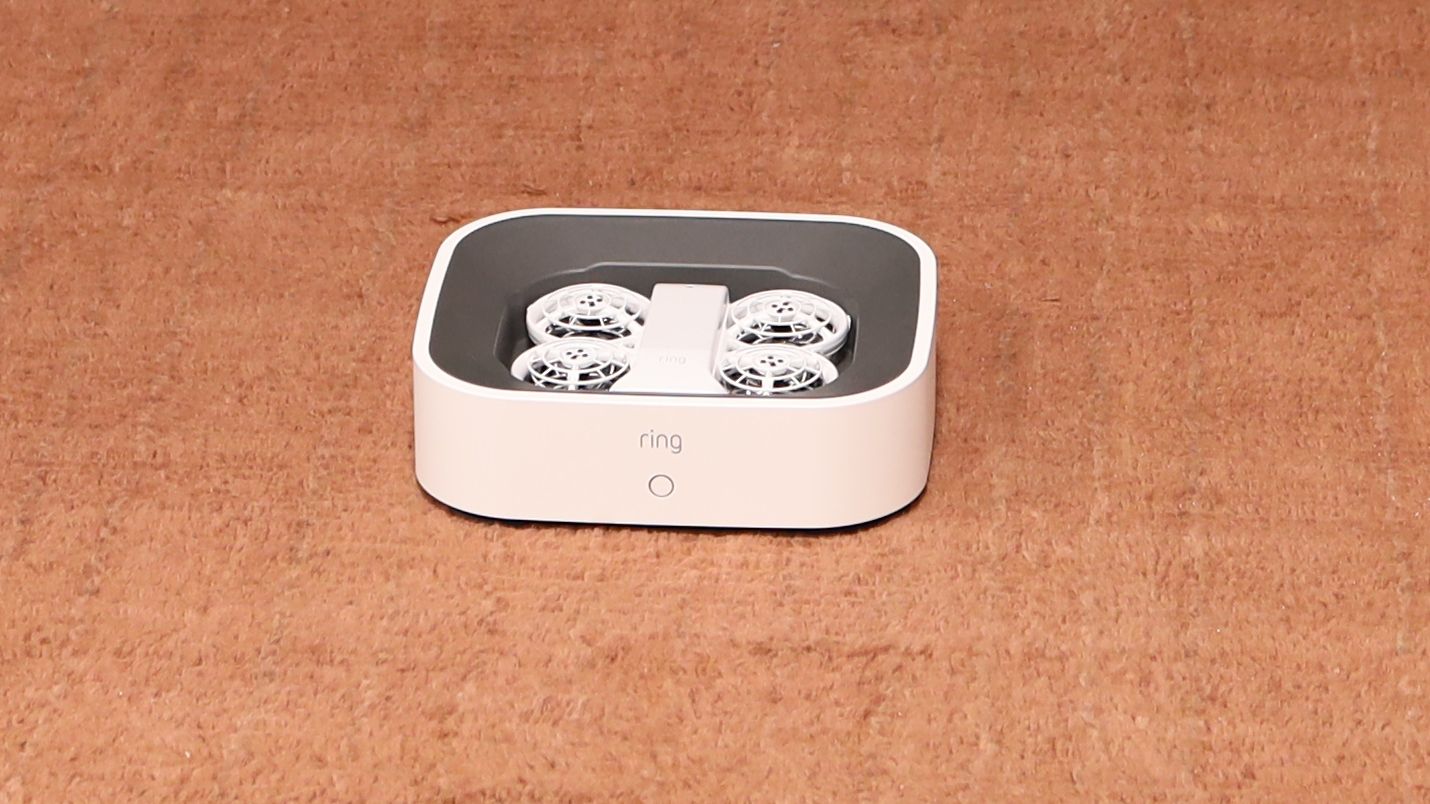
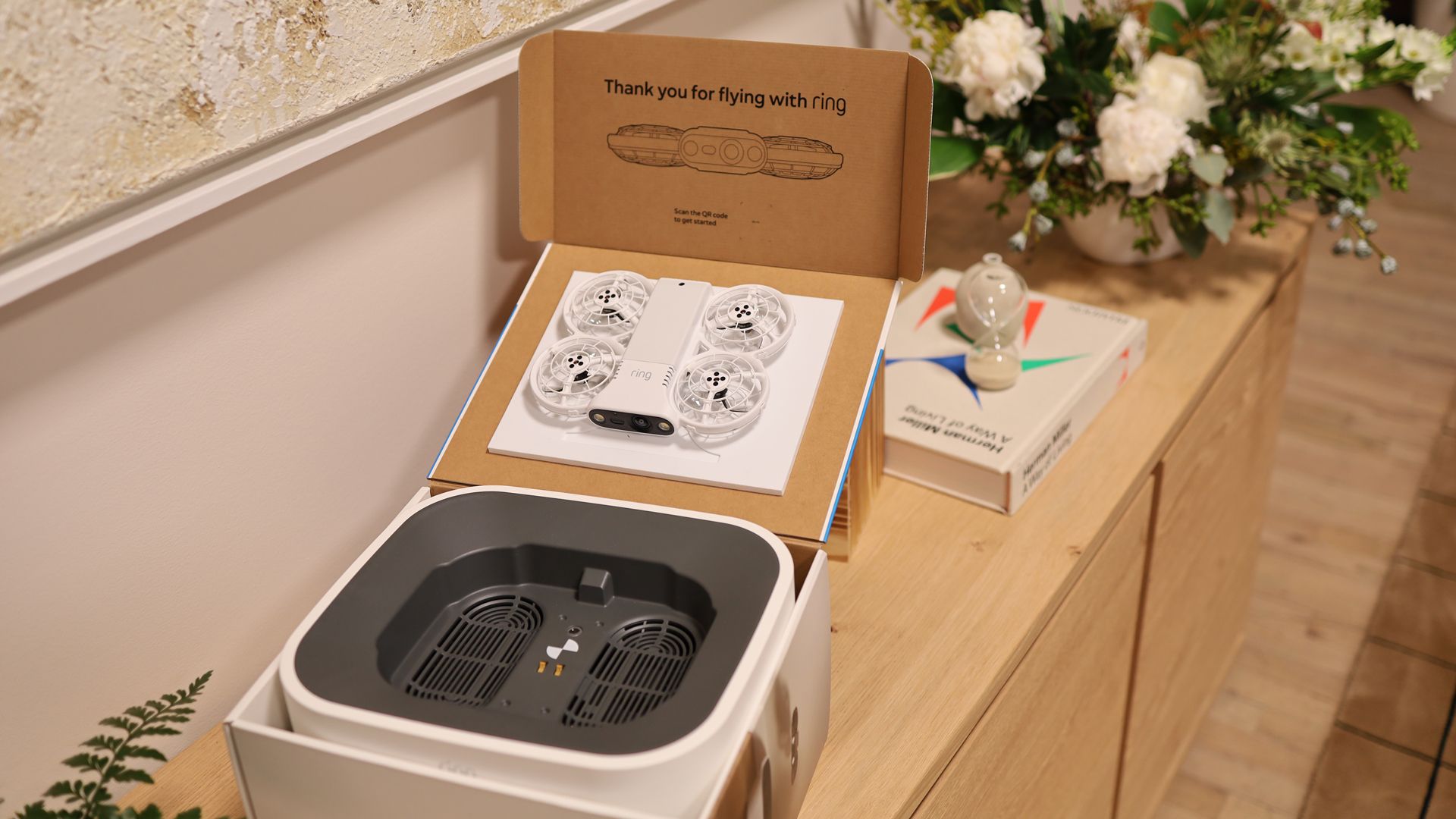
Speaking of safety, all four propellers are inside cages, so even if the lightweight drone does somehow run into you, you're unlikely to get injured. Siminoff also said that the Drone Cam promises the same level of video privacy as you find on the brand's video doorbells, which includes two-factor authentication and encryption. Also, as soon as the drone lands, it stops filming, and the charging dock also covers the camera when the drone is settled inside.

As you might expect for such a small and lightweight drone, the Ring Drone Cam doesn't offer much flight time, cruising for roughly five to eight minutes on a charge (consumer drones can often fly for up to 30 minutes). Charging could take between 40 minutes and an hour, though I imagine its patrol flights might just be a minute or two, after which the drone would return to its charging base.

Assuming that this is the drone Ring finally ships, the Ring Drone Cam will be available in the US only (Ring hasn't announced any plans to expand the launch) from January 27 for $249.99 and will be available in dark gray. The white units I saw were all pre-production, and there are currently no plans to offer a white option.

The return of Astro

Ring Rover Cam

(Image credit: Lance Ulanoff / Future)

Remember Amazon Astro, the sort-of-cute patrol robot that Amazon launched in 2021 and discontinued in 2024? It's back, in a fashion.

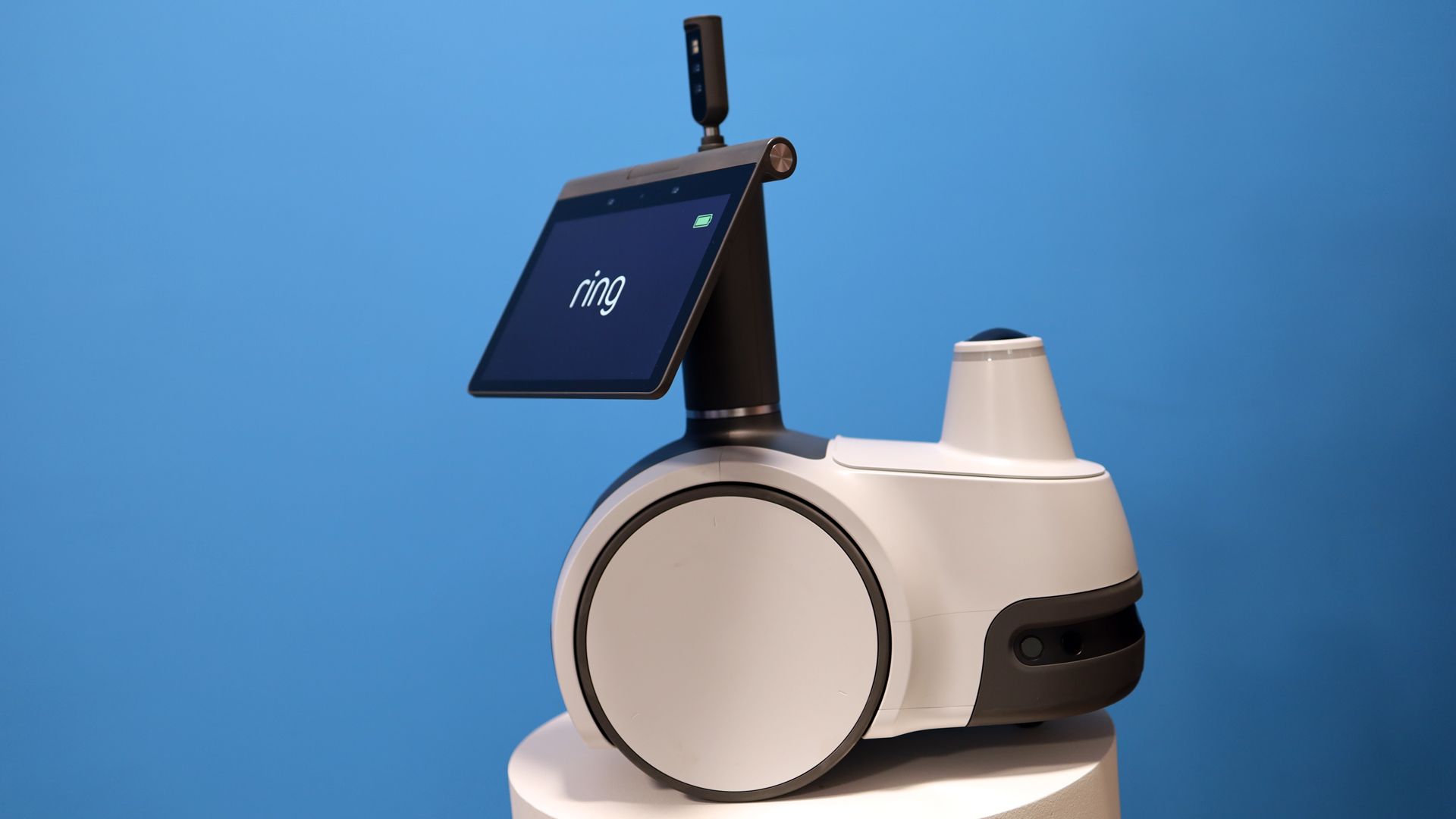
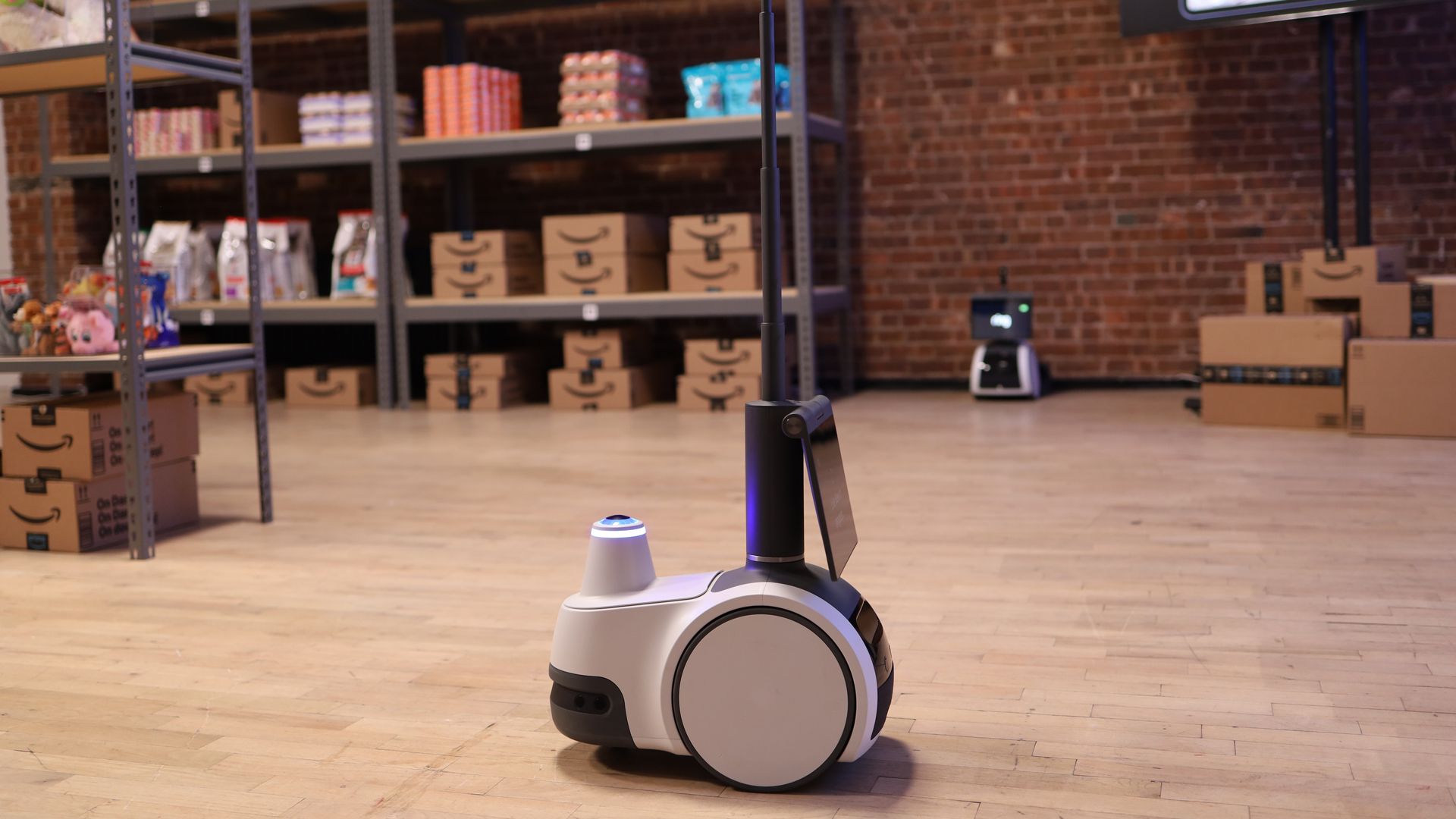
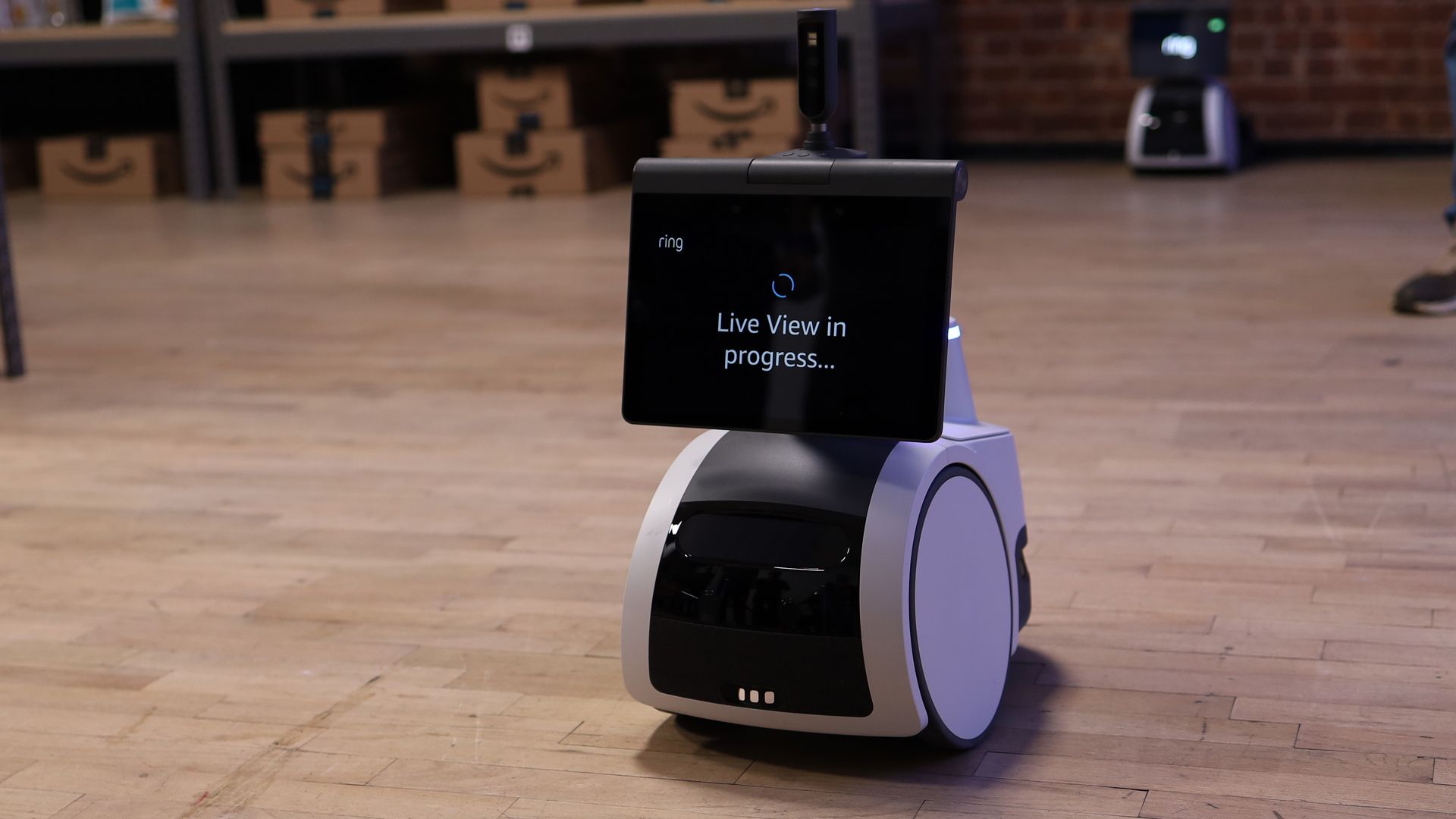
Using Astro as a base, Ring rebuilt it, added a light tower, and rechristened it the Ring Rover Cam. And while the Ring Rover Cam could be used in a home, it's really designed for medium-to-small businesses — and at $999.99 it's priced for those customers, too,

Ring Rover Cam
Lance Ulanoff / Future
Ring Rover Cam
Lance Ulanoff / Future
Ring Rover Cam
Lance Ulanoff / Future

The reimagined robot can autonomously map a space, perform 30-minute patrols (we watched it roll around a fake Amazon inventory space), and pop up its periscope camera, which can extend to about four feet.

Ring has added one hardware feature: a new light tower that shines up at the ceiling. If you lose visual track of where the Rover Cam is, you can just look for a blue circle on the ceiling. In the case of an emergency, the robot lets out a piercing alarm, and that blue light turns into a spinning ambulance-like red one.

The Ring Rover Cam ships in the US from December 16.

Did you know TechRadar now has membership?

Various tech product cutouts next to the words 'Insider TechRadar Learn More'

(Image credit: Future)

Become a TechRadar Insider by simply clicking 'Join Now' at the top of this page. Have a question? Please email membership@techradar.com

The iPhone Duo with an Apple Pencil is as good a drawing platform as an iPad Mini

Apple is firmly in rule-breaking mode, which has led to the introduction of the first touchscreen MacBook, and an iPhone that accepts Pencil input. These rules, as set by Apple co-founder and former CEO, the late Steve Jobs, are now quickly becoming footnotes in the tech giant's history, and consumers are the beneficiaries of this outside-the-box thinking.

This week, I took a break from trying to figure out reasons to touch my MacBook Pro PROLED XDR Display, to finally dig into the other formerly unthinkable Apple product feature: an iPhone that accepts — even welcomes — Pencil input.

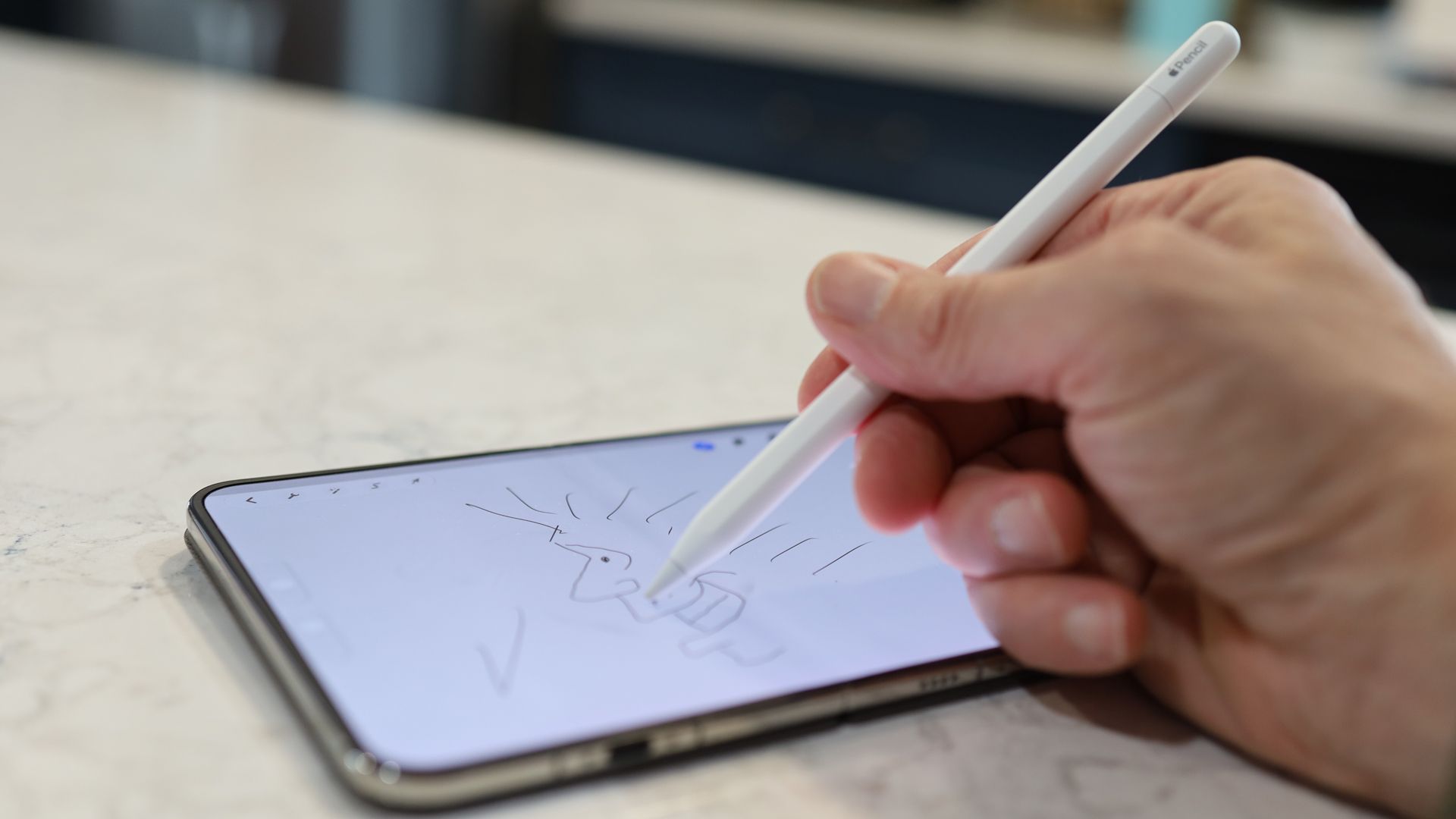
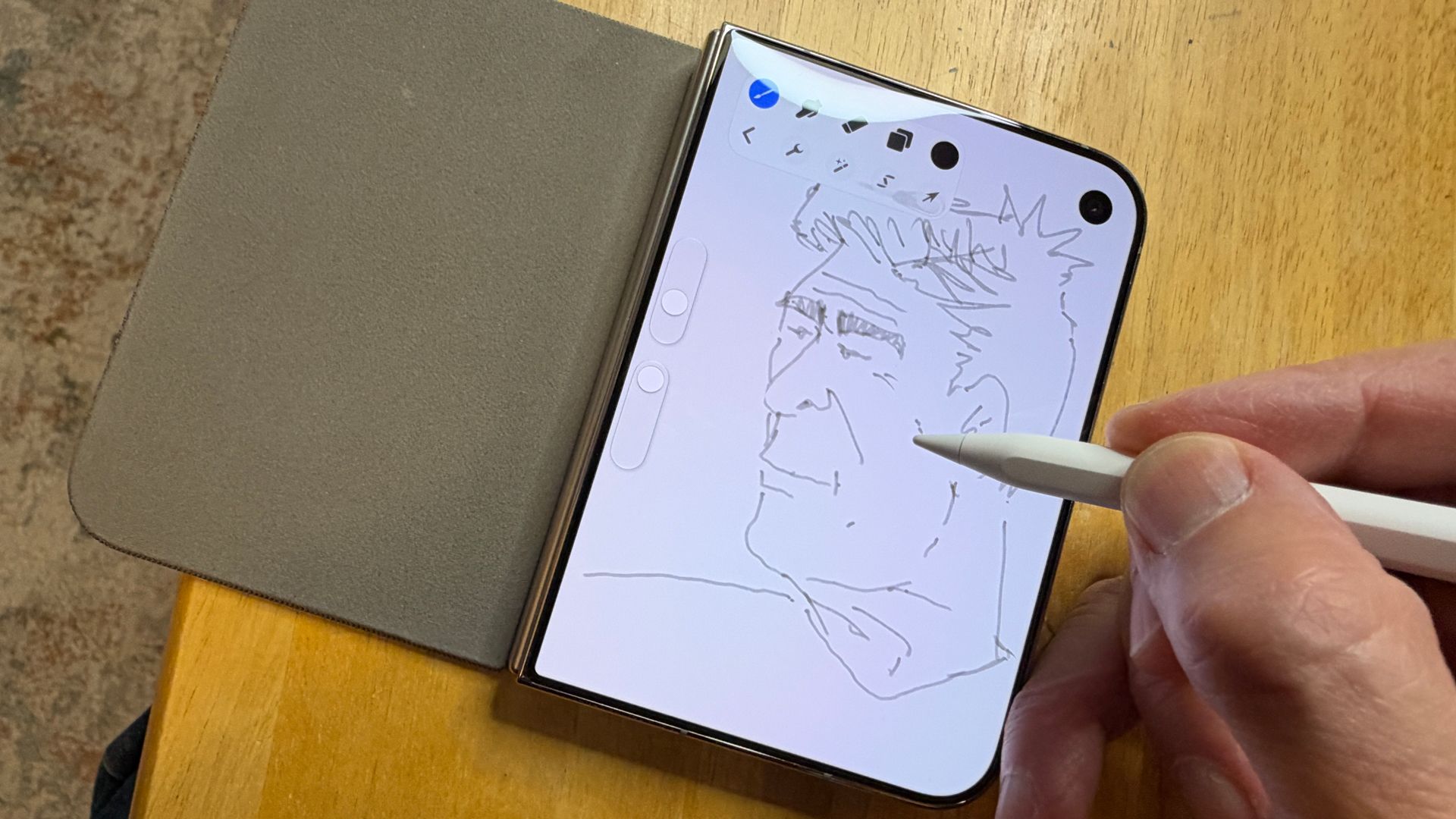
iPhone Duo and Apple Pencil

(Image credit: Lance Ulanoff / Future)

Granted, the iPhone Duo is not your typical iPhone. It's a two-screen handset with a 5.4-inch display on the outside and, when you unfold the device, a 7.6-inch display with a remarkable nanotech finish that effectively hides the crease.

That big screen invites all kinds of non-traditional iPhone use cases, including big-screen content consumption, animated page turning in the Books app, and split-screen multitasking. It's also an invitation to art — a fact Apple recognized by introducing, for the first time, Pencil support to the iPhone line, albeit in a limited fashion.

Here are the limits:

  • The iPhone 18 Pro and all other iPhones currently on the market do not accept Pencil input
  • The only Pencil the iPhone Duo supports is the Apple Pencil (USB-C)

That second limit is a direct result of how the rest of the Apple Pencils pair with devices and charge: by being seated along the magnetic edge of any supporting iPad. Even unfolded, the iPhone Duo offers no equivalent capability.

Limits aside, I honestly could not wait to try using Apple Pencil (USB-C) on my iPhone Duo (upgraded to iOS 27.2).

Getting started and scribbling away

The Apple Pencil (USB-C) looks like other Apple Pencils, but it hides a secret. When I slide the back end back, it reveals a USB-C port. I can use that to charge the Pencil, but it's also how I connected the Pencil to my iPhone Duo: I run a USB-C cable from the phone's USB-C port to the port on the Pencil. After that, the pairing is pretty much automatic.

As you might expect, the Pencil — which is recognized on the inside and outside screens — can be used just like the tip of your finger to navigate the interface, if that's your thing.

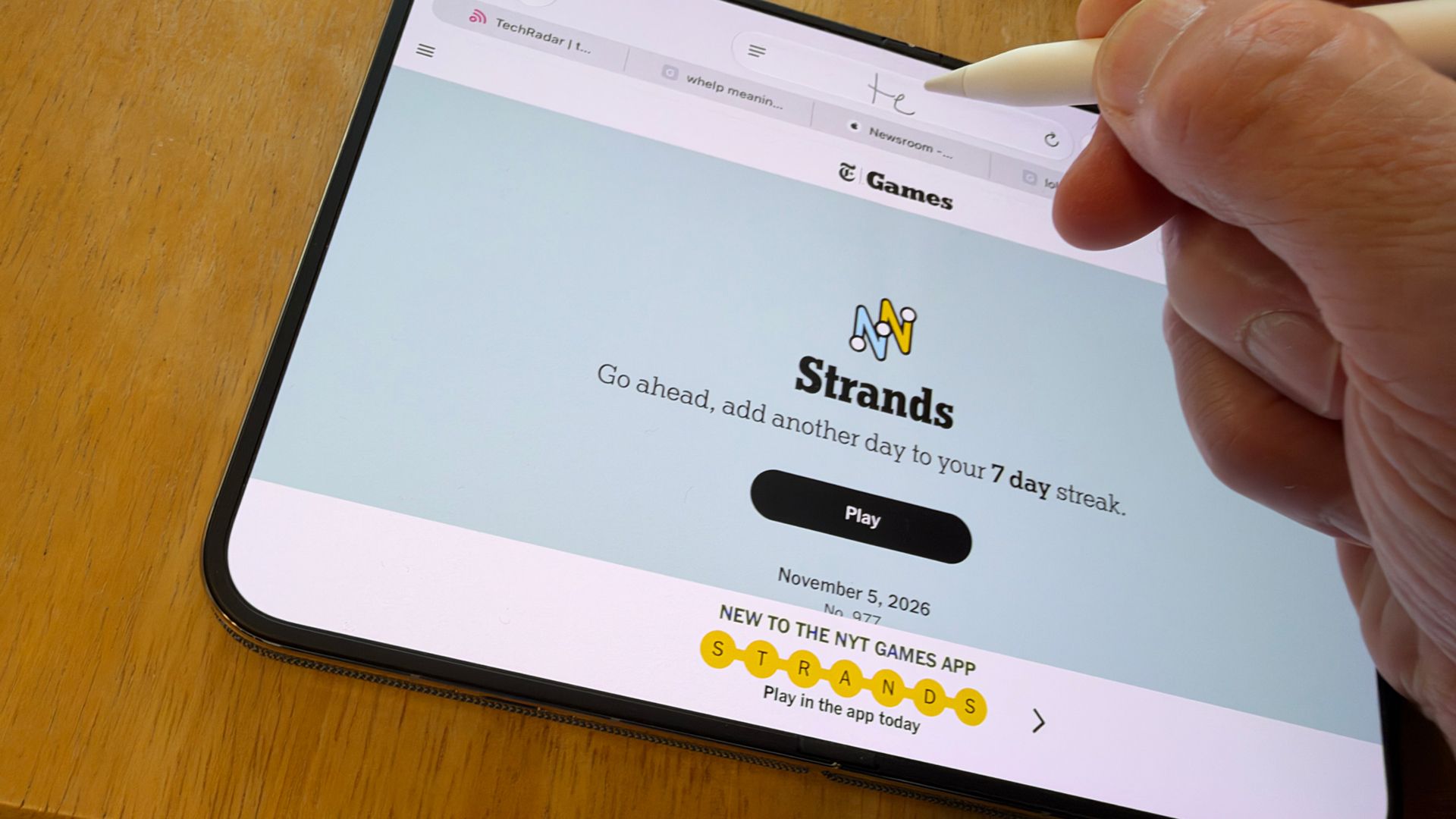
The platform also adds Scribble, which means I can now poorly write the website names I want to see in Safari, jot down notes in Notes, and even solve simple written equations in that same app. But the show I came for, the reason we're here, is to try drawing on both screens.

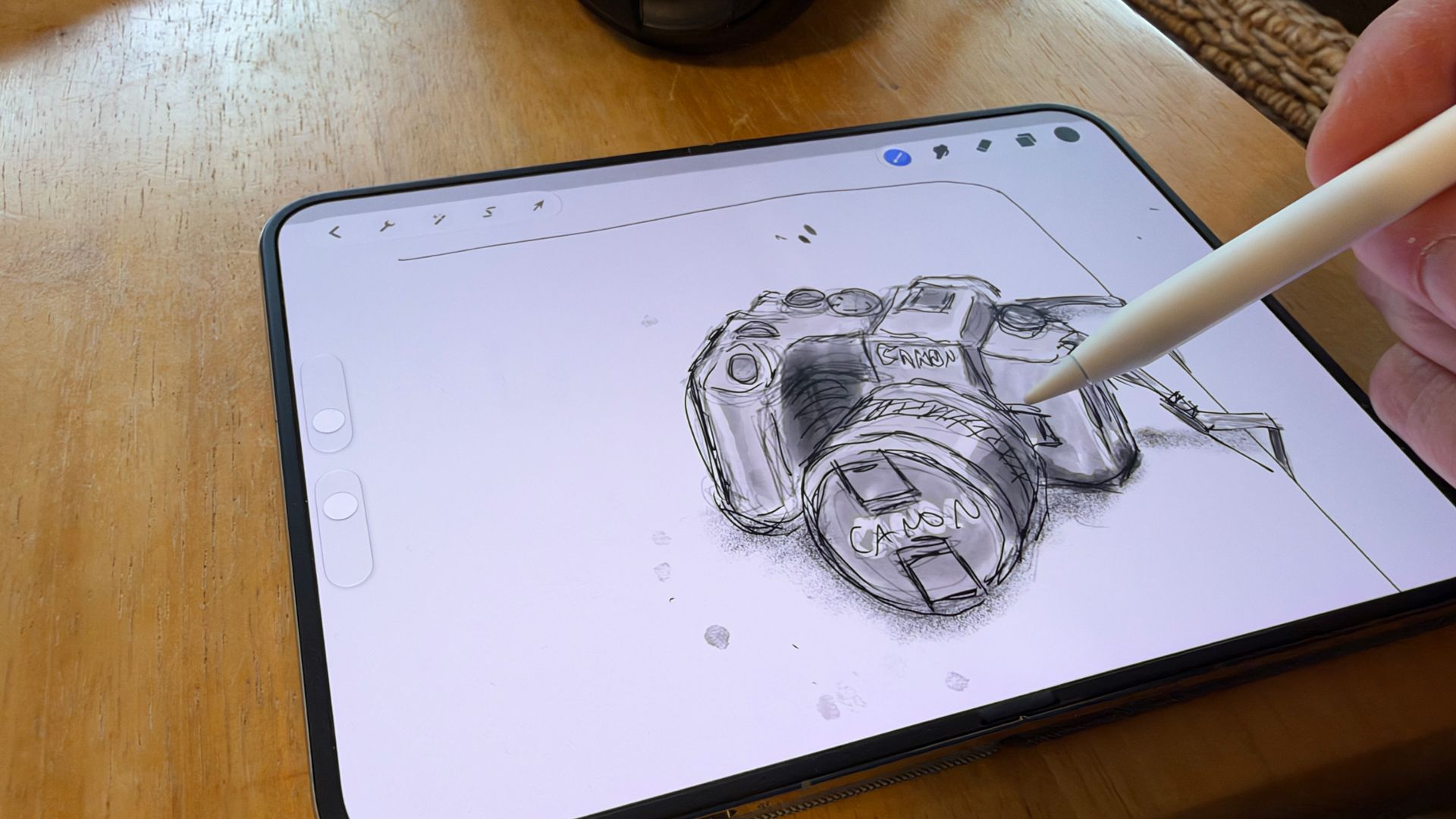
iPhone Duo and Apple Pencil

(Image credit: Lance Ulanoff / Future)

Flexi-sketch

I've been drawing my whole life and doing so on digital platforms for 40 years. I drew on the first Mac with a mouse, early PCs with a Wacom tablet, my finger on the iPhone, and, in recent years, on an iPad using Procreate and (naturally) an Apple Pencil. Drawing with an Apple Pencil on an iPhone has been a long-held dream, and I was anxious to try it out.

I unfolded the iPhone Duo, launched Procreate Pocket (the iPad version does not run on an iPhone), and started putting the Apple Pencil to the nano-etched display.

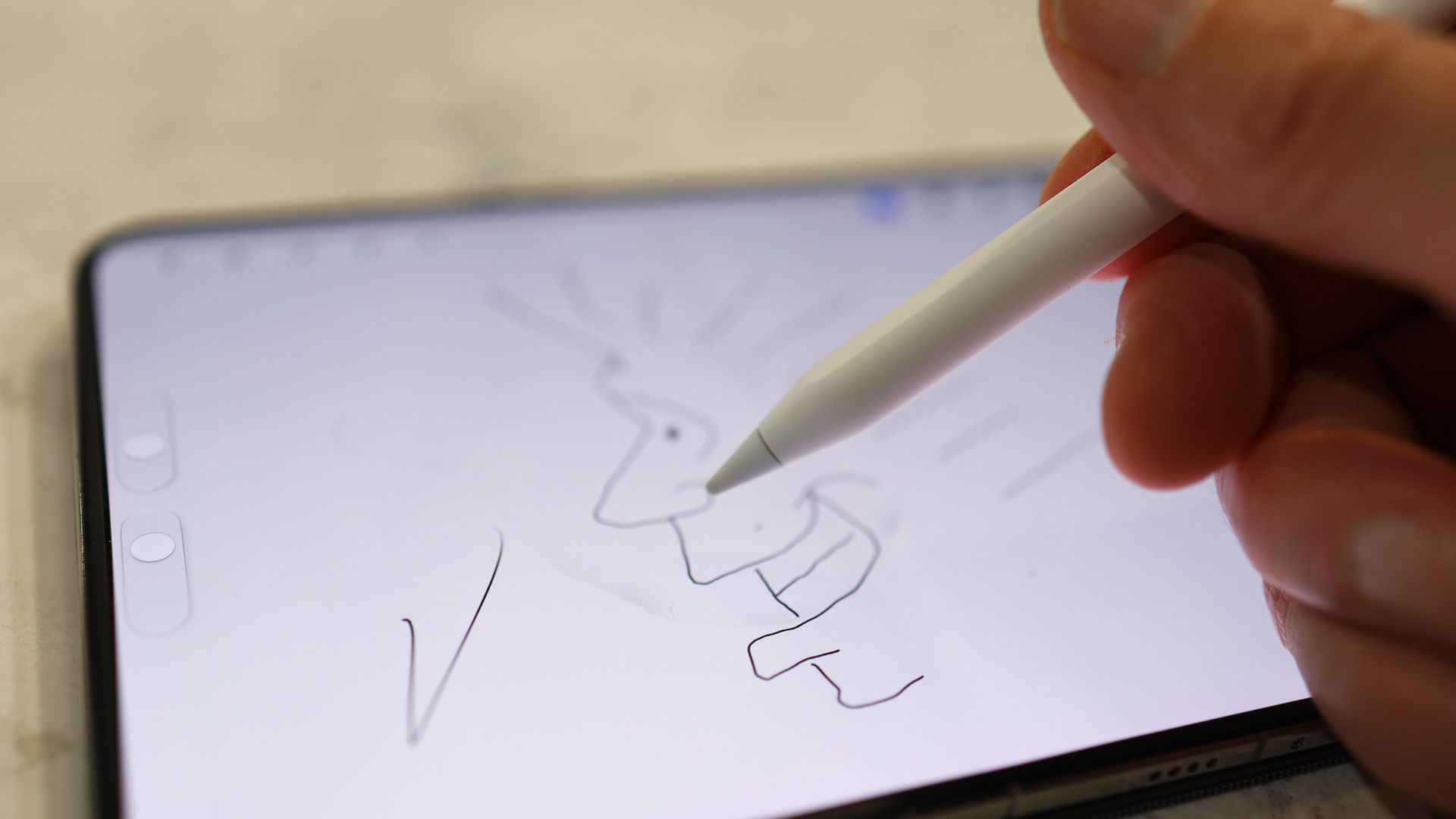
iPhone Duo and Apple Pencil

(Image credit: Lance Ulanoff / Future)

One of the first things I noticed is that the digital pen works almost exactly the same as it does on the iPad. There's palm rejection, which means I can rest my hand on the 7.6-inch display while drawing.

As with an iPad, the digital ink appears to flow directly out of the Pencil tip, and it's fast, too. There's no delay between me running the tip across the display and the digital ink, paint, charcoal, or watercolor stroke appearing in its wake.

I instantly liked how the pen feels on the lightly textured surface. Glossy screens can feel a tiny bit slippery, but not this one.

As for the other big question that's probably bursting to get out: yes, if you draw back and forth over the full, unfolded display, you will feel the crease — not a lot, mind you, but it is there. Interestingly, the lines I drew did not recognize those tiny bumps and instead were straight and squiggle-free.

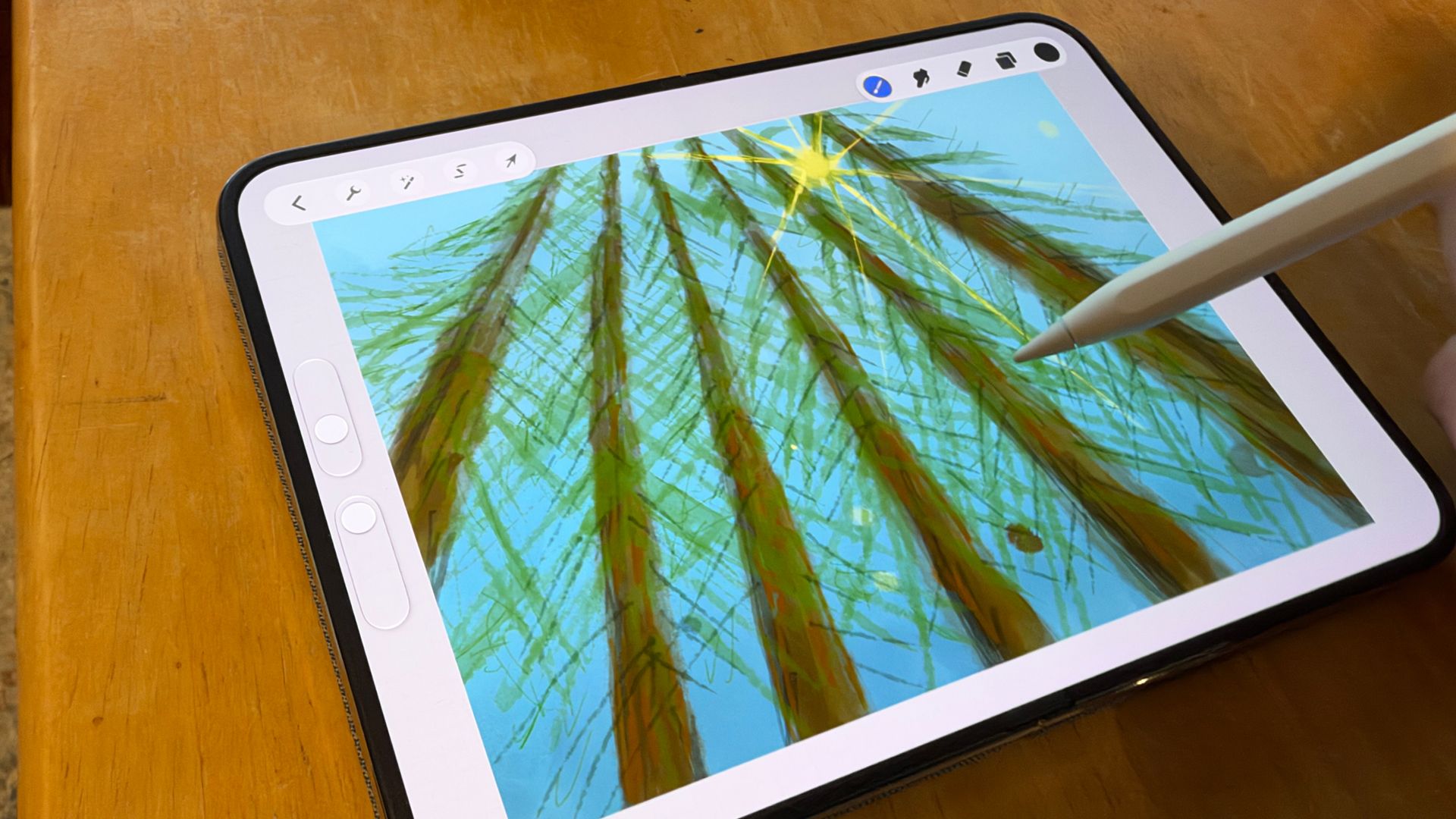
iPhone Duo and Apple Pencil

(Image credit: Lance Ulanoff / Future)

The iPhone Duo main screen recognizes the pen angle and speed, but not pressure. This is likely intentional; after all, I don't imagine Apple wants you putting extra force on the Pencil, and therefore the screen, to make a darker or bigger line. That adds a small wrinkle to my typical drawing flow — on the Duo, if I want to make lines taper properly, I sometimes have to shorten my line stroke, adjust the pen width to be smaller, and then continue on.

Even so, at no point did I feel like I couldn't draw naturally. Most of the time I forgot I was drawing on a flexible display and instead focused on the art in much the same way I would if I were drawing on an iPad mini.

In general, Procreate Pocket worked smoothly on the iPhone Duo, though I did notice that I sometimes had to select a tool, say Eraser or the Pen, more than once to get it to switch.

iPhone Duo and Apple Pencil

(Image credit: Lance Ulanoff / Future)
Did you know TechRadar now has membership?

Various tech product cutouts next to the words 'Insider TechRadar Learn More'

(Image credit: Future)

Become a TechRadar Insider by simply clicking 'Join Now' at the top of this page. Have a question? Please email membership@techradar.com
The Apple Pencil works equally well on the cover screen, though I find that smaller display a bit restrictive for drawing. There is also the matter of what I do with the Pencil when I'm not using it. Even if Apple did come up with an iPhone Duo case to hold it, the Apple Pencil (USB-C) is at least an inch taller than the folded Duo.

Overall, this is what I always wanted but also something more. It's an iPhone that I can draw on but also one that reminds me of Mr. Peabody's expandable chalkboard. Instead of one relatively cramped drawing space, I have a hidden 7.6-inch Apple Pencil-ready drawing tablet in my pocket.

Now, Apple, do the iPhone 18 Pro Max.

The MacBook Pro PROLED XDR 14-inch is my favorite MacBook, ever — here's why

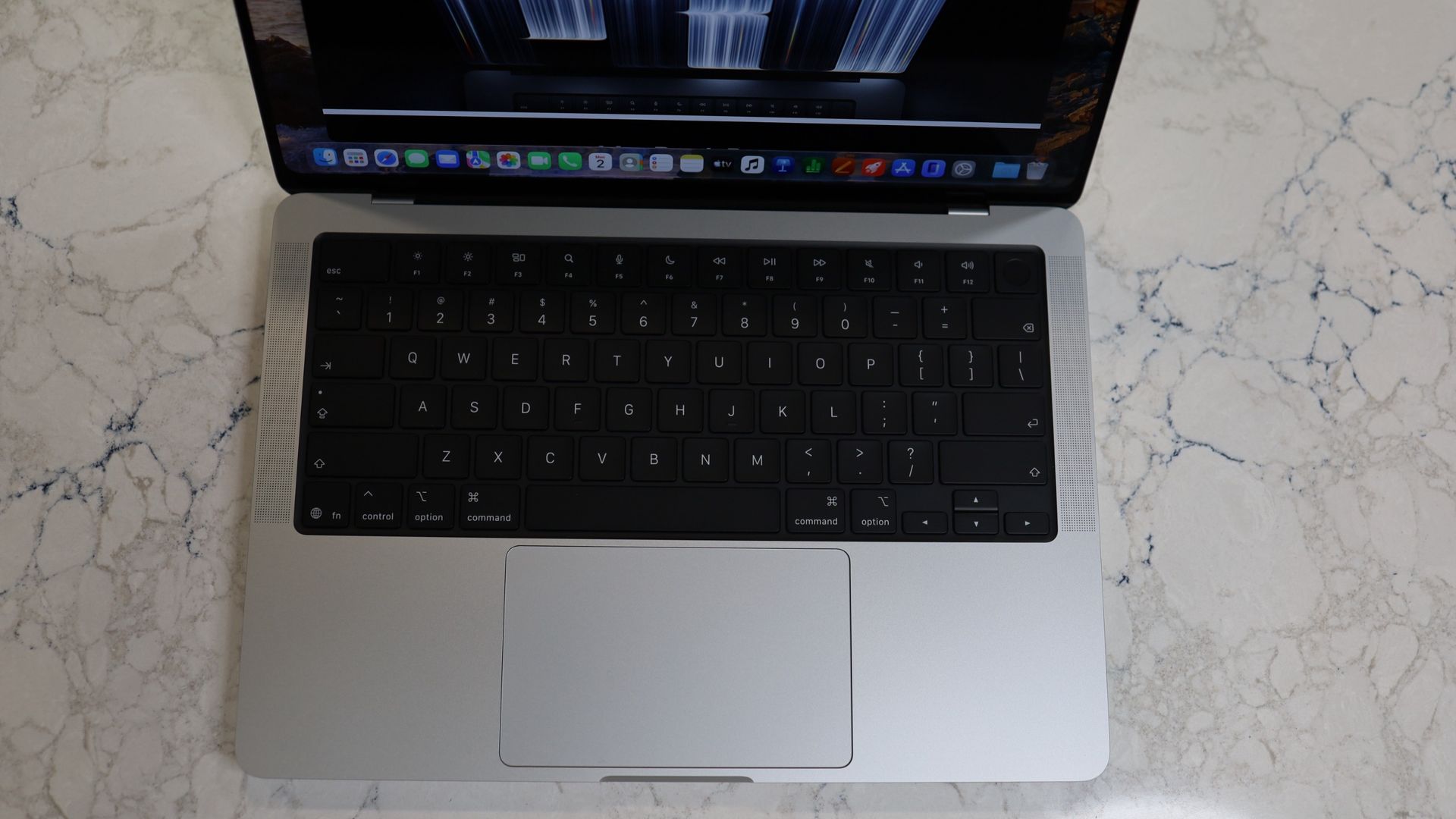
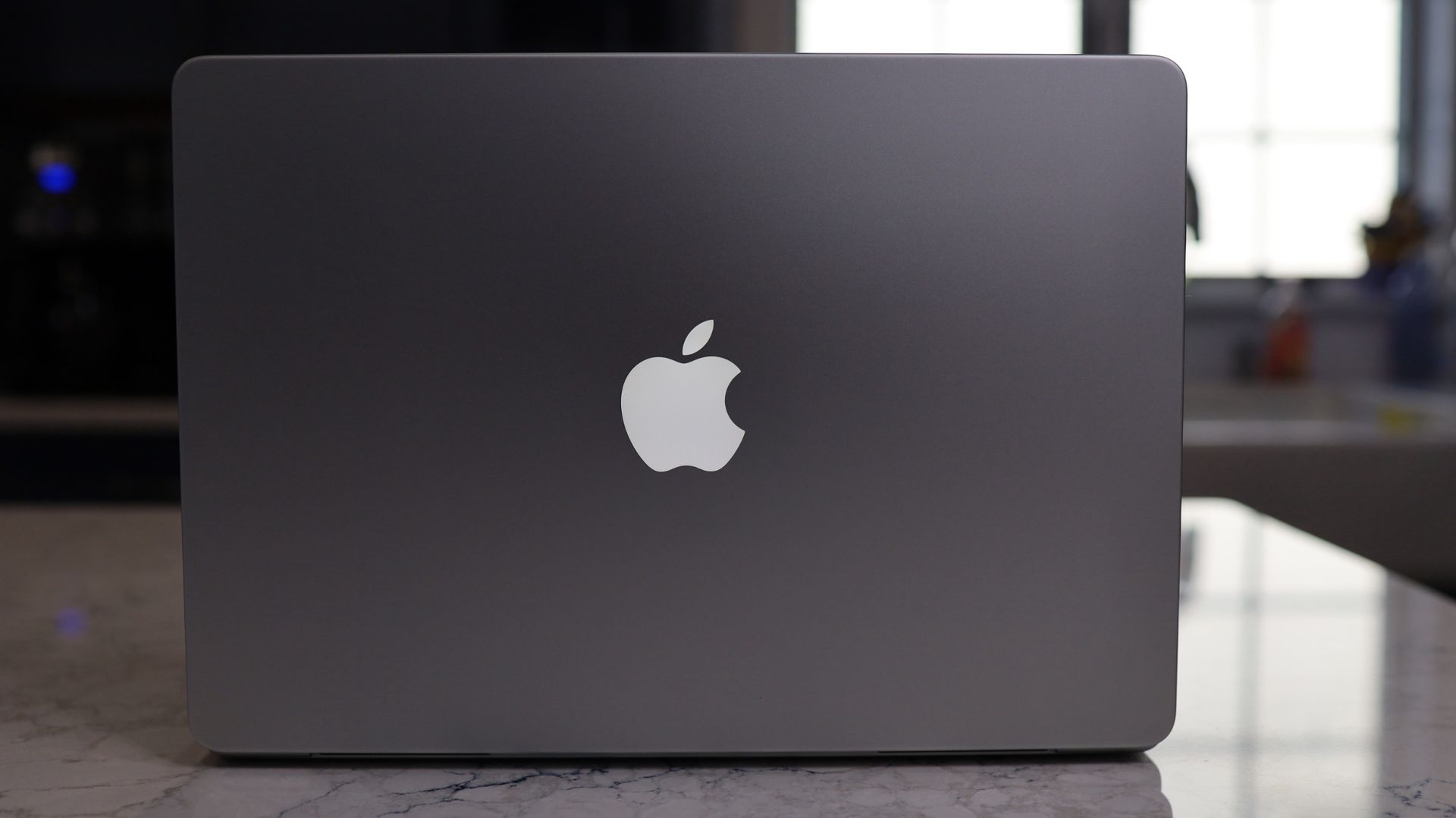
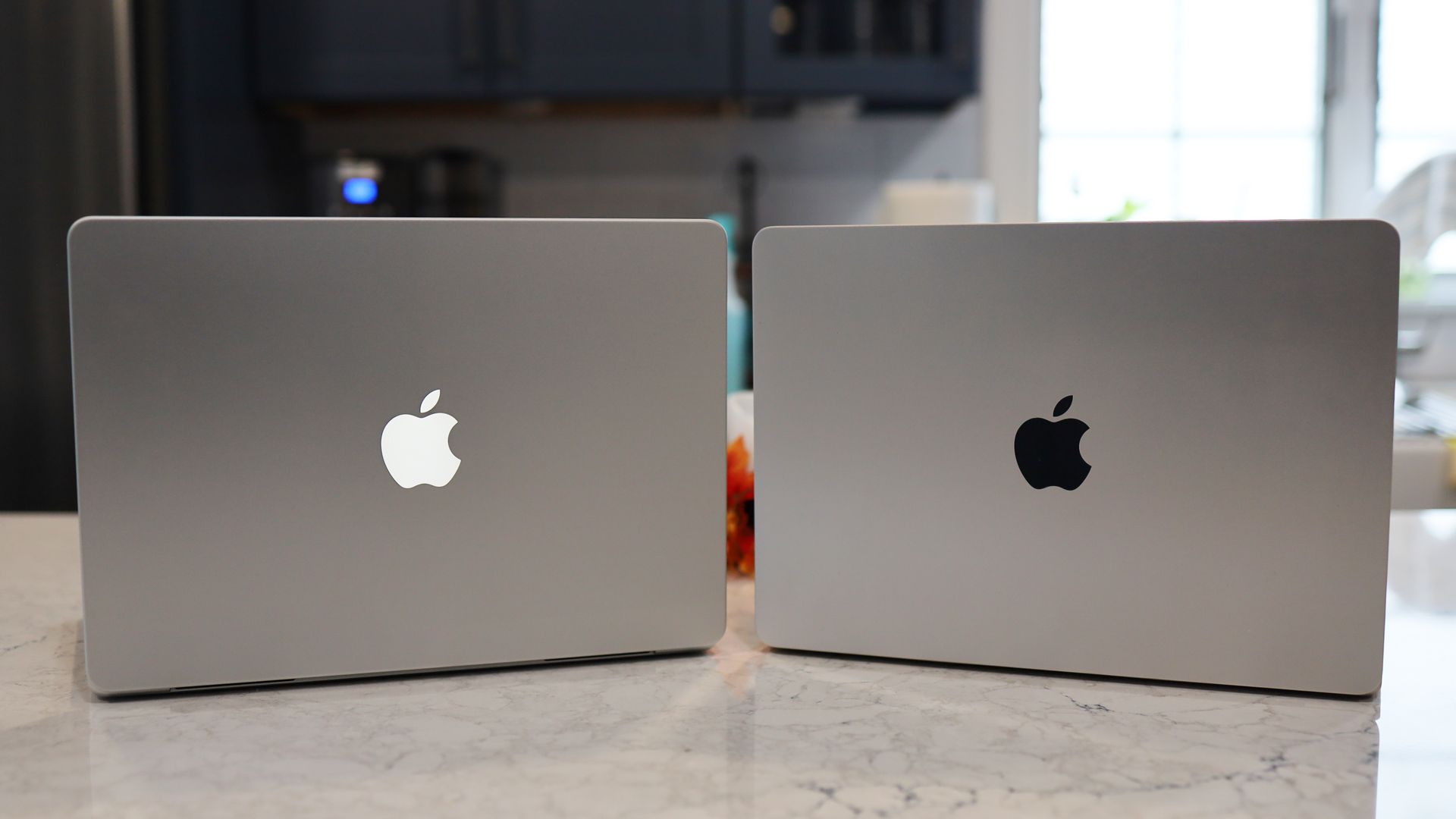
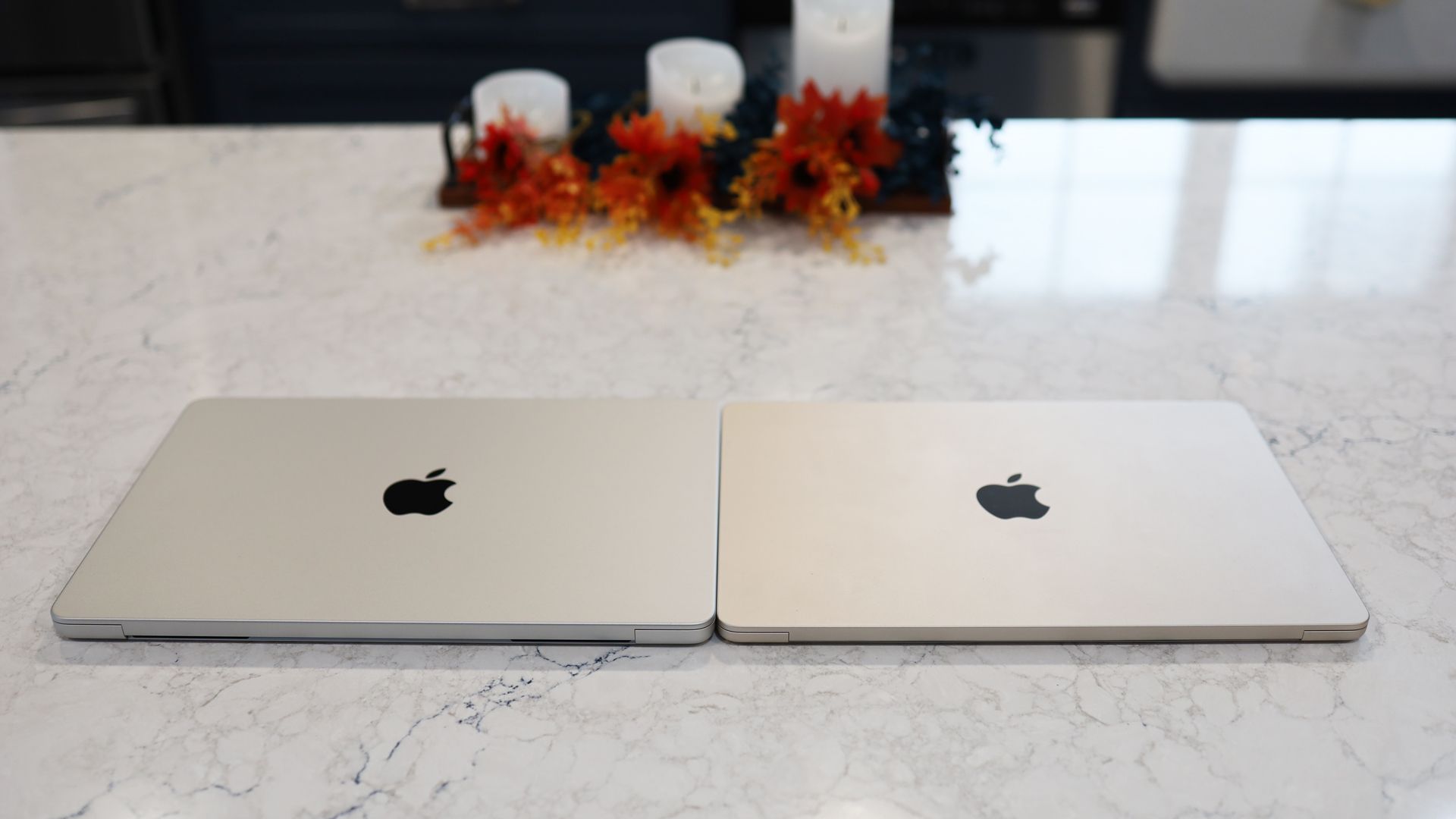
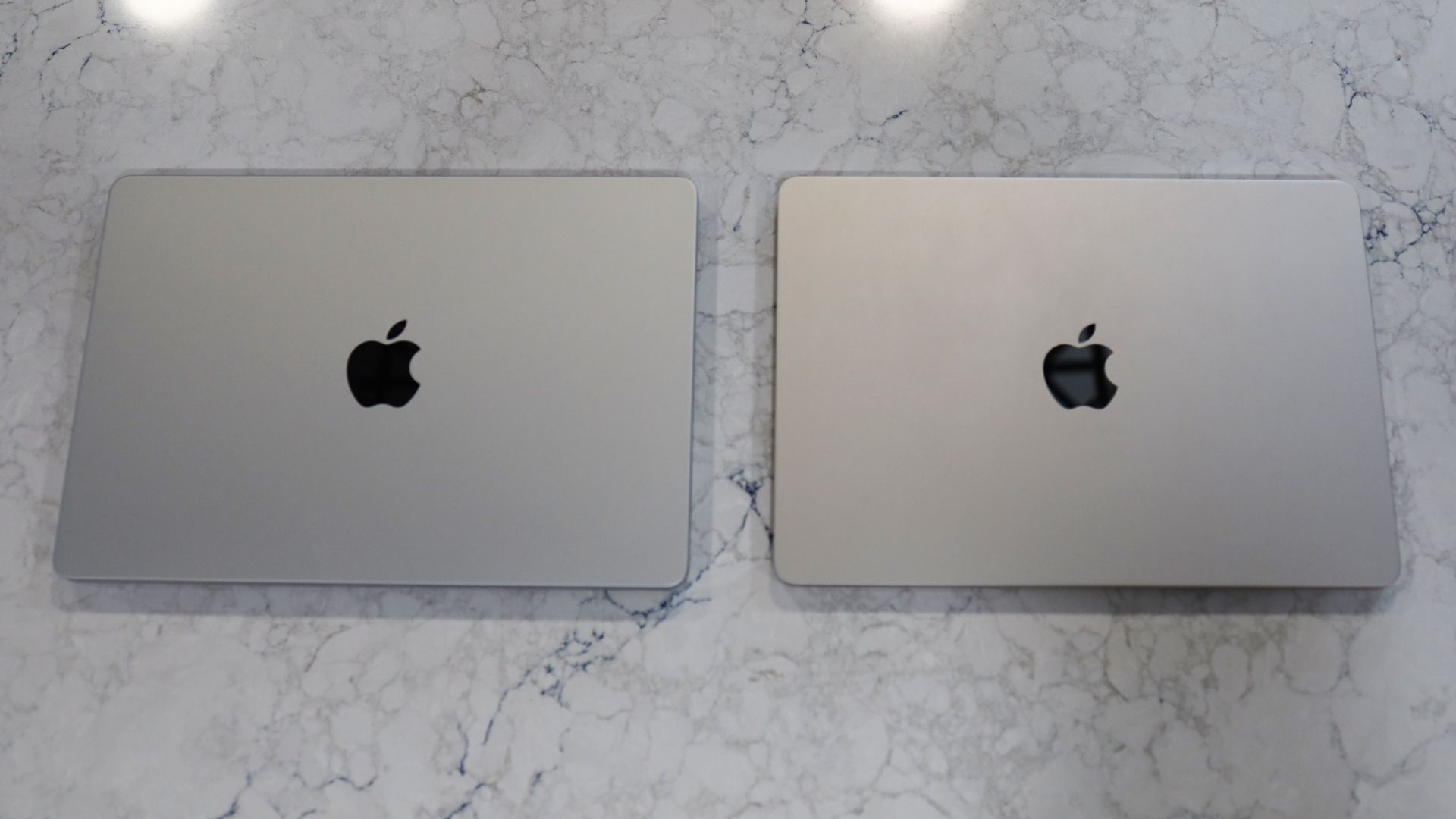
It wasn’t until I unboxed the all-new touchscreen MacBook Pro that I understood the enormity of what Apple had done. They’d told me it was now a 3lb system that was both thinner and smaller than the MacBook Pro M5 (and the recently released M6 model), but it wasn’t until I put the new laptop next to the M5 and then compared it to the MacBook Air M5 that I knew Apple had changed its laptop game.

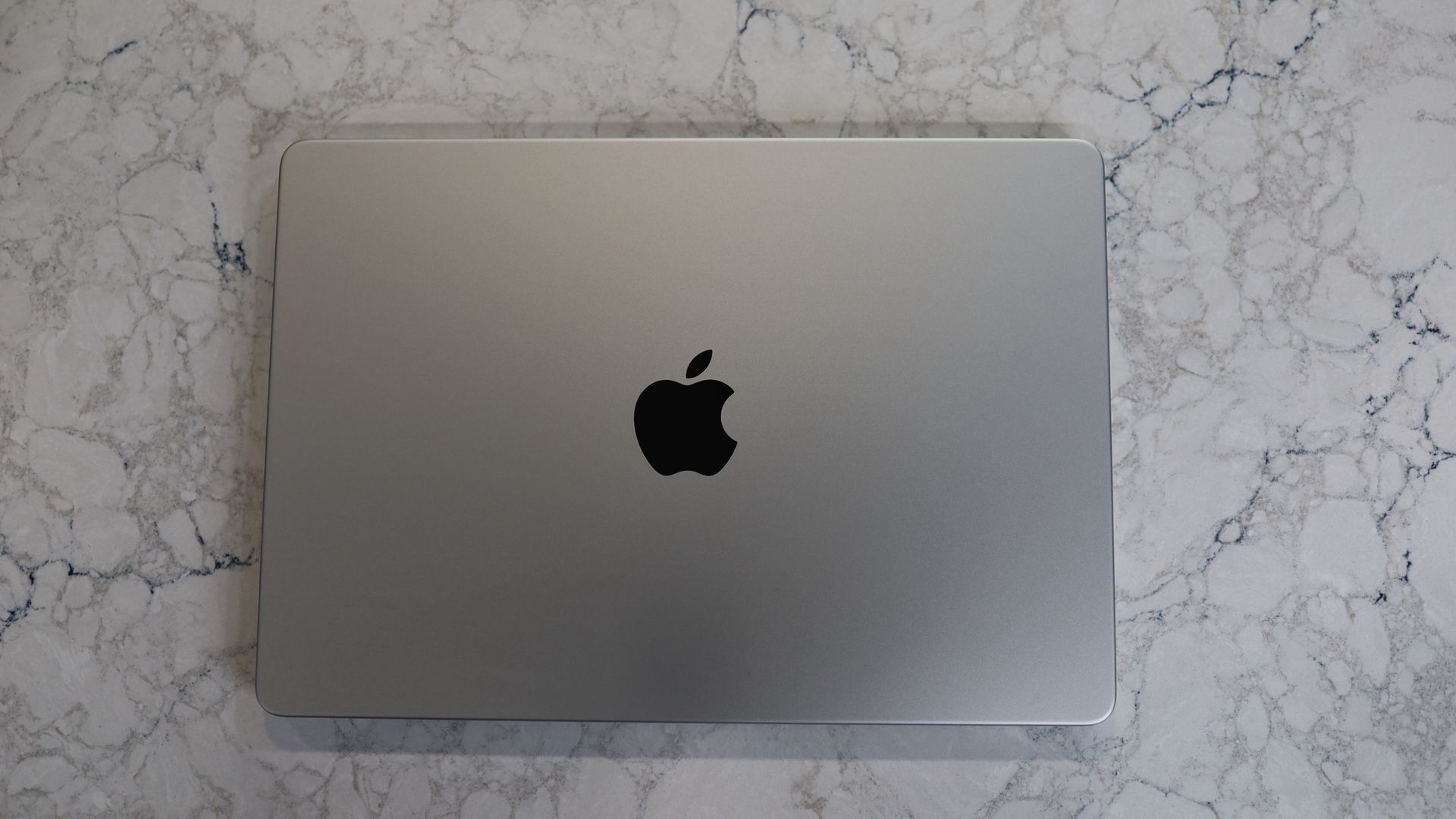
MacBook Pro PROLED XDR Display 14-inch
Lance Ulanoff / Future
MacBook Pro PROLED XDR Display 14-inch
Lance Ulanoff / Future
MacBook Pro PROLED XDR Display 14-inch
Lance Ulanoff / Future
MacBook Pro PROLED XDR Display 14-inch
Lance Ulanoff / Future
MacBook Pro PROLED XDR Display 14-inch
Lance Ulanoff / Future
MacBook Pro PROLED XDR Display 14-inch
Lance Ulanoff / Future

Here's what you should know about me: I hate a heavy backpack. That’s one of the reasons I carried a Microsoft Surface Pro for a decade and have now carried a succession of excellent MacBook Air laptops for the last few years. At 2.7 lbs, it's light enough to be mostly unnoticeable in my backpack, and since the M-class Apple silicon chips, Apple has packed in more than enough power for my needs.

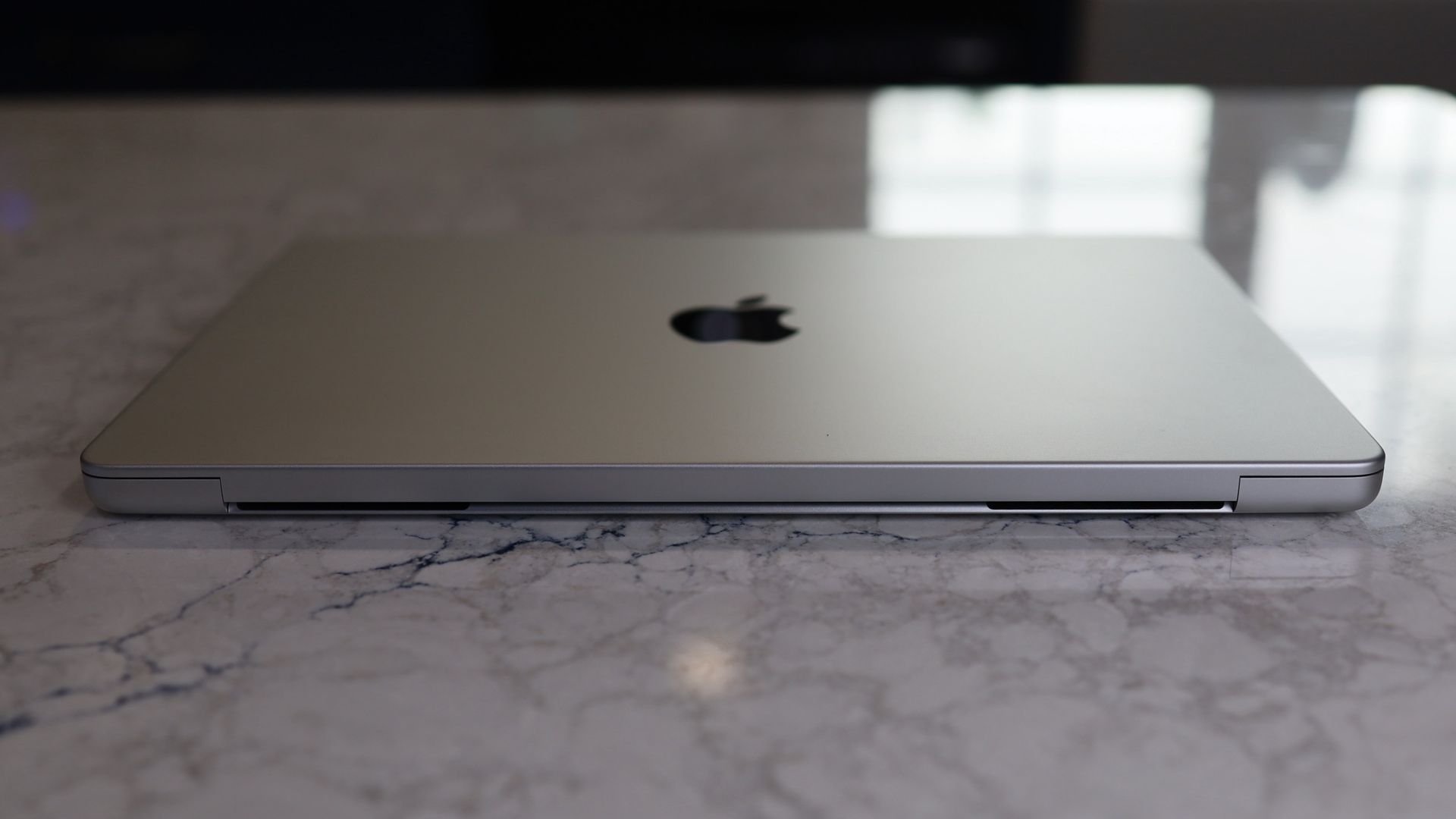
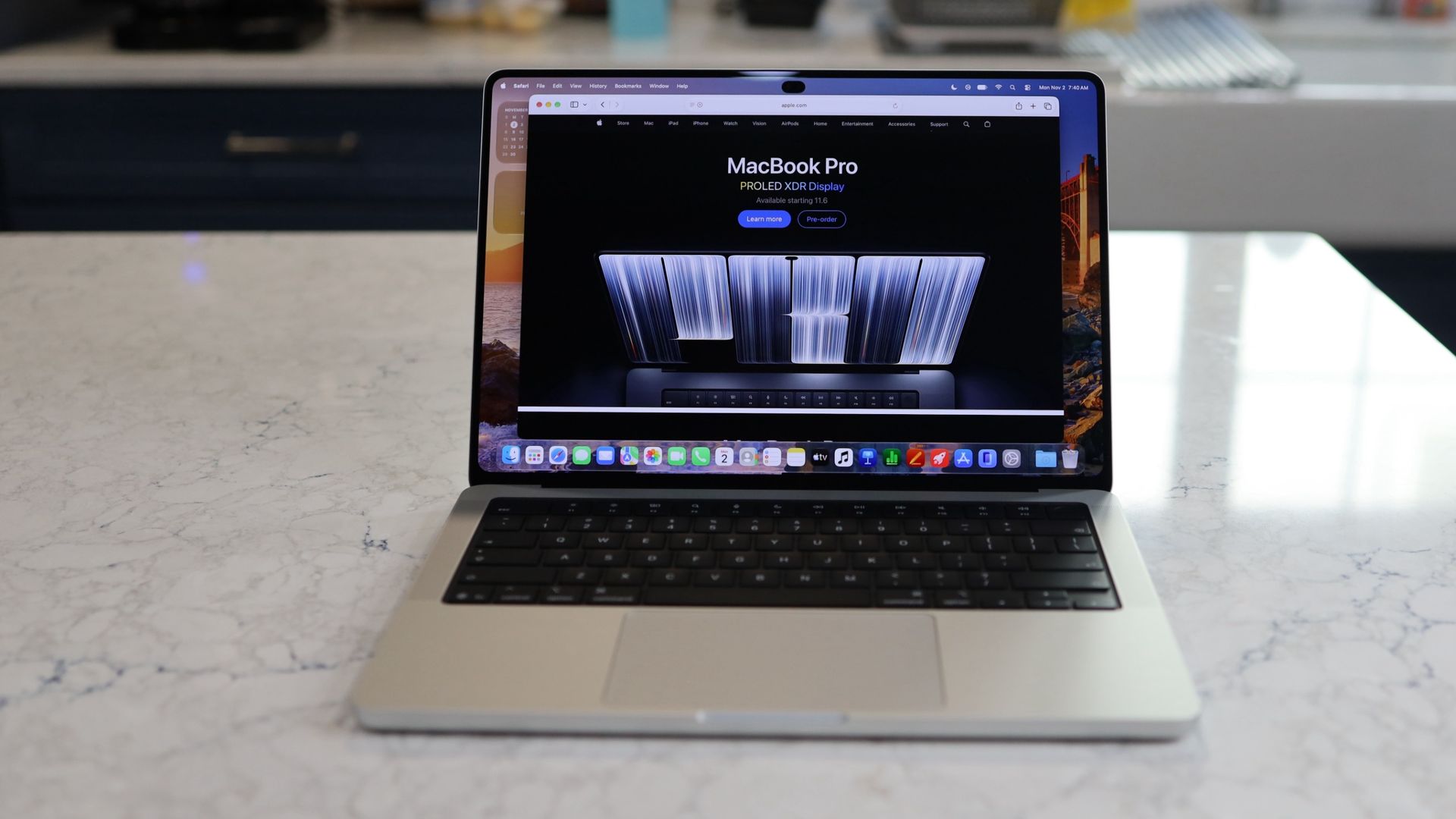
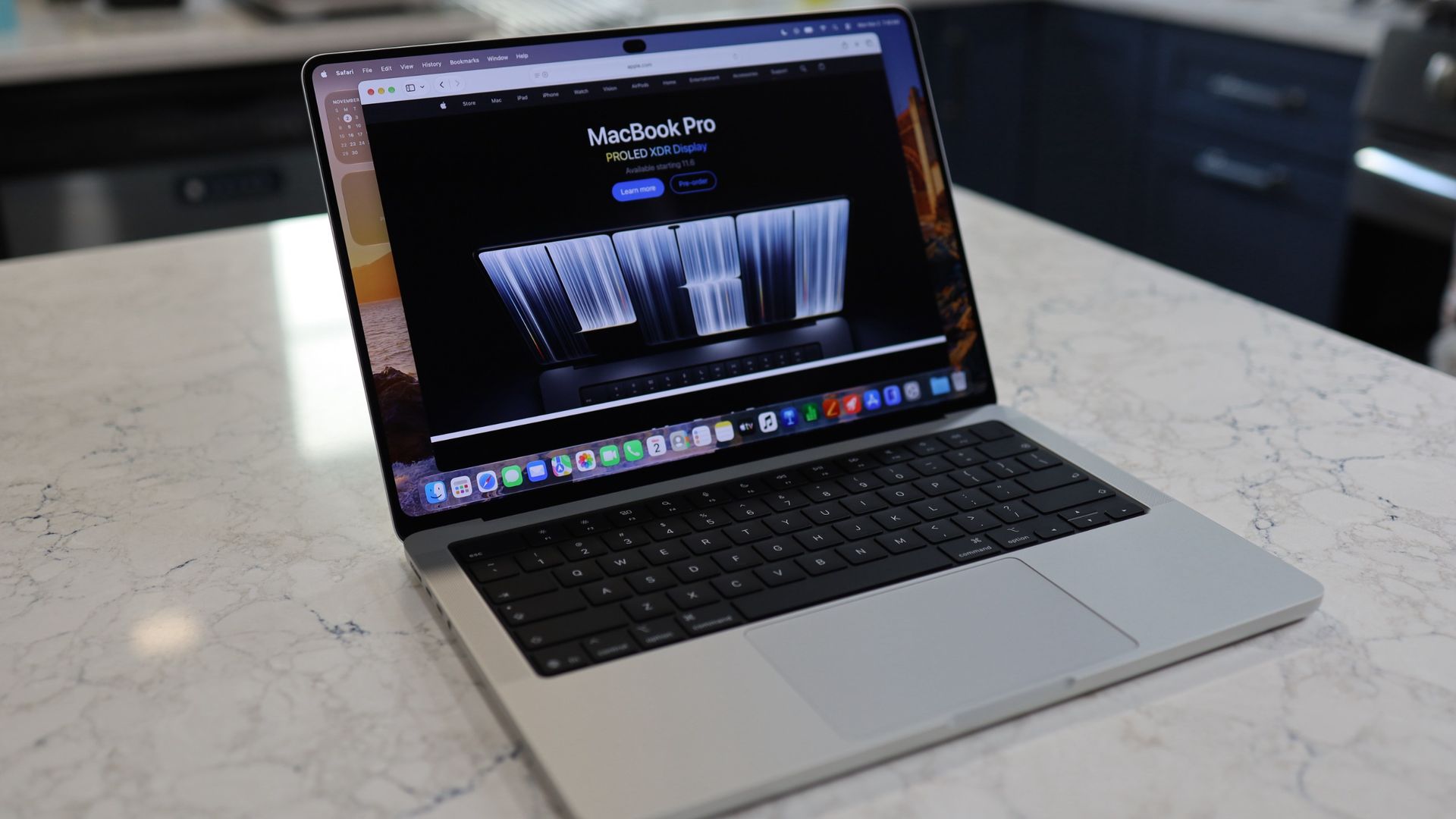
The new Touchscreen MacBook shrinks the traditional Pro chassis by a full half pound. That’s right, it’s now just 0.3 pounds heavier than my MacBook Air. It’s not just the weight. Overall bulk — despite a larger (and also in part because of) PROLED XDR display — is not much more than the Air.

Here are the specs:

MacBook Air 13-inch M5

  • Height: 0.44 inch
  • Width: 11.97 inches
  • Depth: 8.46 inches

MacBook Pro PROLED XDR Display 14-inch

  • Height: 0.59 inch
  • Width: 12.24 inches
  • Depth: 8.52 inches

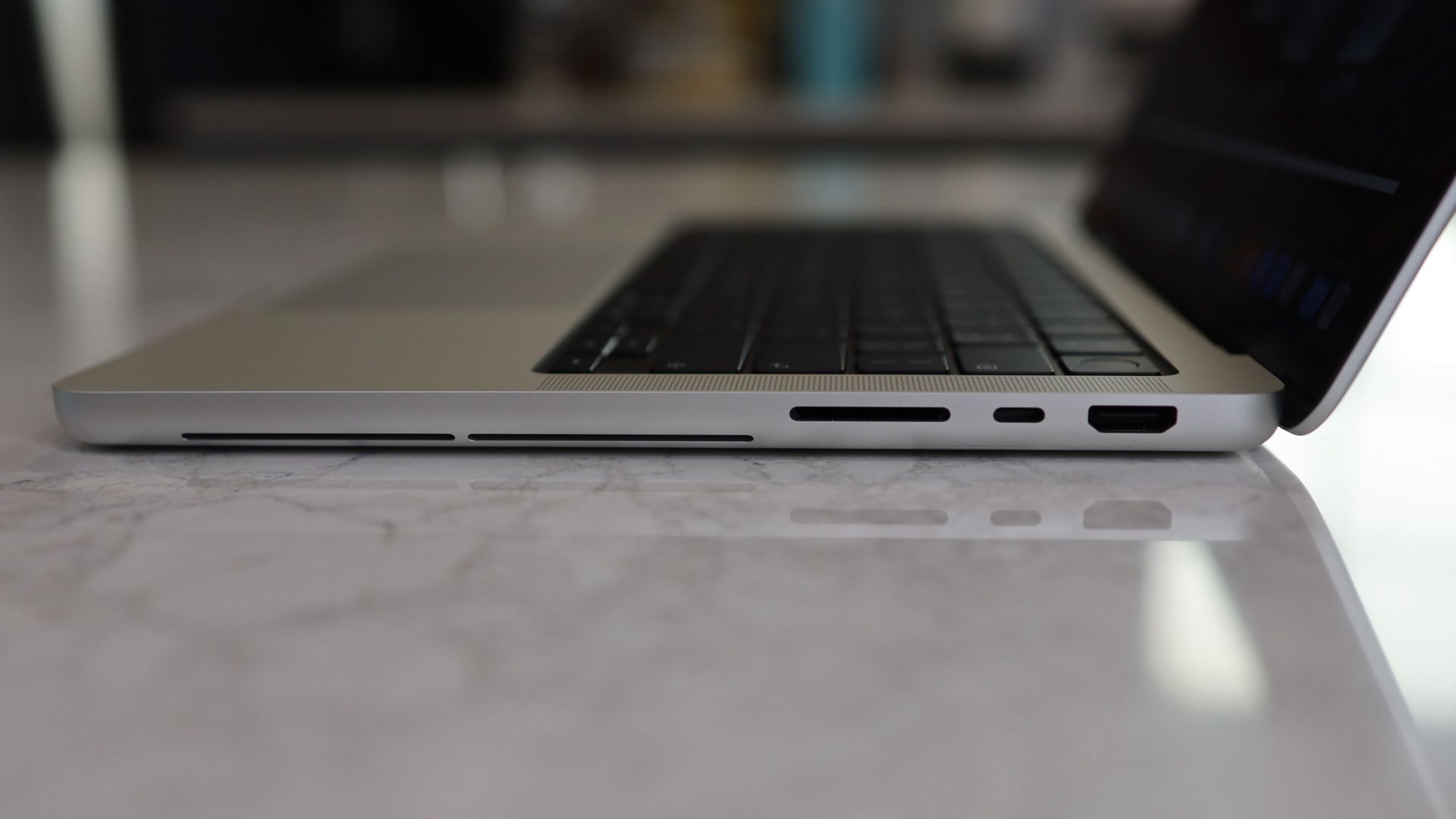
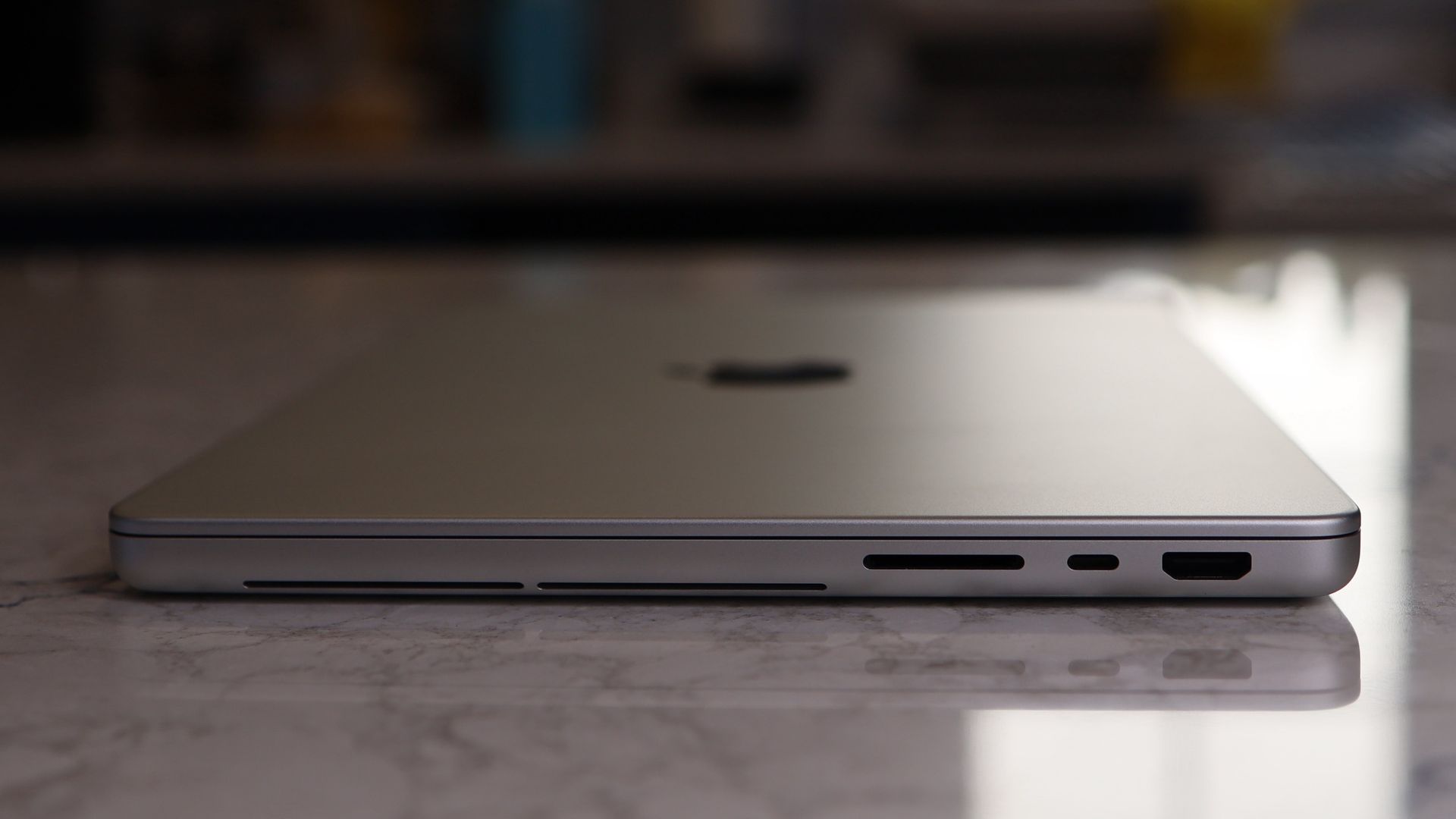
Obviously, the touchscreen MacBook Pro is fractionally larger in every dimension, but it no longer feels like a bulky, heavy Pro system.

Apple’s ability to shrink this powerful laptop's dimensions — while leaving ports, keyboard, trackpad, and speakers virtually untouched and oh-so-familiar — comes down, in large part, to the new tandem OLED display, which is considerably thinner than the M6’s mini-LED-based Liquid Retina Display.

It’s also wholly redesigned, stretching far deeper on the cover than the Liquid Retina panel on the traditional MacBook Pro. That extra depth is how Apple almost magically fits a 14.2-inch display on a smaller chassis.

MacBook Pro PROLED XDR Display 14 vs MacBook Air M5 13-inch
MacBook Pro PROLED XDR Display 14 on the left and the MacBook Air M5 13-inch on the rightLance Ulanoff / Future
MacBook Pro PROLED XDR Display 14 vs MacBook Air M5 13-inch
MacBook Pro PROLED XDR Display 14 on the left and the MacBook Air M5 13-inch on the rightLance Ulanoff / Future
MacBook Pro PROLED XDR Display 14 vs MacBook Air M5 13-inch
MacBook Pro PROLED XDR Display 14 on the left and the MacBook Air M5 13-inch on the rightLance Ulanoff / Future
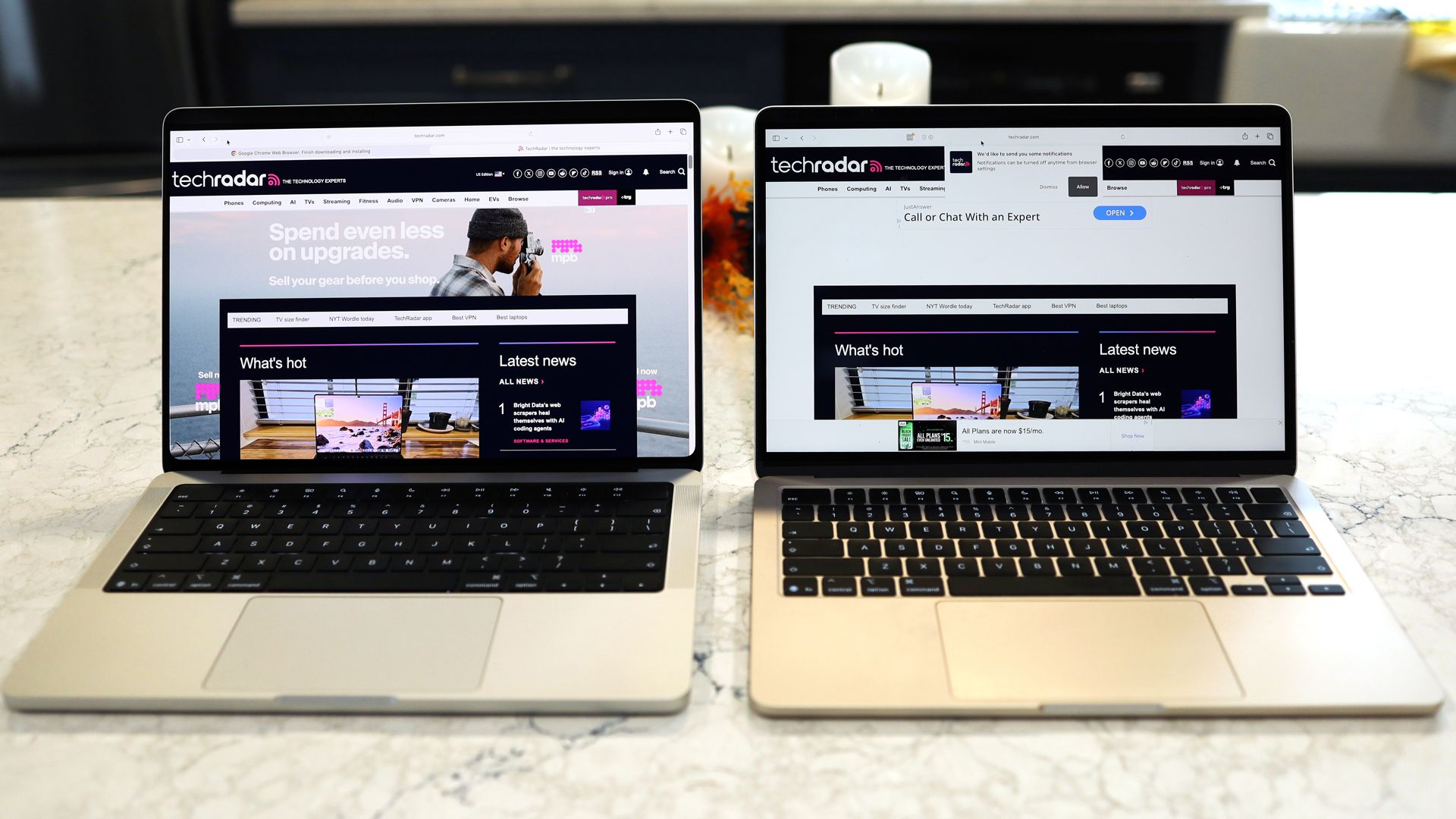
MacBook Pro PROLED XDR Display 14 vs MacBook Air M5 13-inch
MacBook Pro PROLED XDR Display 14 on the left and the MacBook Air M5 13-inch on the rightLance Ulanoff / Future

Perhaps you can see where I’m going: By shrinking its most powerful portable (with a touchscreen, no less), Apple is, whether purposefully or not, introducing some buying confusion. A MacBook Pro is officially nearly ultra-portable territory.

Obviously, the price and power disparity is what will now cleave consumers one way or the other. The MacBook Air 13-inch M5 starts at $1,099 / £1,099 / AU$1,799 with 16GB of RAM, a 10-Core CPU, 8-Core GPU, and 512GB of storage. The 14-inch MacBook Pro PROLED XDR Display starts at $2,899 / £2,899 / AU$4,599, with a 15-Core M5 Pro, 16-Core GPU, 24GB of RAM, and 1TB of storage.

The difference is clear: this is a Pro-grade system, which has far more power than anyone looking at a MacBook Air-class system probably needs.

Still, with this new MacBook Pro, I think the MacBook Air’s portability advantage has been taken off the table.

The magic touch

Now, I’ve spent some time with a slightly juiced-up MacBook Pro PROLED XDR Display (M5 Pro with an 18-Core GPU, 20-Core GPU, 48GB of RAM, and 1 TB of storage for $3699) and have come to realize that aside from formidable, virtually endless power, it’s the remarkable screen that I now believe is set to change the trajectory of all Apple MacBooks.

I want to be clear: the ability to touch the MacBook Pro screen and manipulate data, content, screen views, desktops, and more is exciting. But I‘m not gonna lie, I’ve been struggling to figure out what it was made for. As I wrote when Apple unveiled the touchscreen MacBook Pro, I’m quite familiar with touchscreen systems and, when necessary, did touch my Surface Pro screen.

However, it’s becoming clear to me that as I use the MacBook Pro PROLED XDR Display system as my everyday driver, I don’t touch the display very often. Instead, I kept looking for reasons to touch the display.

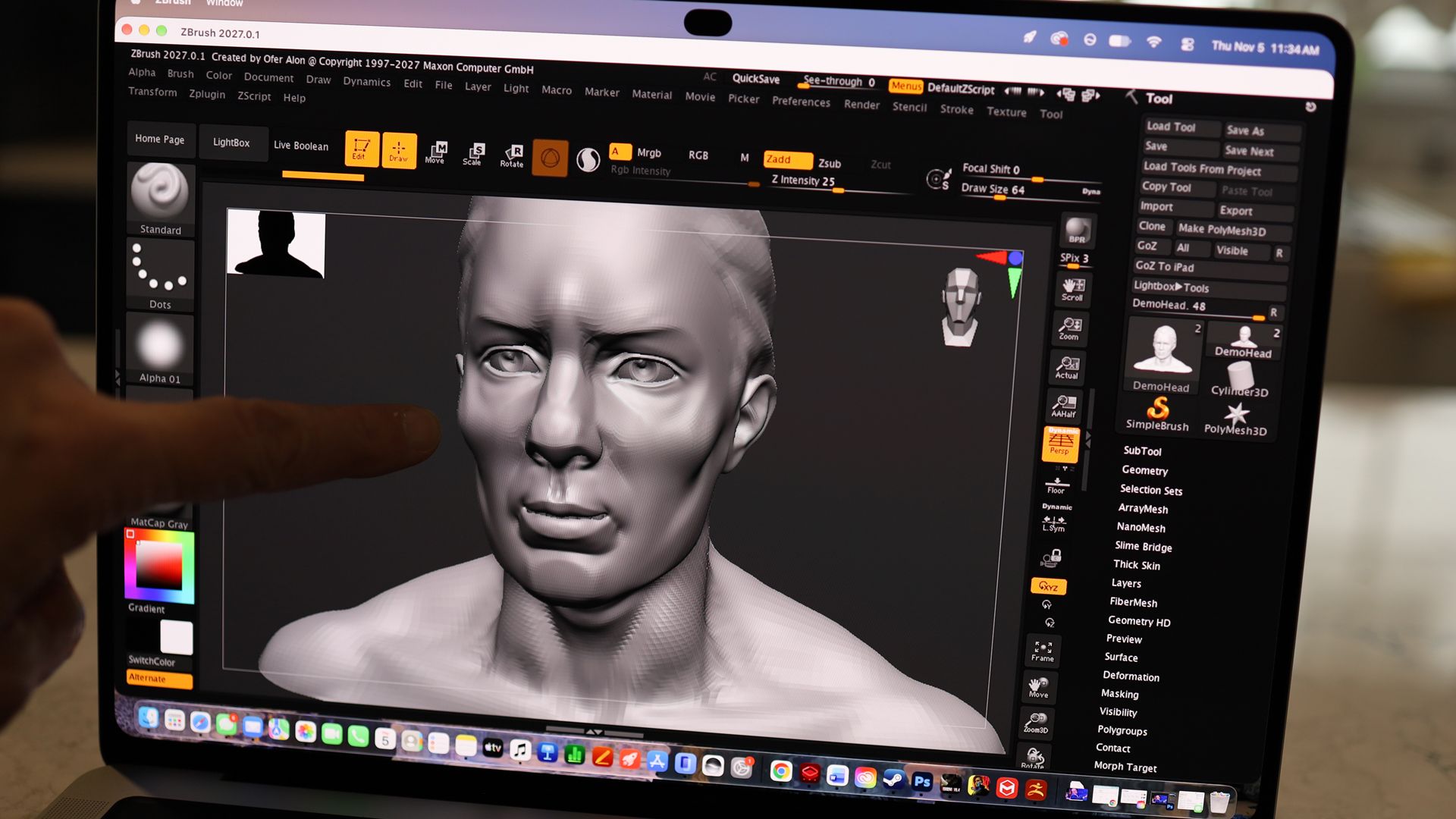
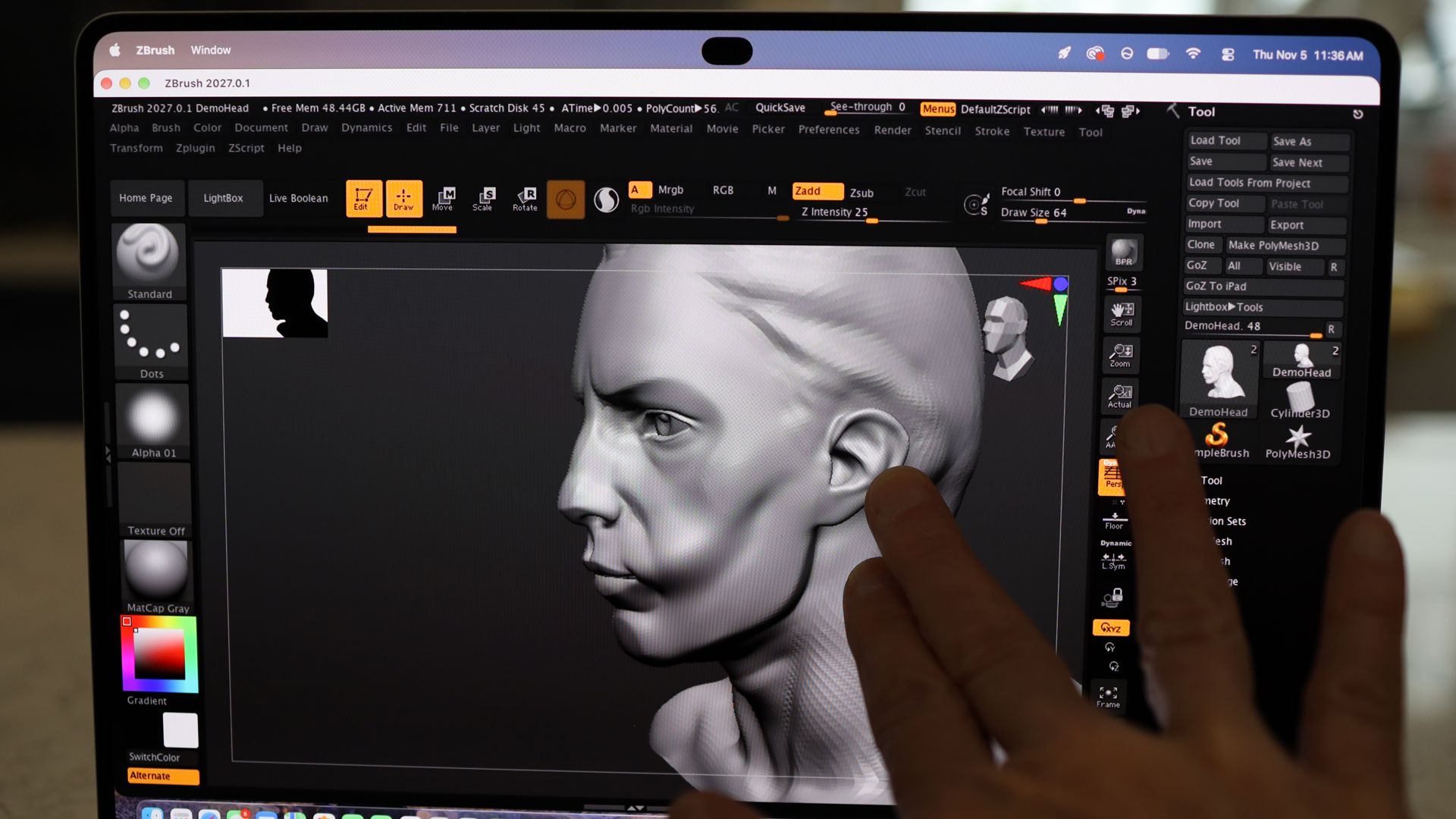
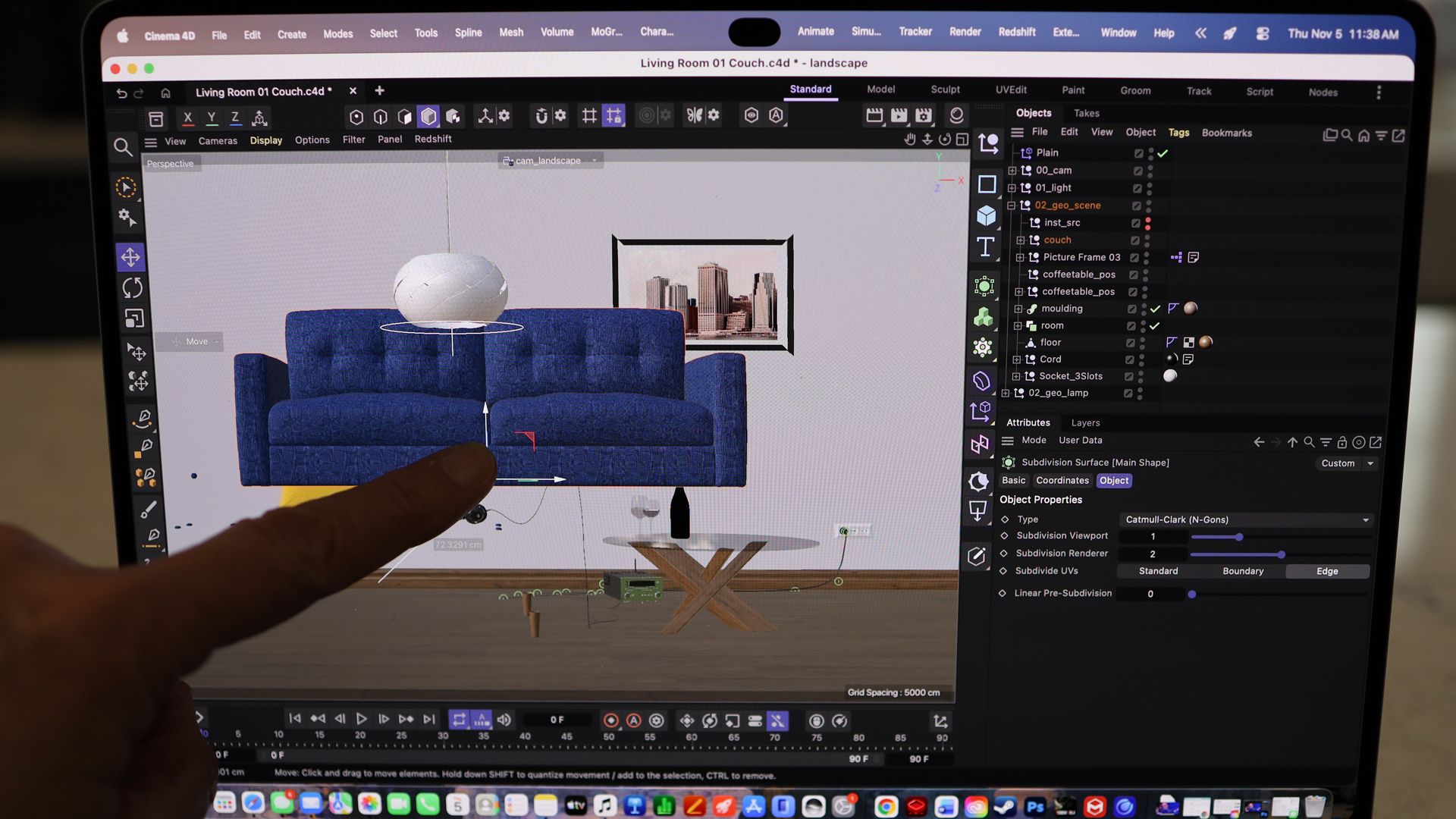
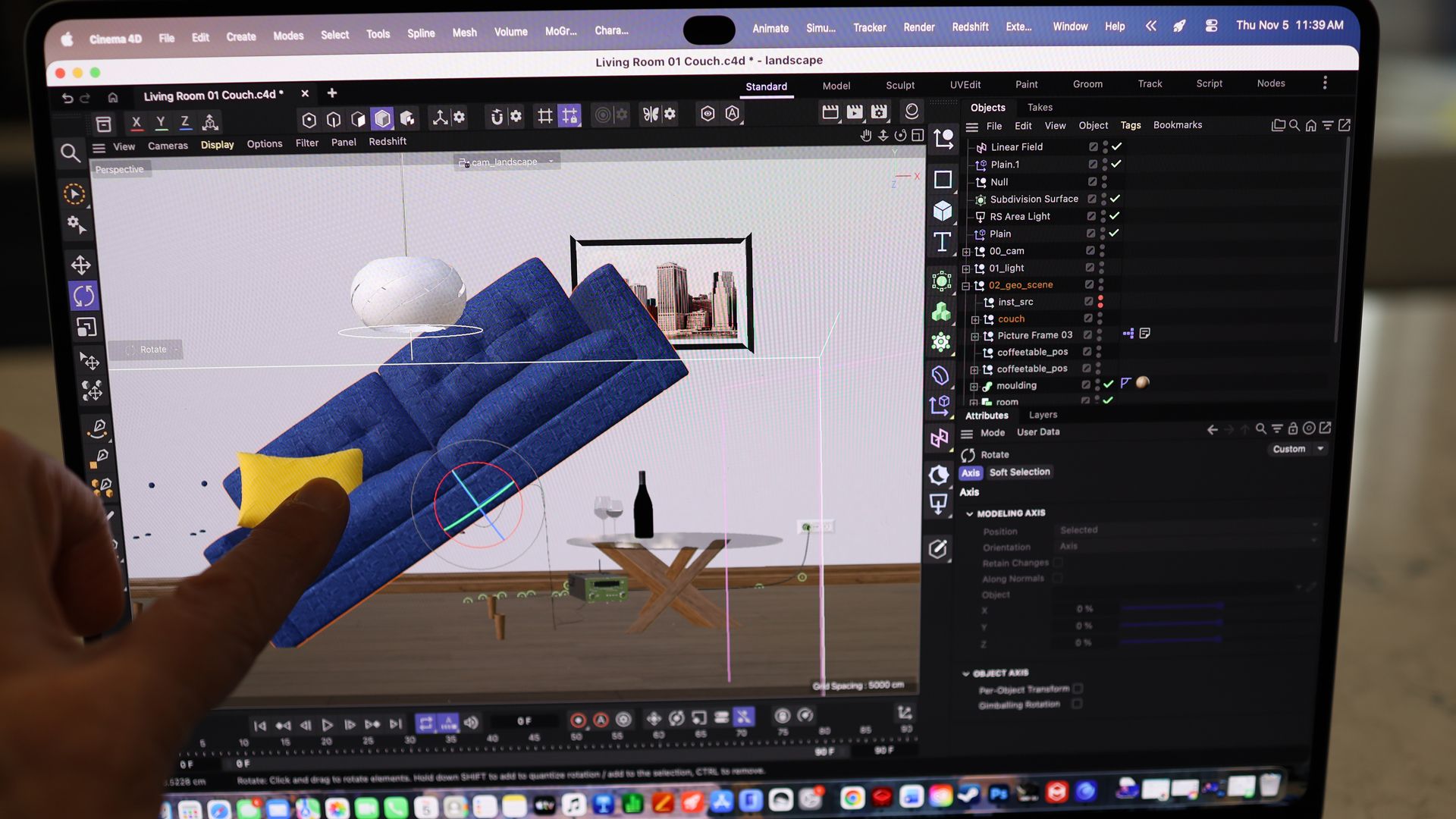
There are apps where it’s fun to try, like the 3D-manipulating ZBrush, which lets me pull and push 3D models like a digital sculptor, and 3D scene-creating Cinema 4D (using my fingers to manipulate a 3D couch was harder than I thought it would be), but these are, at least not for me, everyday tools.

MacBook Pro PROLED XDR Display touch screen examples
ZBrush on the MacBook Pro PROLED XDR Display 14Lance Ulanoff / Future
MacBook Pro PROLED XDR Display touch screen examples
ZBrush on the MacBook Pro PROLED XDR Display 14Lance Ulanoff / Future
MacBook Pro PROLED XDR Display touch screen examples
Cinema 4D on the MacBook Pro PROLED XDR Display 14Lance Ulanoff / Future
MacBook Pro PROLED XDR Display touch screen examples
Cinema 4D on the MacBook Pro PROLED XDR Display 14Lance Ulanoff / Future

I fiddled with the laptop’s touchscreen to scroll through web pages, but I'm just as happy to use the giant Force Touch trackpad.

I take a lot of screen grabs by holding down Command/Shift/4 to launch the grabber, and I usually use the mouse to select the capture area. With the touchscreen, I could drag my finger diagonally across the screen to select a capture area. That was kind of cool, though not a game changer, and I’m fine with using the mouse.

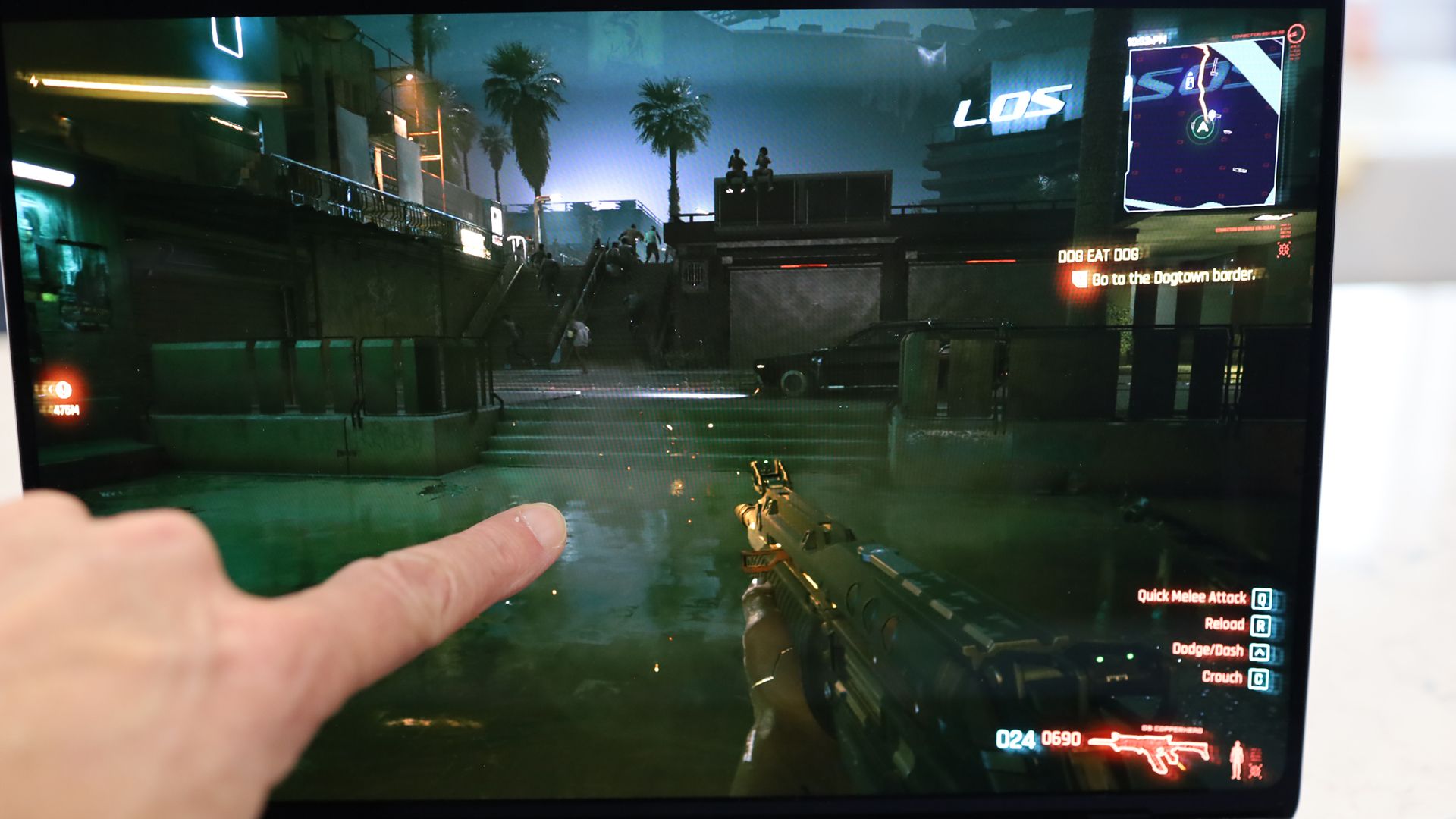
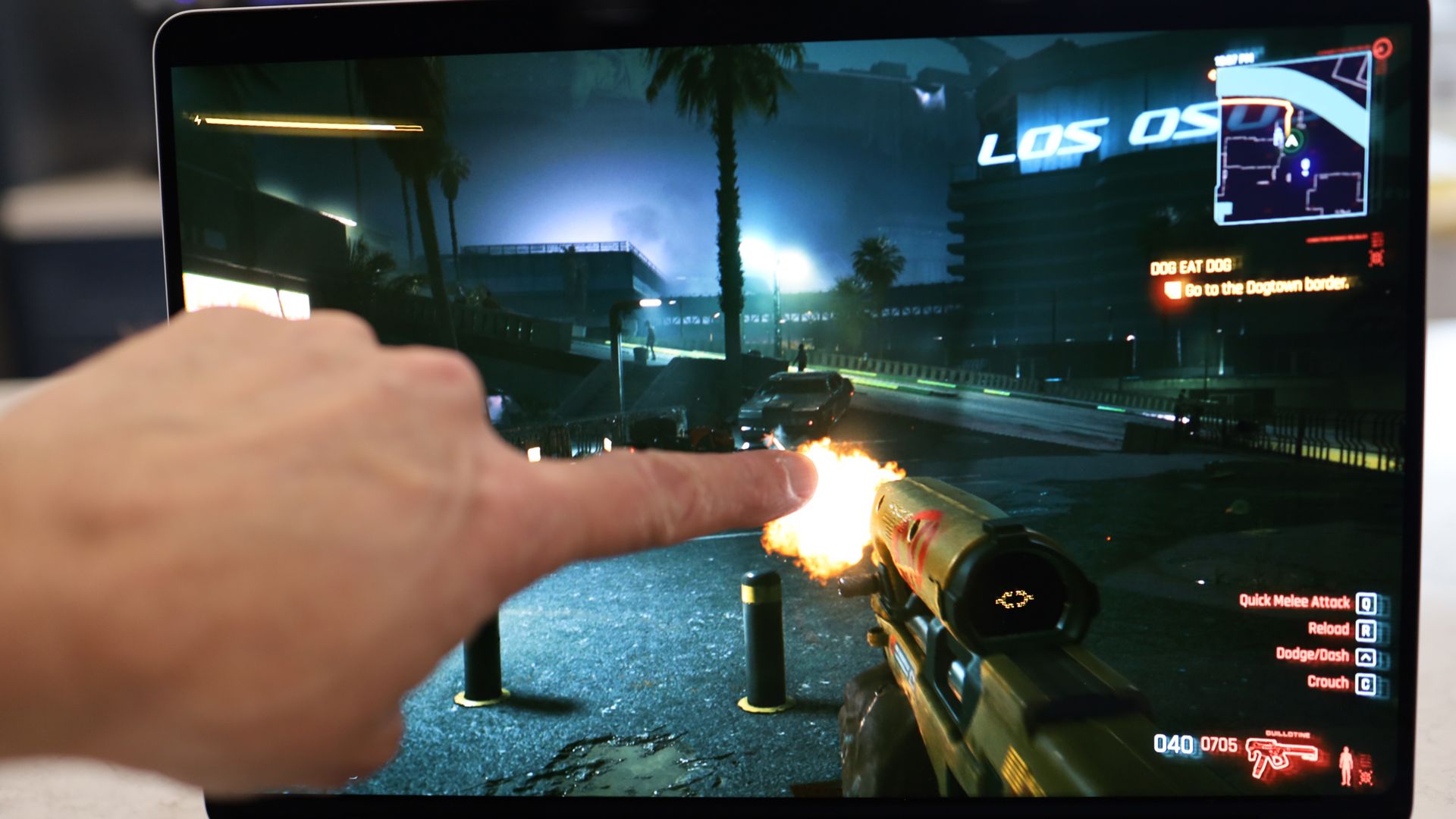
I tried using my fingers to manipulate my Cyberpunk 2077 character, and it was a disaster. I kept accidentally drawing my weapon and blasting away at random strangers. I decided to stick with the mouse and trackpad. Side note: I ran all of these games and apps at once. This system is such a beast.

MacBook Pro PROLED XDR Display touch screen examples
Cyberpunk 2077 on the MacBook Pro PROLED XDR Display 14Lance Ulanoff / Future
MacBook Pro PROLED XDR Display touch screen examples
Cyberpunk 2077 on the MacBook Pro PROLED XDR Display 14Lance Ulanoff / Future

The point is, I think touch has its applications and place, but I think it’ll end up being mostly useful in specific, vertical workflows.

That feeling may change over time. After all, sometimes touching a MacBook display does feel like an illicit act. Each time I went to close a window or scroll a webpage with a fingertip, I did glance around to see who was watching, wondering if they thought I’d gone a bit daft, as they thought, “Dude, you can’t touch a MacBook screen; Steve Jobs told us so.”

Those who do choose this relatively lightweight and incredibly powerful system probably won’t do so because of touch, but they may choose it for another reason:

The astonishing display.

MacBook Pro PROLED XDR Display touch screen examples
MacBook Pro PROLED XDR Display 14 on the left and the MacBook Pro 14-inch M5 on the rightLance Ulanoff / Future
MacBook Pro PROLED XDR Display touch screen examples
MacBook Pro PROLED XDR Display 14 on the left and the MacBook Pro 14-inch M5 on the rightLance Ulanoff / Future
MacBook Pro PROLED XDR Display touch screen examples
MacBook Pro PROLED XDR Display 14 on the left and the MacBook Pro 14-inch M5 on the rightLance Ulanoff / Future

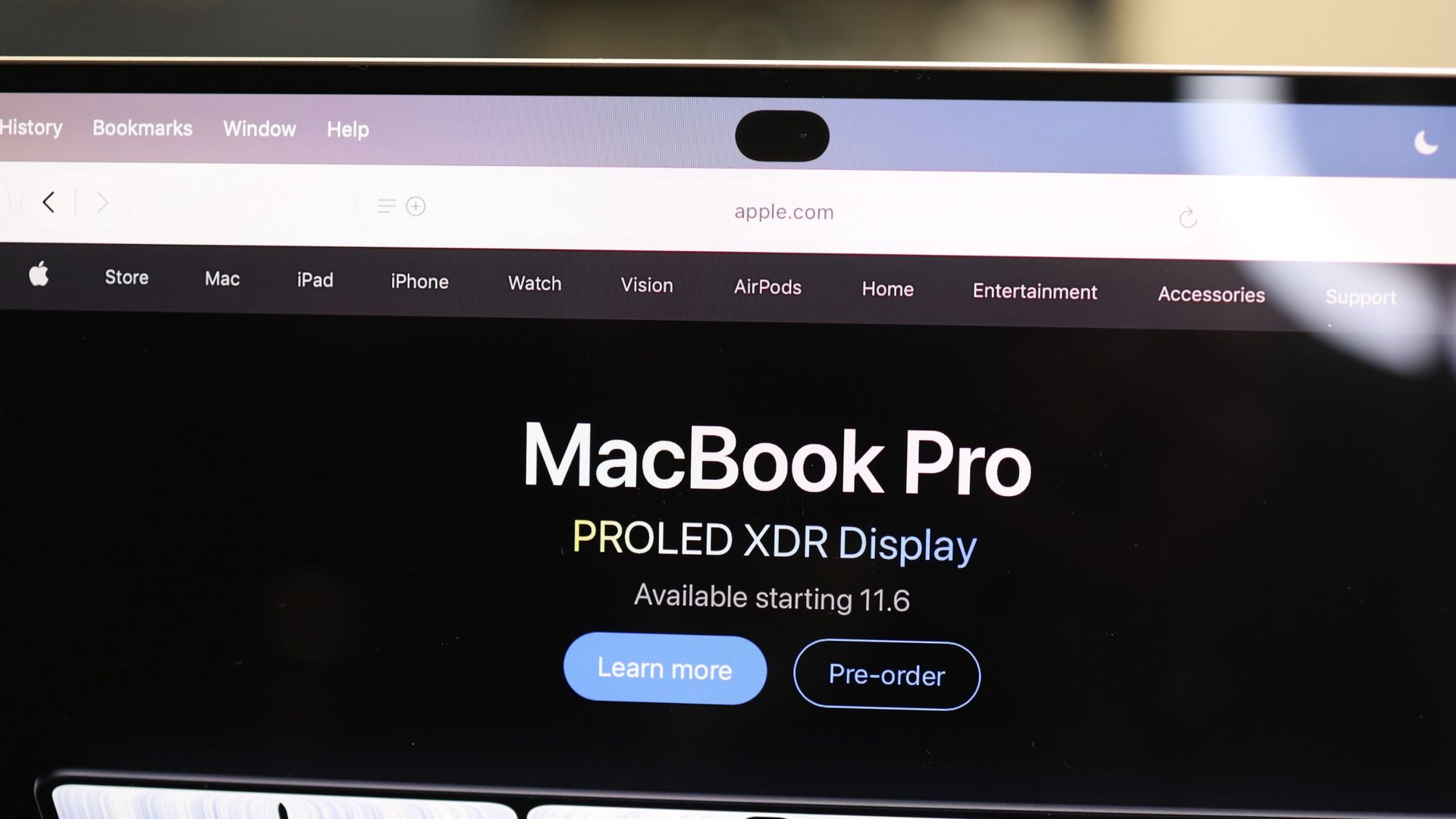
From the new Dynamic Island that replaces the giant notch on my old MacBook Pro (and provides some useful live info but sadly not Face ID) to the thinner bezels and curved bottom, it’s more aesthetically appealing. The tandem OLED technology, though, transforms the visuals in ways that no other laptop I’ve ever used or seen can approach.

MacBook Pro PROLED XDR Display 14-inch

(Image credit: Lance Ulanoff / Future)

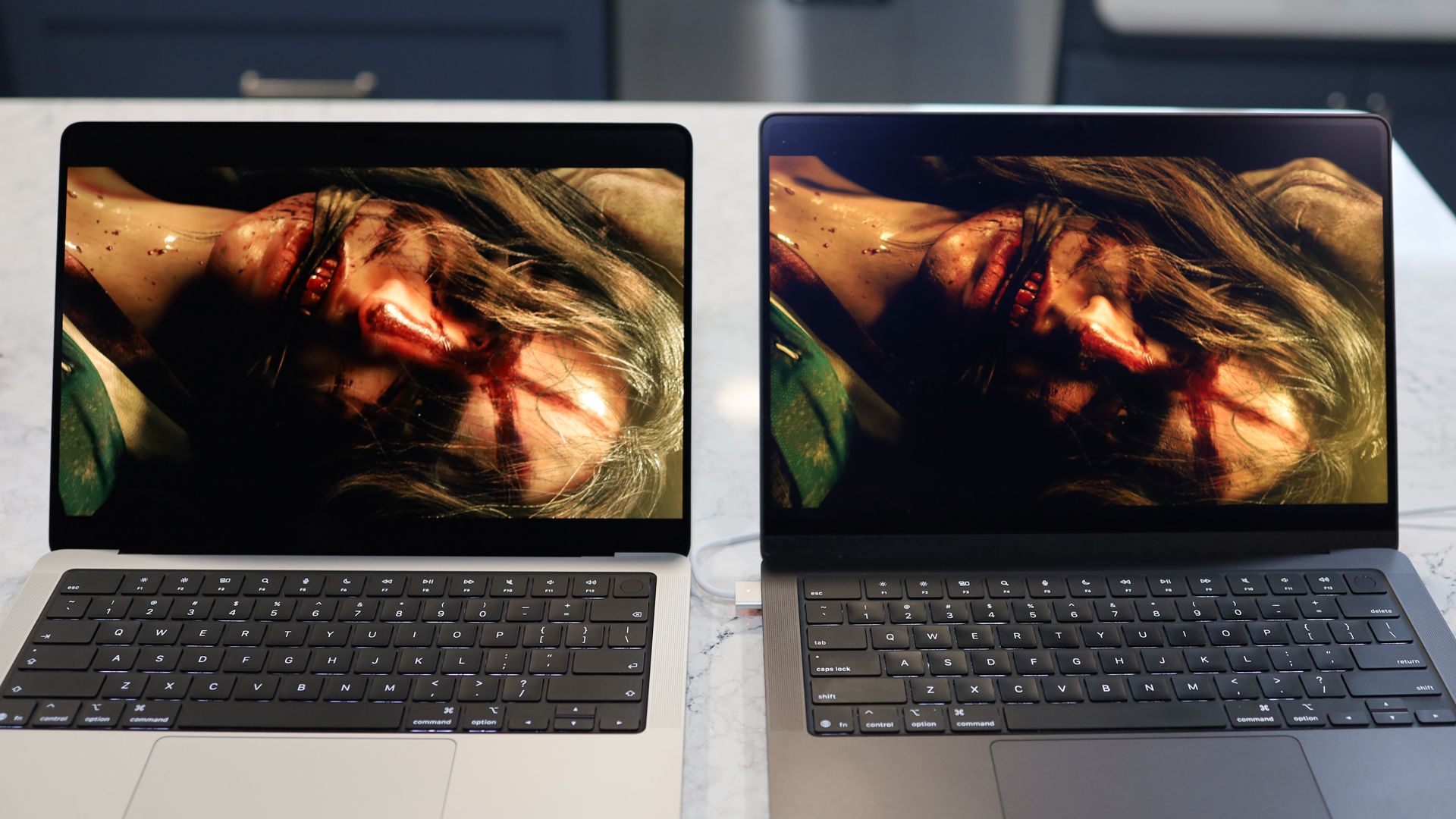
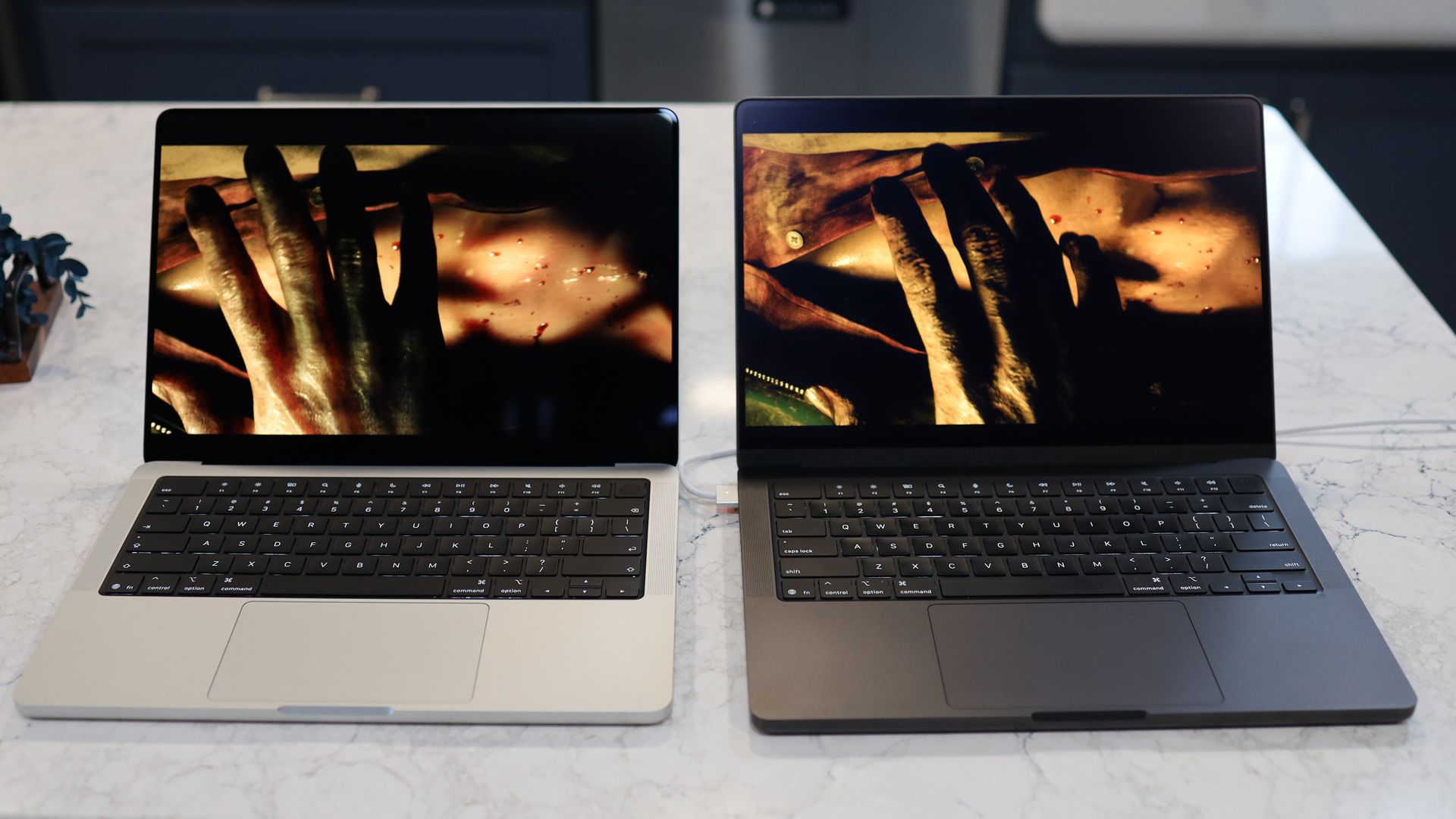
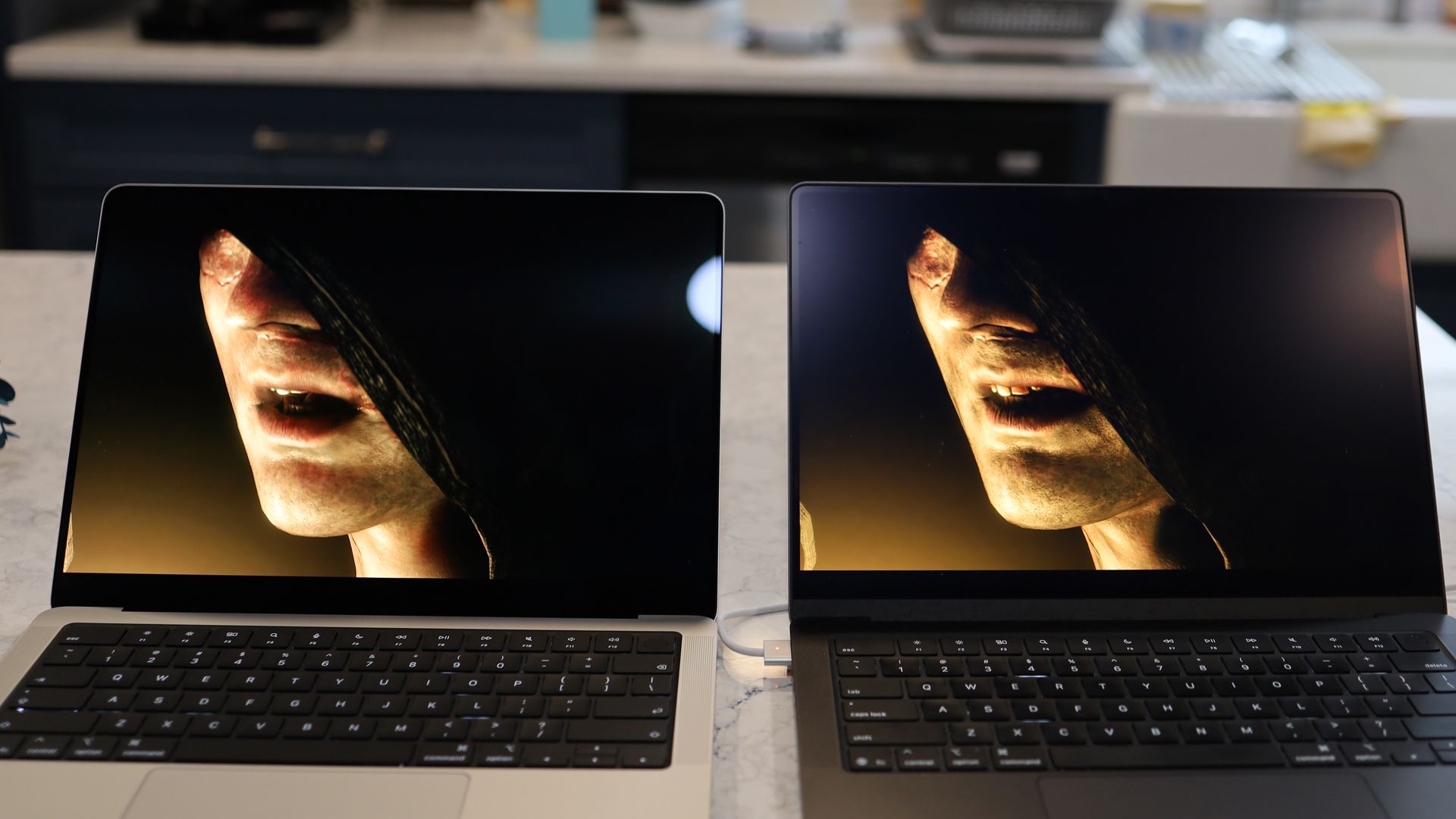
I put the MacBook Pro PROLED XDR Display next to the MacBook Pro M5, and the difference is nothing short of remarkable.

The promised 10,000,000-to-1 contrast ratio pays dividends with blacks that are inkier than the deep center of a black hole. That’s paired with colors and clarity that make everything pop, and with ProMotion (up to 120Hz), everything is smooth as silk.

MacBook Pro PROLED XDR Display 14-inch

(Image credit: Lance Ulanoff / Future)

Viewed separately, imagery still looks great on the MacBook M5’s Liquid Retina XDR, but next to the new PROLED XDR, everything on the M5 Pro looks muted. Even the off-angle viewing is noticeably better on the PROLED XDR Display. I wasn’t alone in this assessment. I showed the side-by-side laptops to a group of coworkers, and they all agreed.

That spectacular screen is paired with a more performant silicon that easily bested the standard M5 in my older MacBook Pro. In my side-by-side tests with Resident Evil 4, the M5 Pro MacBook Pro loaded the game faster and stayed a step ahead of the M5 MacBook Pro.

Here’s my conundrum. Most people shopping for laptops are not making a feature film, cutting a studio album, working on giant CAD-level projects, or running large language AI models locally, all things that the MacBook Pro PROLED XDR and its M5 Pro are more than capable of (often, as I noted above, at the same time, but with a lot of fan noise). But I cannot think of a single potential user who would not want this display.

They don’t all need the touchscreen, for as cool as it is, but as for that big, efficient, bright, and contrast-rich tandem OLED, everyone could use that.

So the question I’m left with after my MacBook Pro PROLED XDR Display 14-inch experience is: when will the next MacBook Air get this display, shrink by half a pound, and regain its position as the ultra-portable king? Oh, and how soon can the MacBook Air get that glowing logo on the back?

Did you know TechRadar now has membership?

Various tech product cutouts next to the words 'Insider TechRadar Learn More'

(Image credit: Future)

Become a TechRadar Insider by simply clicking 'Join Now' at the top of this page. Have a question? Please email membership@techradar.com
❌