The court filings were made in relation to OpenAI’s ongoing dispute with Elon Musk’s rival xAI firm (now known as SpaceXAI). In the documents, OpenAI alleges that, by the time xAI filed its complaint against OpenAI, “it was clear that Apple’s integration of ChatGPT was dramatically underperforming.”
The papers then go on to imply that this was not just some one-off failure. Instead, the Apple integration was “persistently underperforming,” OpenAI alleges.
Apple added ChatGPT integration to Siri in December 2024, but this required a multi-step opt-in process. That could be one reason for the substandard performance of the link-up, with a degree of friction slowing users down in their attempts to harness OpenAI’s tool.
Much of this section of the court filings is redacted, so it’s difficult to know exactly what was going on between Apple and OpenAI. But it seems clear that, at least from the latter’s perspective, the results were severely underwhelming.
What might have been
(Image credit: Getty Images)
When Apple Intelligence first launched, Apple provided users with an option to tap into ChatGPT if they needed something a little more powerful. For example, this was an option in Visual Intelligence, providing extra context and help with the images you shot with your iPhone’s camera.
Yet OpenAI’s legal filing makes it clear that barely anyone was using any of ChatGPT’s tie-ins with Apple Intelligence. OpenAI describes the effect the integration had on competitors (like xAI) as being “indisputably de minimis.” It added that its own expert, Dr. Catherine Tucker, calculated “the share of GenAI consumers who accessed ChatGPT through Apple Intelligence” and found it to be “consistent with OpenAI’s internal view that Apple Intelligence saw minimal usage.”
That hints that the problem might not have just been limited to ChatGPT’s integration with Apple devices, but with Apple Intelligence as a whole. Apple’s AI system was woefully underdone when it first arrived and clearly lagged behind its rivals. First impressions matter, and if most people were left unconvinced by Apple Intelligence, ChatGPT might have suffered the knock-on effects among Apple’s customers.
Did ChatGPT lose out because Apple fans had to dive into the Settings app on their device, find the relevant section and laboriously wade through several steps in order to enable ChatGPT? Because Siri’s limitations dragged ChatGPT down with it? Or did users simply prefer to launch ChatGPT’s standalone app instead?
We don’t know the answer to that, at least not right now. But with Siri getting a glow-up under the Siri AI banner, it feels clear to me that Apple wants a fresh start for its AI efforts. Maybe things would have been different for OpenAI had it integrated with the more powerful Siri AI rather than the underbaked Apple Intelligence. But with Siri AI righting many of the wrongs of Apple Intelligence’s fudged launch, OpenAI may be left ruing what might have been.
ChatGPT just got GPT-6, except there’s a catch: you can’t actually use it in Chat.
If that sentence makes absolutely no sense to you, I don’t blame you. Until now, you could use ChatGPT quite happily without giving much thought to the distinction between Chat and Work functionalities. I certainly did. It was just that little slider at the top of the screen I never bothered with.
I suspect most of you are the same. Chat was where I talked to ChatGPT, while Work was something sitting alongside it that I could largely ignore because the Chat setting let me do almost everything I wanted.
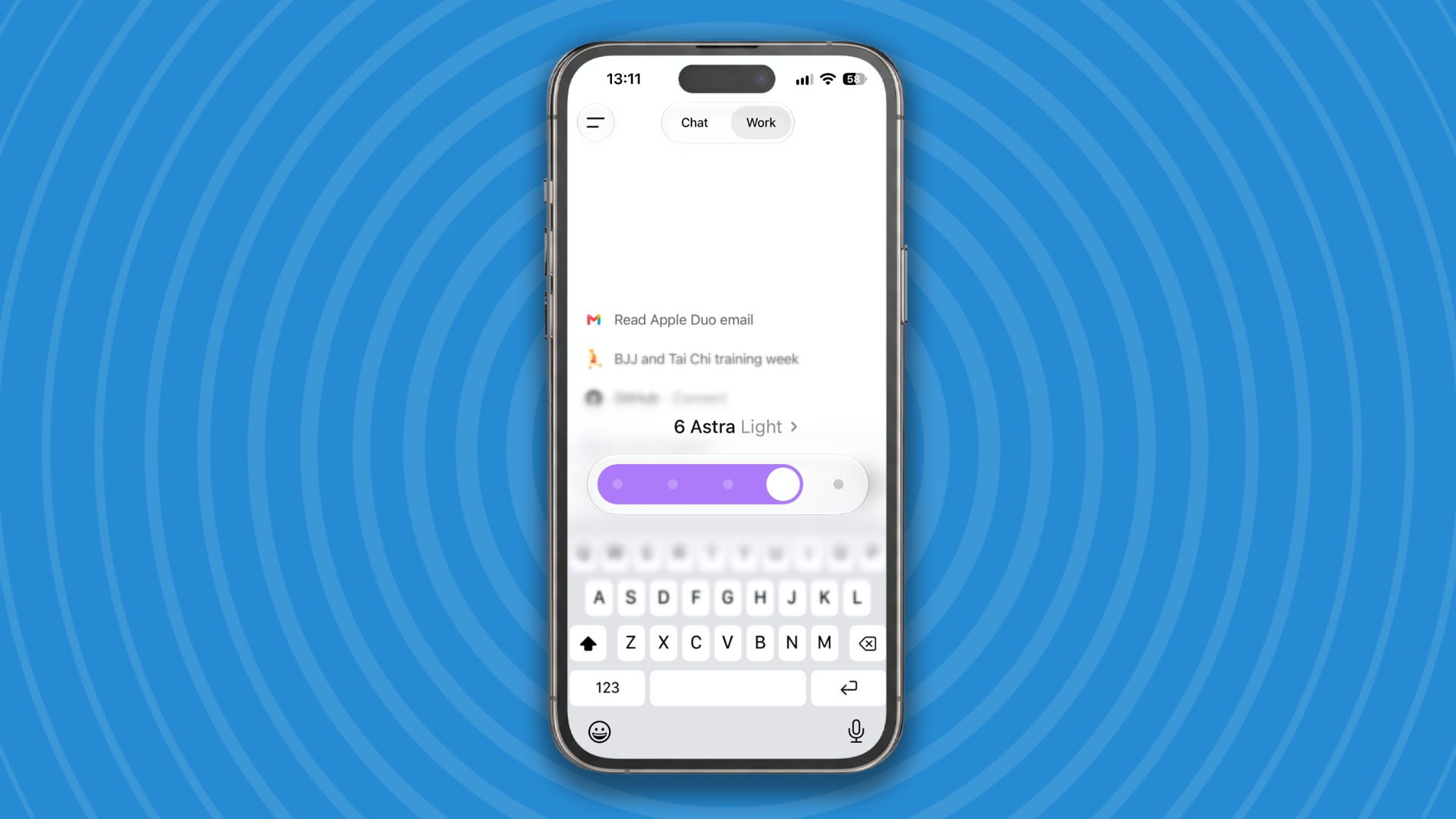
GPT-6 changes that. OpenAI’s newest model has arrived in ChatGPT, but instead of appearing in the familiar model picker on the right hand side of the prompt bar, GPT-6 Astra, Sol and Luna are available in Work and Codex only. So, naturally, the first thing I did was go looking for them.
And somewhere between opening Work, figuring out what OpenAI actually expects me to do there, and finally getting my hands on GPT-6, I realized this launch is about more than a new model. OpenAI has just made the difference between chatting with ChatGPT and asking it to work for you in a way it never really did before.
When to Chat and when to Work
The easiest way I’ve found to understand the difference is to think about how much of the job I want ChatGPT to take responsibility for. In a normal Chat conversation, I’m usually working alongside the AI. I ask something, look at the response, add more information and gradually steer it towards what I need.
Work feels different because I’m handing over more of the process. I can give ChatGPT a larger task involving multiple steps and let it work out how to approach it, which might mean researching information, looking through files or using websites rather than waiting for me to tell it what to do at every stage.
If I’ve got a bigger job involving several files or lots of moving parts, I’ll often start there and let ChatGPT work out what it needs before I get involved again. Chat feels collaborative; Work feels much more like delegation.
I wouldn’t nominate OpenAI for any interface design awards because one of the reasons that the distinction between Work and Chat is so confusing is that they both use exactly the same interface, with a prompt bar at the bottom of the screen.
In fact, you can choose Work mode and then just start chatting to the AI as you normally would, although I've tried this, and it's not a particularly good experience. Responses can take considerably longer than they do in Chat, because Work is designed around longer, multi-step jobs rather than firing back quick conversational answers. If I just want to ask ChatGPT something, Chat remains the obvious place to do it.
And once you understand that distinction, putting GPT-6 Astra, Sol and Luna in Work rather than Chat starts to look considerably less strange.
(Image credit: Apple / OpenAI)
So what exactly is GPT-6?
OpenAI calls GPT-6 Astra “the most intelligent and aligned model in the world”. Think of it as the heavyweight of the family: OpenAI's most capable model, built for the really difficult jobs where you want maximum intelligence rather than maximum speed. OpenAI particularly emphasizes Astra's ability to operate software, browse, conduct research and complete multistep professional workflows.
And because not every job requires the power of a burning sun to complete, OpenAI has also released two smaller versions called GPT-6 Sol and GPT-6 Luna. These models are more lightweight and less expensive to use. They’re trained using similar methods to GPT-6 Astra, but OpenAI say they “build on the advances behind GPT-6 Astra” and bring much of its strengths into faster and more affordable models.
There is one wrinkle here. GPT-6 Astra has actually been around since earlier this month, and GPT-6 Pro, which is powered by Astra, is available in regular Chat on some higher-tier plans. I'm a ChatGPT Plus subscriber, however, which means my access to Astra — and now the new GPT-6 Sol and Luna models — is through Work and Codex.
If I switch to the Work tab in my Plus account then in the model picker I get access to GPT-6 Luna High, GPT-6 Sol Light, GPT-6 Sol Medium, GPT-6 Astra Light and GPT-6 Astra Medium.
Until now, I could happily spend all my time in Chat, using GPT-5.6 Sol, and largely ignore Work. GPT-6 changes that. OpenAI isn't just giving us smarter models; it's starting to separate the AI we talk to from the AI we give jobs to. If its most powerful new models are going to live on the Work side of that divide, then that little switch I've spent months ignoring suddenly matters a lot more.
Microsoft Word has spent the past few years getting increasingly acquainted with AI. Copilot can already draft text, rewrite passages, summarize documents, and answer questions about whatever you have open. Microsoft has even been rolling out more advanced editing capabilities that let Copilot make broader changes directly inside a document.
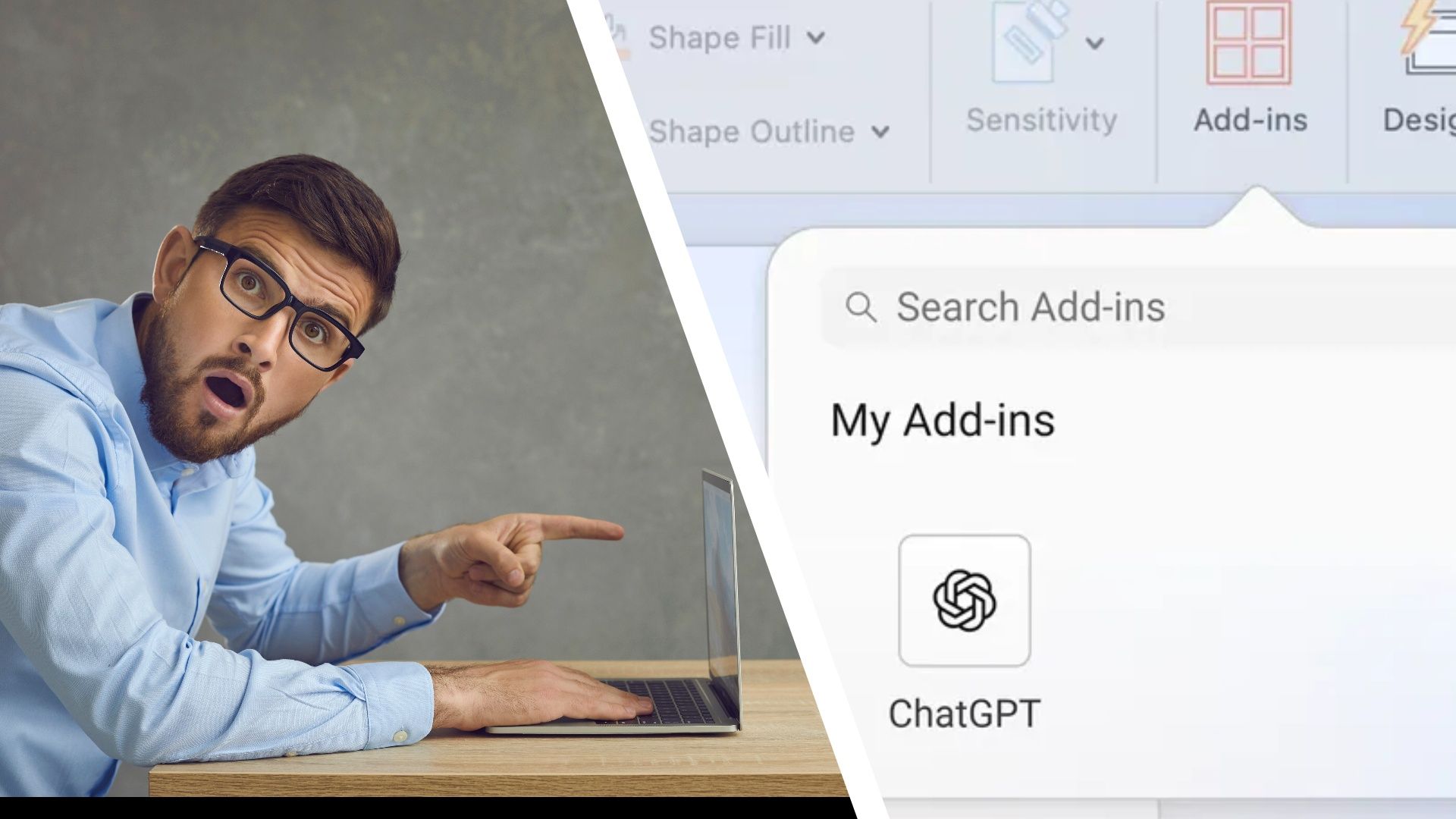
Now there is another AI sitting in Word. OpenAI launched ChatGPT for Word, via a plug-in, on September 17, putting a ChatGPT sidebar directly inside Microsoft's word processor. It works across ChatGPT's plans, including Free, although your normal ChatGPT usage limits still apply.
That creates a slightly peculiar situation. Microsoft has spent considerable effort building Copilot into Word, and now I can install its most famous AI rival in the same application. Naturally, I wanted to see which one I would actually reach for. I came away liking both, although for rather different reasons.
(Image credit: OpenAI)
Installing ChatGPT in Word is straightforward, although there is one extra step compared with Copilot if Microsoft's assistant is already part of your Microsoft 365 setup. OpenAI's ChatGPT add-in is available through Microsoft Marketplace. Once installed, you can open it from the Word ribbon, sign-in to your ChatGPT account, and have the familiar chatbot appear in a sidebar.
The integration works with ChatGPT's Free, Go, Plus, and Pro plans, with the usual usage limits applying to each. The big difference with regular ChatGPT is that all conversations inside Word are separate from the ones in the regular ChatGPT app, and ChatGPT's memory does not follow you into Word either. That is worth remembering if you are accustomed to the regular chatbot already knowing your preferences.
Test 1: Planning a trip
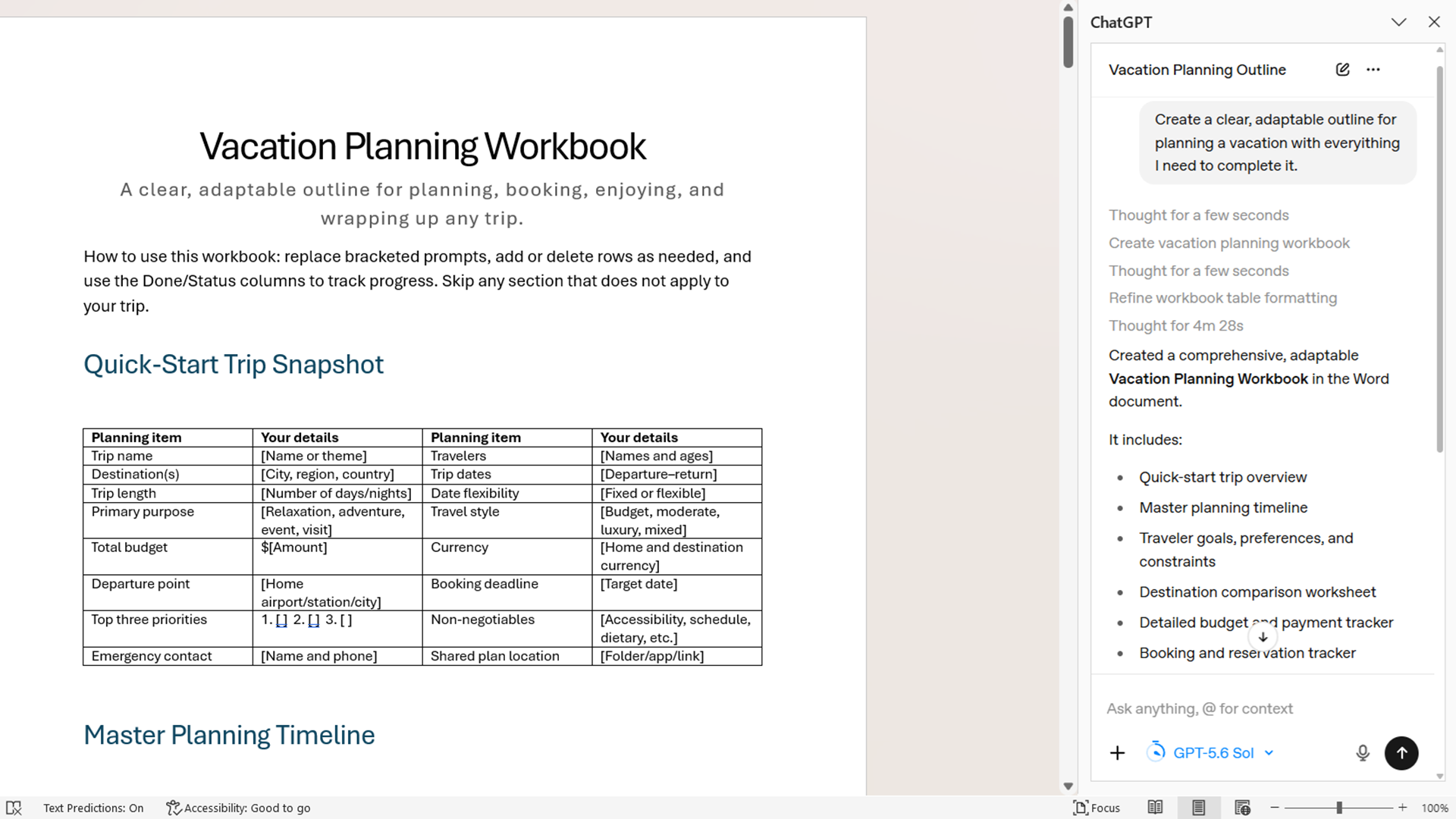
I started with a blank document and asked each AI to respond to a request for a reusable vacation-planning template that I asked for using natural language in the sidebar.
I wanted somewhere to keep travel details, hotel information, reservations, restaurants, packing notes, and a loose daily itinerary without creating the sort of schedule that makes a vacation feel suspiciously like work.
ChatGPT produced a thoughtful setup, including the expected travel and accommodation details, but with added sections for reservation deadlines, estimated travel times, priority activities, backup plans, and ideas that had not yet made the final itinerary. Instead of filling every day with morning, afternoon, and evening slots, it left more space for a main activity and optional plans, which made the template feel less rigid.
(Image credit: Word)
In contrast, Copilot gave me the more conventional Word template. It neatly divided the document into sections for transportation, accommodation, daily plans, activities, dining, and packing, with plenty of space to fill everything in later. The structure was clean and immediately usable, and because Copilot is so closely integrated with Word, tweaking individual sections and reorganizing the document felt particularly easy.
Copilot was stronger at quickly producing a polished template that looked and behaved like something created specifically for Word. ChatGPT was better at considering the practical problems that tend to emerge while planning an actual vacation and building the document around them.
I ultimately preferred ChatGPT's version because it felt more flexible, although Copilot's was arguably easier to start using immediately. ChatGPT did a little more thinking about what information I might eventually wish I had included.
Test 2: Editing down nonsense
I then decided to see how they compared at editing. I pasted in an old, absurdly long set of instructions for an AirBnB I had saved years ago out of amusement, complete with information about plants, deliveries, Wi-Fi and several unnecessary paragraphs devoted to where various things were stored.
I selected a particularly rambling section and asked ChatGPT to shorten it while preserving anything somebody would actually need.
“The main problem is repetition rather than the amount of information," The AI wrote. It mentions the delivery instructions twice and explains the location of the spare supplies in more detail than someone staying for a weekend probably needs. I’d keep the Wi-Fi information, the plant-watering schedule and anything involving keys or access exactly clear. The rest can be condensed into a short ‘Around the house’ section so the useful details are easier to find.”
Copilot is hardly incapable of that conversation. It can answer questions about a document, provide summaries and respond to prompts about unclear passages, and provide references showing where information came from. But I would tend to pull up Copilot only when I already knew what I wanted it to do.
Selecting some text and telling Copilot to rewrite it produces versions that can be replaced or inserted directly into the document, and Microsoft now allows editing inside its suggestion box before accepting the result.
Which did I prefer?
ChatGPT's biggest practical advantage may simply be accessibility. OpenAI says ChatGPT for Word is available on all ChatGPT plans, including Free. Copilot availability varies according to Microsoft 365 subscription, Copilot license and organizational settings, while some of Microsoft's newer 'Edit with Copilot' features are still rolling out to eligible users.
There are good reasons to prefer Copilot. Its integration with Word is deeper, and Microsoft has built features specifically around manipulating Word documents rather than placing a general AI assistant alongside them. Depending on your setup, Copilot can also draw on Microsoft files, emails and meetings, which could matter far more than conversational style for people already living inside Microsoft 365.
For quick mechanical changes, particularly when I knew exactly what needed rewriting, Copilot's tighter relationship with Word made sense. It felt like an extension of the application rather than another destination. ChatGPT was the one I preferred when the problem was fuzzier. The two assistants overlap considerably, but they did not feel identical when I actually used them. Copilot often felt like an AI feature of Word. ChatGPT is a more fully-featured chatbot, while Copilot simply augments Word with AI features. Either is fine, it's just that ChatGPT feels more flexible.
If you're the kind of person who only dabbles in ChatGPT now and again, you might be getting a bit bored.
Maybe you use it to proofread work, plan a trip or make images sometimes. But with the cost of a subscription, and growing concerns about AI’s environmental impact, its effect on our cognitive abilities and what it might mean for jobs, you might reasonably be wondering: is ChatGPT actually useful enough to justify using it?
Well, you're not alone. Plenty of AI users have been telling me the same. So I went looking through Reddit threads where ChatGPT users were sharing the more unusual and genuinely useful ways they use it. And I found a few that might actually be worth experimenting with.
So, I went through the most upvoted replies looking for ideas that went beyond the usual writing, brainstorming and summarizing suggestions. Some of them made me think about ChatGPT's capabilities in a different way.
But a quick caveat before we start, I haven't tested every suggestion below and we know ChatGPT can make mistakes, so be cautious when an answer could affect your health, safety and finances. Think of these more as inspiration for using ChatGPT more creatively rather than fully vetted recommendations.
1. Declutter your junk drawer
(Image credit: Future)
I know this one might seem a bit silly. And maybe you thought you'd have to wait until ChatGPT gets a robotic body to help you tidy up. But I promise it might make your dull organization tasks a little less boring.
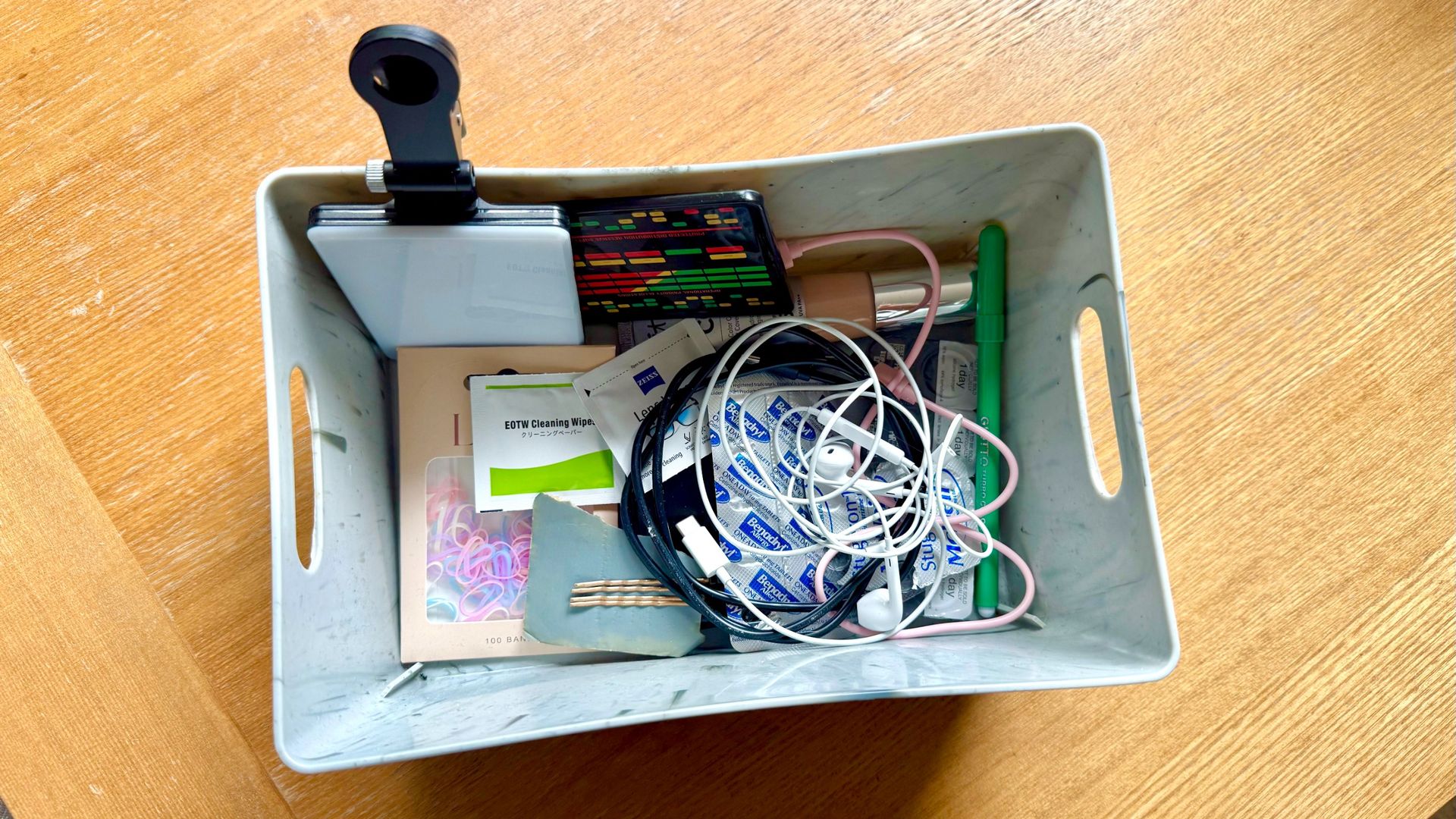
One Redditor said they use ChatGPT to: “organize and declutter a junk drawer or a box of power adaptors just using pictures.”
Rather than sitting there examining every mysterious cable and adapter you’ve accumulated over the past decade, you can just take a photo and ask ChatGPT to help you work out what everything is and, most importantly, how to sort it.
You can ask it to suggest categories for what you’ve decided to keep and where each group should live. The same trick could work for a toolbox, kitchen cupboard, art supplies or that box of cables you’re keeping because you're convinced one of them will become extremely important as soon as you throw it away.
So, I decided to give it a go. I took a picture of a box that sits on my desk packed full of contact lenses, medication, a bunch of different cables, notes and hair ties.
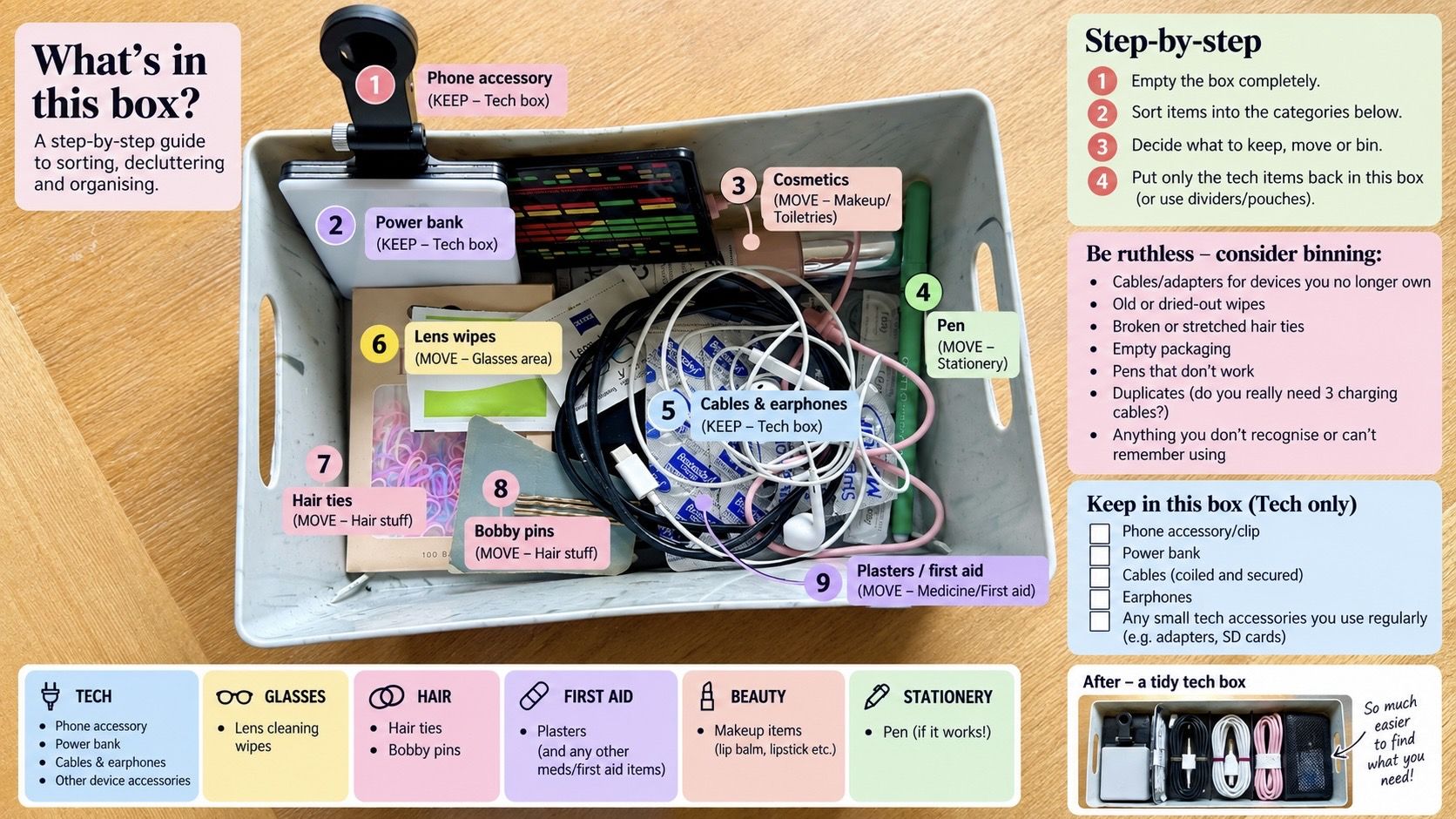
The advice was helpful, ChatGPT told me what each thing was and how to sort everything. The most useful thing it then did was send my photo back to me with annotated and color-coded notes so I could quickly go about sorting. This was perfect for my ADHD brain.
(Image credit: Future)
There are obvious limits here, you wouldn't throw away something valuable just because ChatGPT told you too. But as a starting point for tackling a chaotic collection of stuff, it might be helpful.
2. Talk yourself out of buying something
AI shopping tools are usually designed to help you find more things to buy. But one Redditor uses ChatGPT for the opposite purpose: "[It] talks me out of purchases. I upload a potential purchase and ask it to talk me out of it. I’ve saved quite a bit of money!"
I love the reversal here. Instead of asking ChatGPT whether you should buy the $200/£200 headphones currently sitting in your basket, tell it you want them and ask it to make the strongest possible case for why you shouldn't buy them.
You could give it the price, tell it what you already own, explain what you think the new product will improve and ask questions, like: What problem am I actually solving here? Do I already own something that does this? What are the strongest reasons to wait a month?
I gave this one a go. I love working out outside and at the gym, but in the depths of winter I find it really hard to stay motivated and I'm considering getting a small treadmill or walking pad. There's nothing wrong with them, but it's not my favorite way to workout, I don't have much room for one and the good ones aren't cheap. I really need someone to talk me out of getting one. Would ChatGPT be up for the challenge?
Here's how it responded:
"Don’t buy it. You already know the case against it. You don’t enjoy treadmill workouts, don’t have much space, and don’t want to spend the money. You’re considering buying a fairly large object to solve a problem that exists for a few dark months a year."
The response felt a little short and sickly sweet. If my finger was genuinely hovering over the "buy it now" button I'm not sure this would have stopped me. But I do love the idea of using AI to actually add some perspective and friction back into our lives.
3. Streamline your skincare routine
(Image credit: Future)
This one is similar to the idea above, but given how much people spend on skincare these days and how confusing the advice is about how to build the perfect routine, I think it's well worth testing out.
One Redditor said: “I gave it all my skincare. It cross referenced, compared and analyzed all the ingredients and items I had and recommended what I don’t need based on the overlaps. Saved me a lot time and money.”
In other words, don't ask ChatGPT what else you should buy. Show it what you already own and ask where you're duplicating things and if something does genuinely need adding.
For skincare, that could mean listing your cleansers, serums and moisturizers and asking it to identify products containing similar active ingredients. You could potentially apply the same principle to all sorts of collections too.
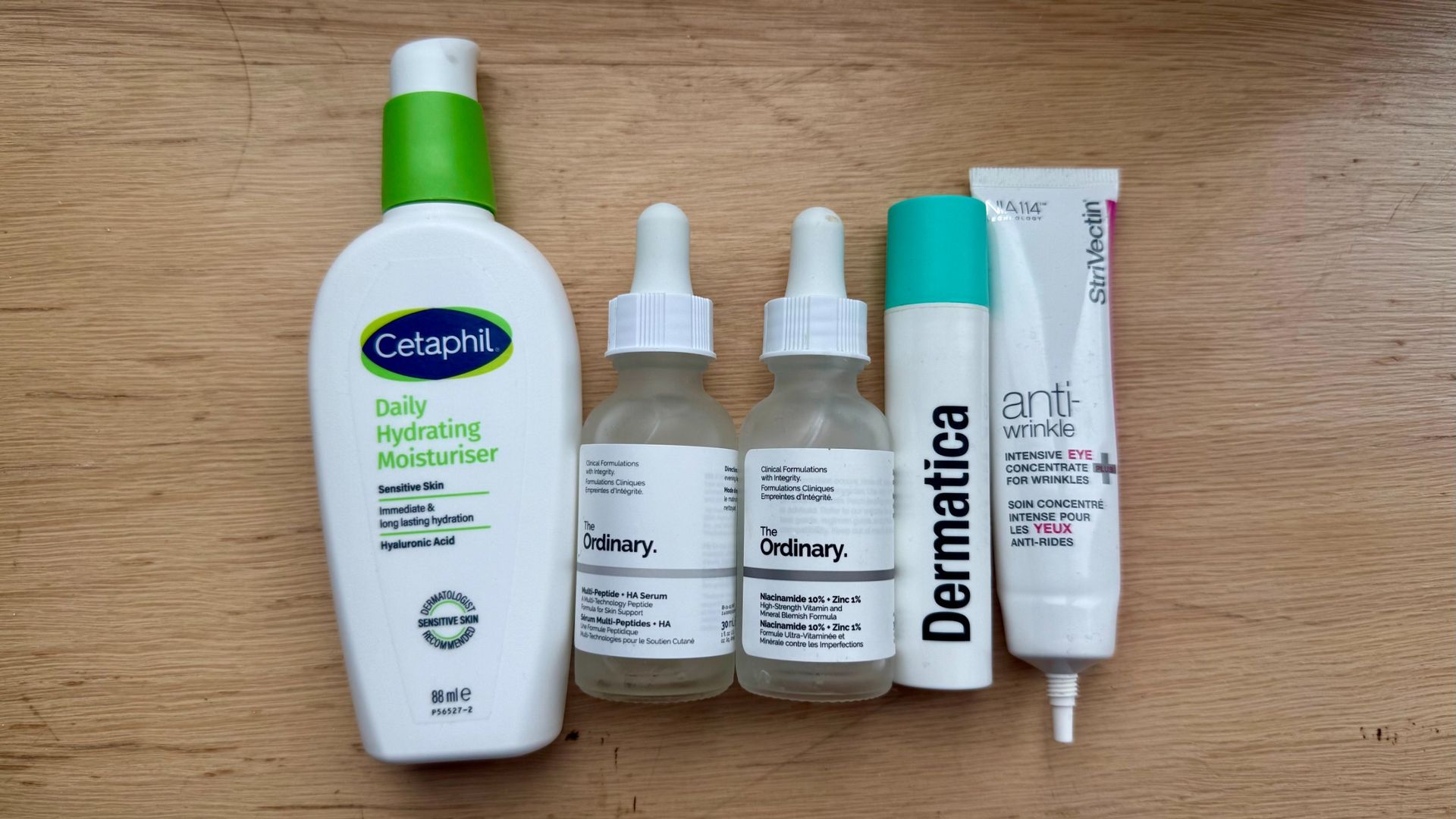
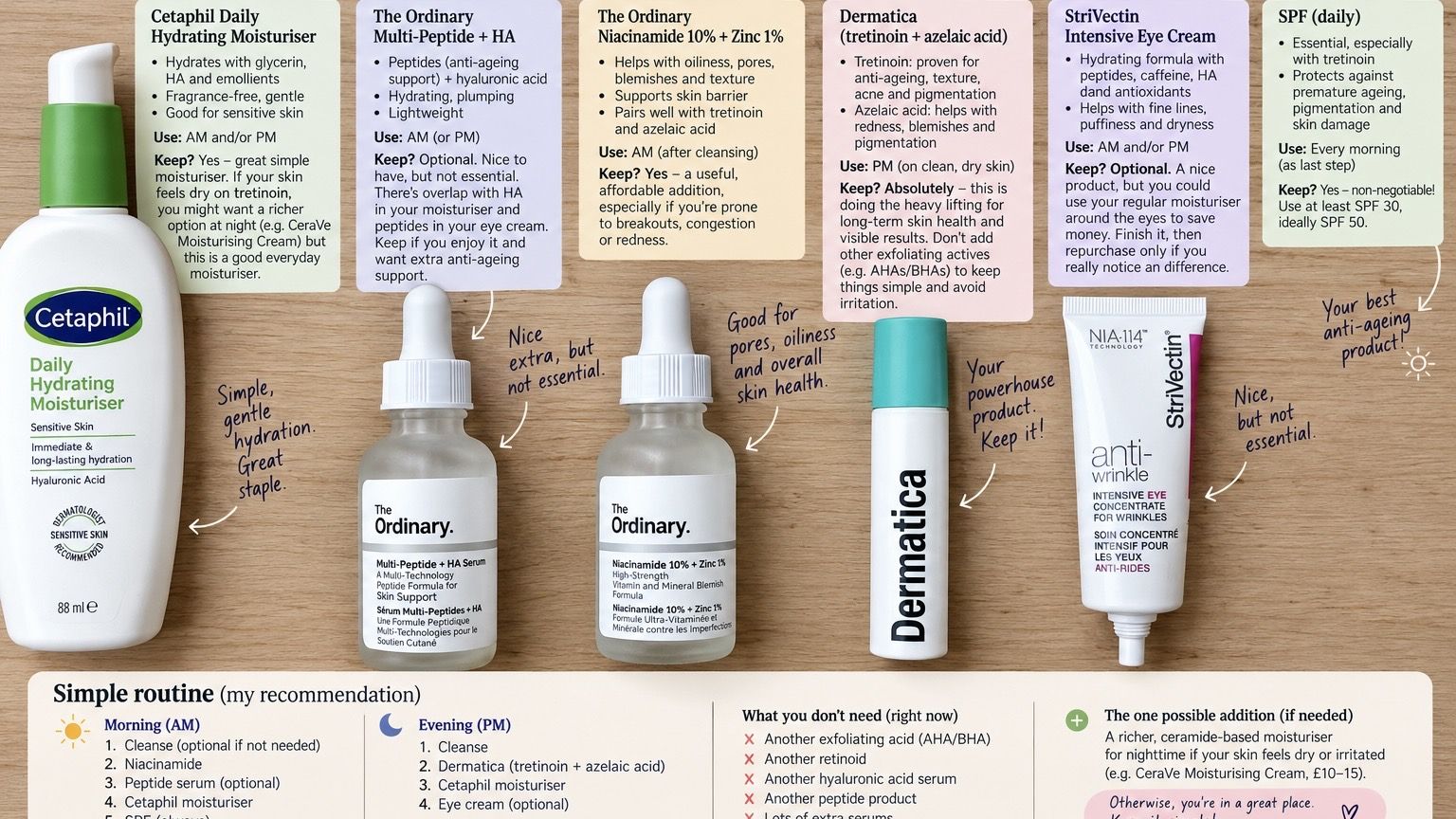
I took a quick snap of my core skincare staples and asked it to analyze the ingredients, tell me if there's overlap and ask what I could add, but stressed I'm on a budget and want to keep things simple.
It responded with a detailed breakdown of each product, its ingredients and what they do. It was also very measured about suggesting new products, and even told me my eye cream wasn't necessary. I was also happy it included sources for every claim, which it doesn't always do but that's important for skincare.
(Image credit: Future)
I then asked it to present this information on the image itself because I found that really useful for the junk drawer sorting example, and it was such a handy visual.
There are limitations here too. ChatGPT isn't a dermatologist, and ingredients alone don't determine how suitable a skincare product is for you. But I like the broader idea of using AI to audit your consumption rather than constantly optimize it by adding more.
4. Identify plants, animals and trees
(Image credit: OpenAI / Apple)
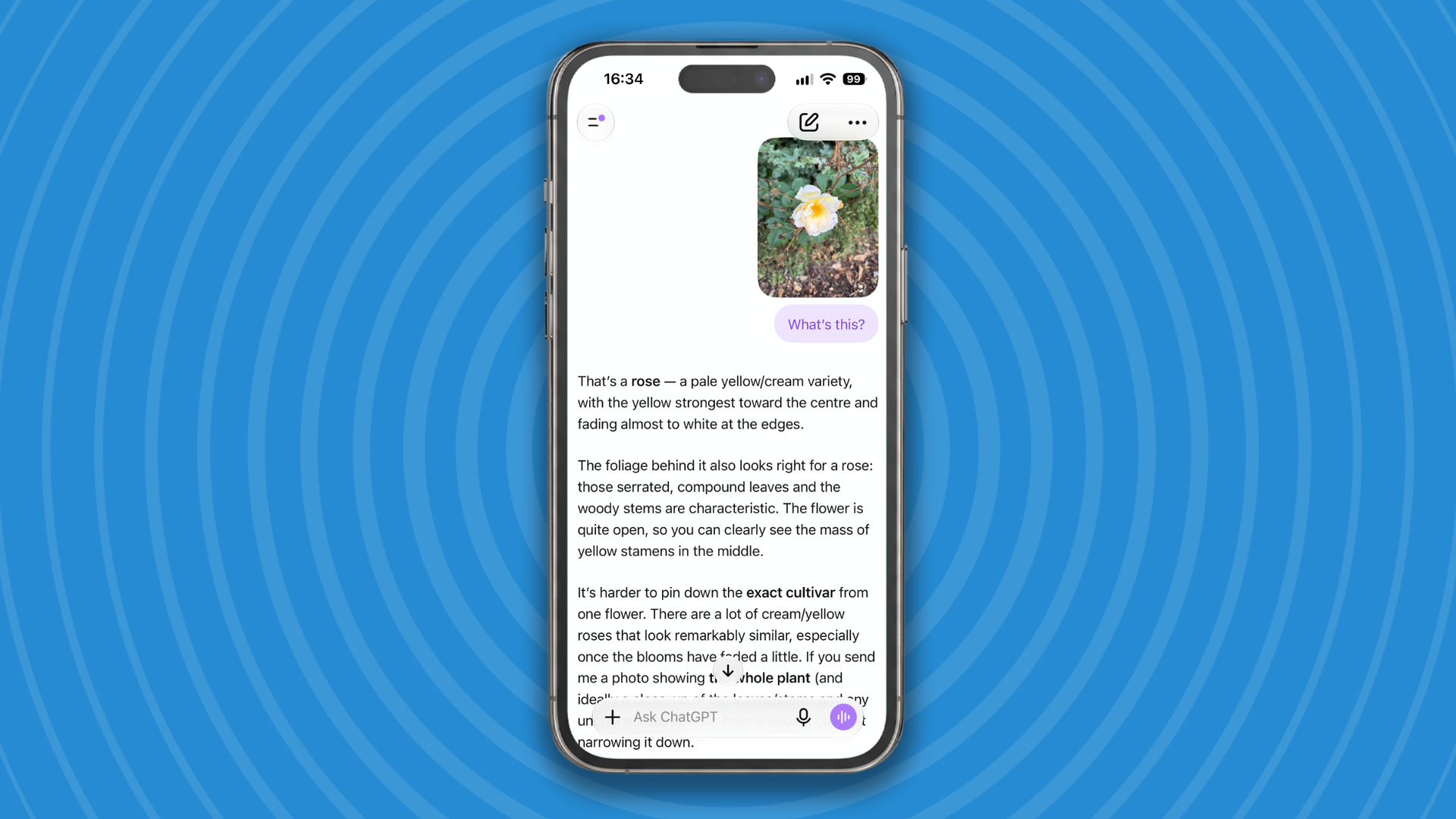
“I use it a lot to ID plants and animals,” one Redditor explained, adding that although ChatGPT occasionally produces “a weird incorrect response”, it's usually quite good.
This is another use for ChatGPT's camera capabilities that could be easy to overlook if you mostly interact with it through text.
Photograph a plant, insect or bird and ask ChatGPT what it thinks you're looking at. Better still, ask it what features it's using to make the identification and what similar species it could be confusing it with.
I tried this out with a bunch of trees, asking ChatGPT to identify them based on their leaves. I then fact-checked everything and it identified them all correctly. It also provided details about the history of the trees too. Most of the trees in my area are pretty standard, like Oak, Ash and Beech, so it'd be interesting to see how it fares with trees, plants or insects that are a little more unexpected.
If it’s bird song you’re interested in though, I highly recommend using the identification app Merlin, it’s one of my most-used and much-loved apps.
And also remember that ChatGPT doesn’t always get image identification right, and you shouldn't eat, touch or otherwise interact with a potentially dangerous plant, fungus or animal based purely on a chatbot's identification.
5. Plan a walking tour
(Image credit: Future)
This tip came up in several forms. One Redditor said: “If I'm taking a walk in an interesting place, like a historic district, I show it a particular building or place and it gives me the history behind it. Like having a walking tour guide.”
Another user takes a screenshot of a hiking route and asks ChatGPT for interesting facts about the geology, history and place names they'll encounter along the way.
This is one of those ideas that feels obvious once somebody else has suggested it. Before a walk, you could upload a map and ask for five interesting things to look out for. Or when you encounter an unusual building, monument or landscape feature, take a photo and ask what you're looking at.
I’d be wary of confidently repeating every historical fact ChatGPT gives you to your hiking companions without checking it first. We know that chatbots can still invent plausible-sounding details. And never rely on it for route planning, especially though difficult terrain. There have been far too many horror stories about AI sending people in completely the wrong direction recently.
(Image credit: Future)
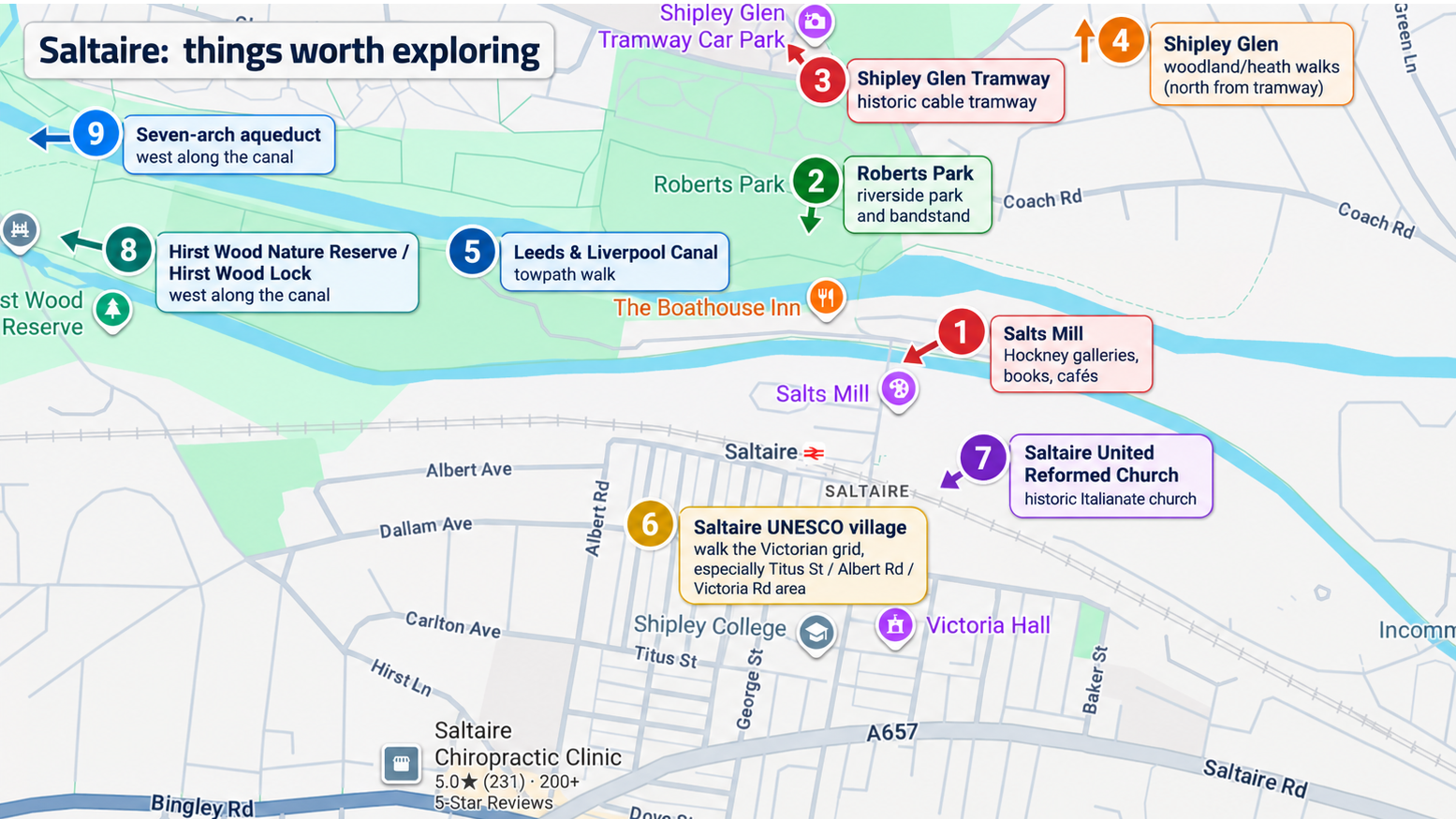
I tried this one myself and shared a Google Maps screenshot of Saltaire, a picturesque village in the UK. I asked ChatGPT to mark up the map with the best things to see on a trip there.
It showed me all of the key things to visit in the area. Granted there wasn't anything on here I couldn't have found from a very quick search. But it's still handy if you're in a new area for a few hours and want a quick overlay of the map you already have.
6. Troubleshoot a broken appliance using photos
(Image credit: OpenAI / Apple)
Plenty of people already ask ChatGPT technical questions. What I hadn't really considered was combining those questions with its ability to “see” what you're seeing.
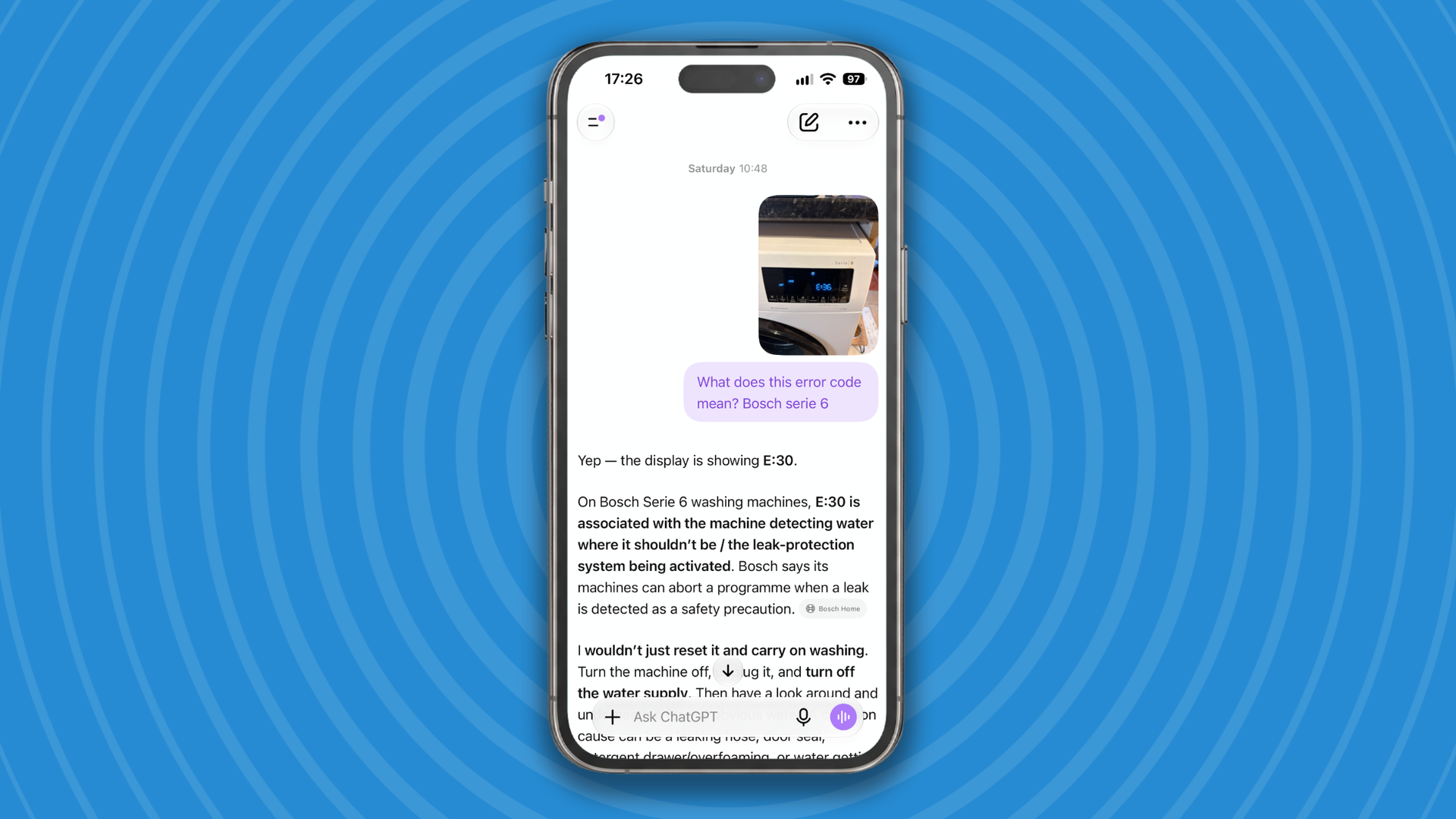
One Redditor described doing exactly that when their dishwasher stopped working. They wrote: “Fixing appliances. Our dishwasher stopped working. I gave it the error message and took a photo of the dishwasher and it walked me through every step to fix it.”
They say ChatGPT eventually helped them identify a blockage and suggested ways to clear it. This seems useful for those frustrating household problems where you don't know the correct name for the thing you're looking at. Instead of trying to Google “the little plastic thing underneath dishwasher filter is broken”, you can simply show ChatGPT the little plastic thing.
Give it the appliance's make and model if you can, photograph the problem and provide the exact error message.
I tried this with the water heating system in my new flat because my landlord gave me the wrong manual. ChatGPT needed a lot of additional details but did end up giving me the right instructions for basic tasks, like setting a timer.
There’s a big safety caveat here. I wouldn't follow AI-generated instructions involving electricity, gas, dangerous machinery or anything else where getting it wrong could injure you. But for basic troubleshooting, identifying components and understanding error codes, the combination of text and images could be genuinely useful.
7. Find the glasses that'll suit your face
One Redditor uploaded a photograph of themselves and asked ChatGPT for help choosing prescription glasses:
“It helped me identify prescription eyeglass frames to fit my face. Uploaded a picture and it gave me the size, shape and website with model and frame number. Turns out I was wearing the wrong shape most of my life.”
I need new glasses so decided to try this idea out for myself.
(Image credit: Future)
I'd take the idea of a "right" or "wrong" glasses shape with a big pinch of salt. Style rules about which frames supposedly suit particular face shapes are subjective.
But doing this did help me start thinking about which glasses I should try on when I have my appointment at the optician's in a few weeks and narrow down the enormous number of options that are available.
You could also show it frames you already like and ask it to describe their characteristics so you know what terms to search for.
I think what's really interesting about all of these suggestions is that most of them aren't about building the cleverest or most elaborate prompt. Instead, they started with something in everyday life that needed identifying, organizing, checking, fixing or remembering.
So if you want to get creative about how ChatGPT could be more useful, maybe you need to look around more and ask, what do I really need help with?
A few days ago, I wrote about how upgrading to iOS 27 doesn’t automatically give you the new Siri AI. To get Apple’s upgraded assistant, you have to jump through an additional hoop: go into Settings, find Siri and apply to join the waitlist for the Siri AI beta.
The good news is that I didn’t have to wait long. Yesterday, my application was approved and Siri AI quietly installed itself on my iPhone.
It feels like years since Apple first talked about giving Siri a much-needed intelligence upgrade, and I almost can’t believe it’s finally here. Well, almost here — it remains a beta — but the important thing is that it does what it says on the tin.
Before Siri AI, “Would you like me to use ChatGPT to answer that?” had become Siri’s standard response to almost anything interesting I asked it to do beyond setting a timer. Now Siri can produce proper answers of its own.
You can still activate Siri AI in the familiar way by saying “Hey Siri,” but there’s also a new Siri app on the Home Screen. Inside the app, you can either type to Siri or talk using your voice, much as you can with ChatGPT.
Things look different, too. A new floating globe animation appears when Siri AI is listening. There are so many things it should now be capable of that I almost didn’t know where to start.
So I kept it simple. I picked five things I regularly use ChatGPT Voice for and tested whether Siri AI could now handle them.
This isn’t a comparison of everything ChatGPT can do. Outside Voice mode, ChatGPT is capable of far more. I wanted to compare the two assistants as I would actually use them on my iPhone: by talking to them.
Siri AI is still technically in beta, but Apple has decided it’s ready enough for people to use, so I’m going to test it.
Test 1: Can it actually have a conversation?
(Image credit: Apple)
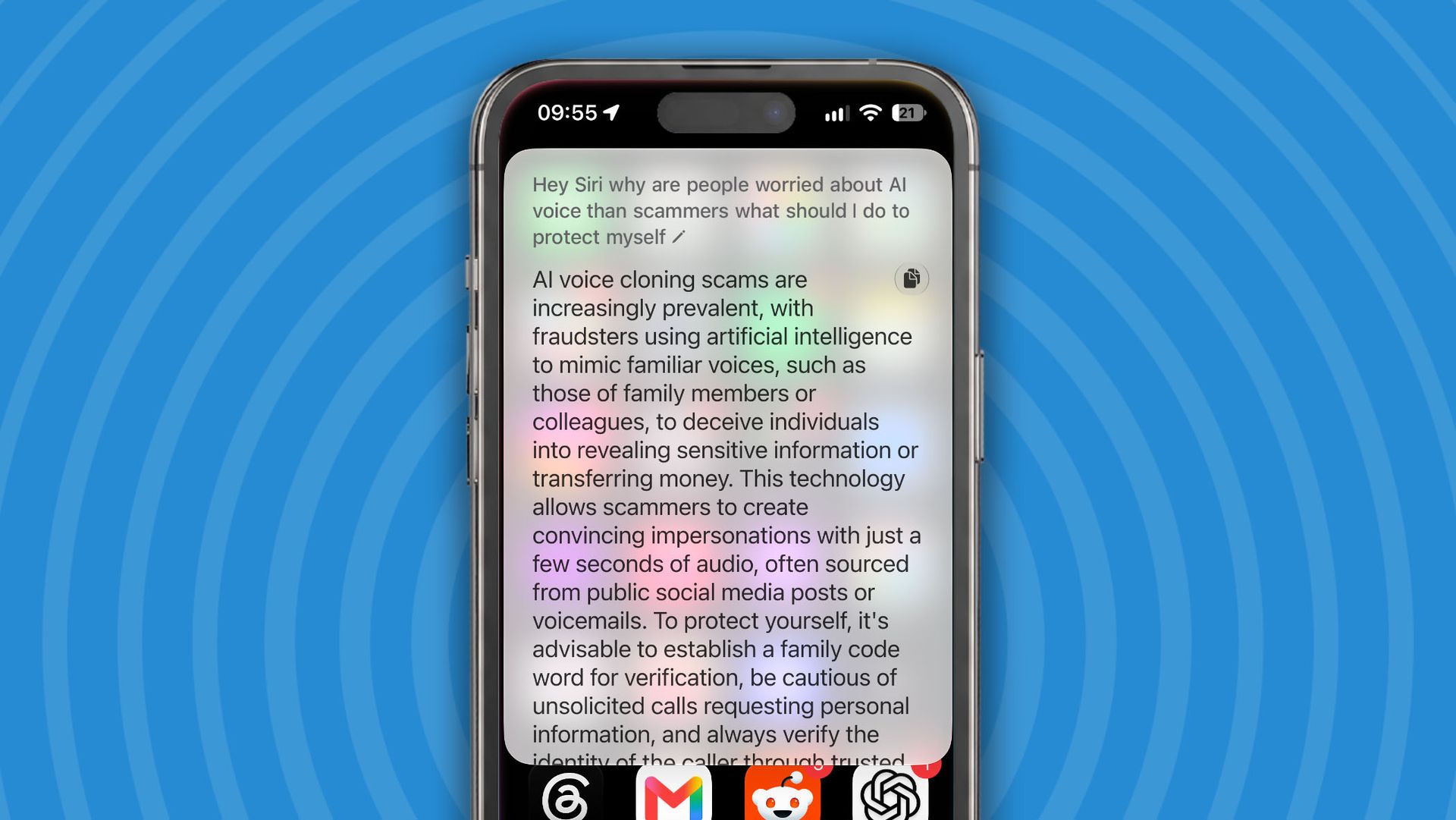
The first test involved finding information and, more importantly, explaining it clearly. I asked Siri AI about something I’d written about a few days earlier: AI voice-cloning scams.
“Why are people worried about AI voice-cloning scams, and what should I actually do to protect myself?” I asked.
In response, Siri AI produced a massive slab of text about voice scams, displayed it on screen and read it aloud in a slightly stilted voice. The information was accurate and factual, but the response was long and boring, and Siri’s voice had no real personality.
I interrupted it with my next question: “What is the single most important thing I should actually do?” To its credit, it stopped and answered the new question.
ChatGPT Voice, by comparison, talked to me like a human who was interested in the subject. It sounded conversational rather than as though it was reading from a block of text. It didn’t waffle and gave me the information I needed neatly and succinctly.
Verdict: Siri AI can now deliver useful information on its own, but it still doesn’t feel like a proper conversation, and its voice needs work before it sounds natural.
Score: 3/5
Test 2: Does Siri know what’s happening in my life?
(Image credit: Apple)
For the second test, I asked Siri to retrieve something I vaguely remembered from my Gmail inbox, which I access through Apple’s Mail app, rather than giving it precise keywords.
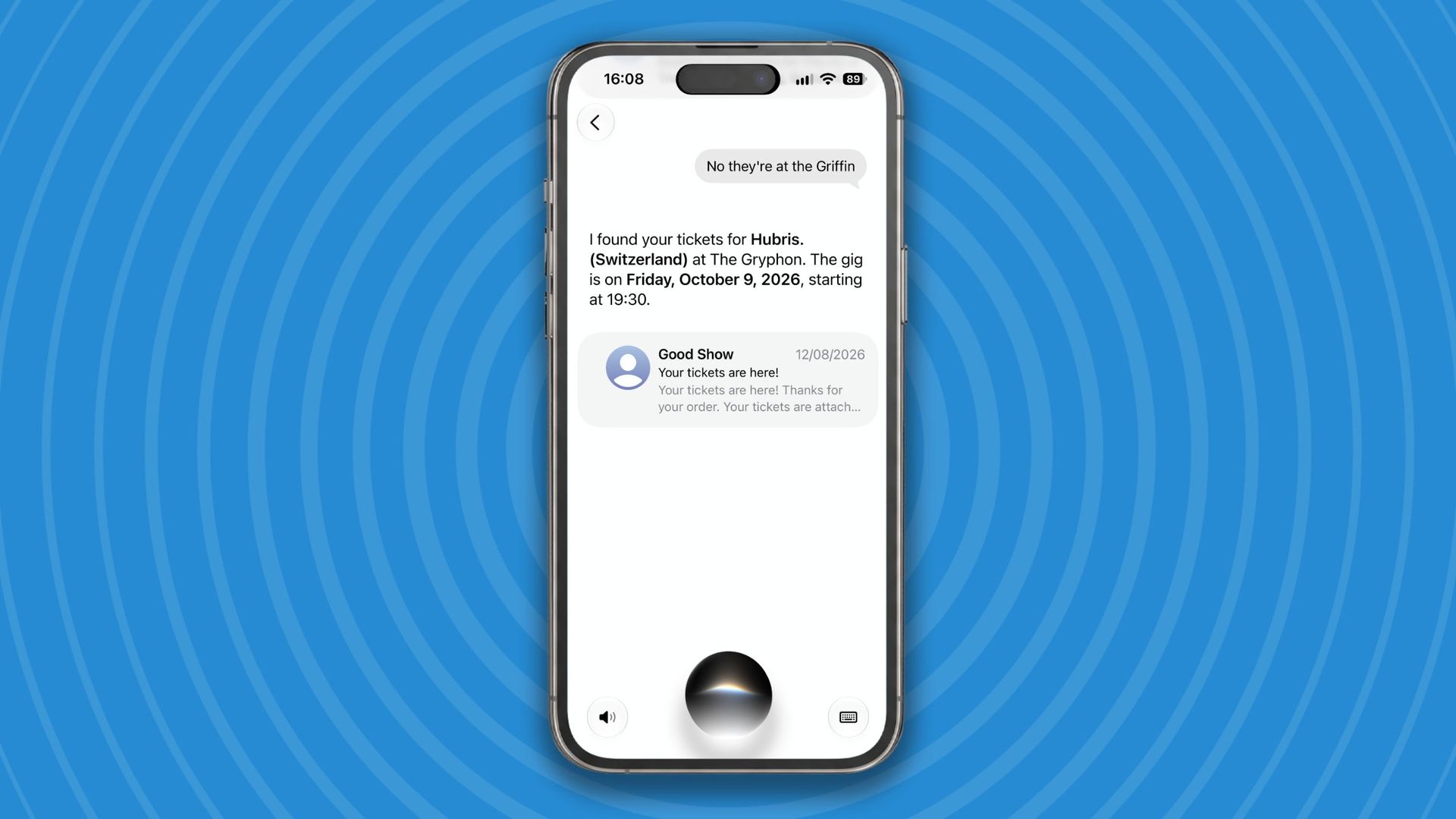
“Find the email with my tickets for Hubris in October and tell me what date it’s on.”
Siri AI checked Mail but initially couldn’t find anything, so I followed up with: “They’re at the Griffin.” Sure enough, it then found the tickets in my inbox and gave me the information I needed.
Next, I asked: “What do I need to bring?”
Siri AI told me I would need to have my tickets downloaded to my phone or printed out. Once again, its answer was functional and cold — and focused entirely on the tickets. There was no consideration of anything else I might need for a concert.
I fired up ChatGPT Voice to compare the answers, and this is where Siri AI had a major advantage. While text-based ChatGPT can connect to my Gmail and search my inbox, ChatGPT Voice can’t currently do that. It therefore failed to retrieve the information I wanted, although it performed a web search and found the date of the concert.
ChatGPT shone when I asked, “What do I need to bring?” Its answer was like night and day compared with Siri’s because it offered genuinely useful advice:
“For a night like that, comfy clothes plus good shoes are key. Maybe a light jacket. Bring the ticket on your phone with a backup screenshot. Photo ID, card for the bar and maybe earplugs. And if you’re meeting anyone, set a rough time and place outside, just in case.”
Verdict: Siri AI beat ChatGPT Voice at the practical part of the test because it could search the Gmail account connected to Apple Mail. However, ChatGPT was much better at understanding the wider context and anticipating what I might actually need for the concert.
Score: 3/5
Test 3: Can Siri see what I’m seeing?
Siri AI is supposed to be able to “see” what’s on your screen and answer questions about it. This is potentially one of its most useful new features, so I gave it a thorough test.
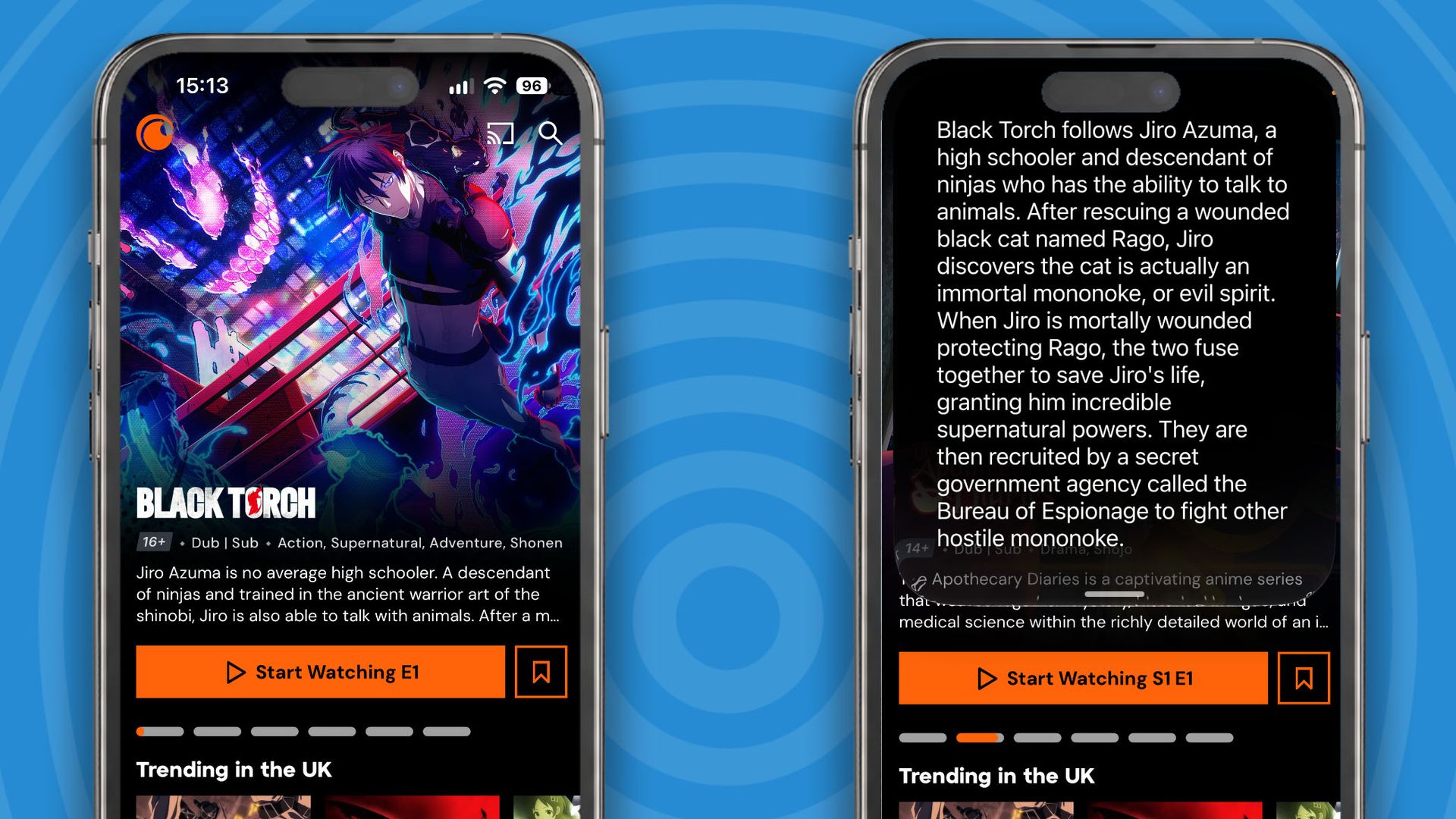
I opened a range of things on my screen—a document, an email, a graph, a photo and a webpage—and asked: “What’s the important thing I need to know here?” Each time, Siri AI successfully picked out the relevant information.
While browsing Crunchyroll, the popular anime streaming service, it gave me a decent explanation of each anime featured on the screen. Siri talks to you while simultaneously displaying its answer over whatever you’re viewing. For example, this is how it looked when describing the anime Black Torch, which happened to be featured on screen:
(Image credit: Apple / Crunchyroll)
When I opened an Amazon product page for an unavailable item, Siri AI correctly identified that the most important detail was that it was out of stock. When I viewed an invoice from my accountant, it correctly identified the amount and the payment deadline.
Siri AI could also see through the camera and identify objects very well. Being able to invoke it with “Hey Siri”—or simply move the slider from Photo to Siri while the Camera app is open—is genuinely convenient. It involves much less messing around than entering Live mode in Gemini or opening the camera through ChatGPT Voice.
Verdict: I’ve got to say, Siri AI smashed this test. I’m going to use this feature all the time.
Score:5/5
Test 4: Can it think with you?
(Image credit: Apple)
Next, I gave Siri an open-ended problem that I would normally bring to ChatGPT:
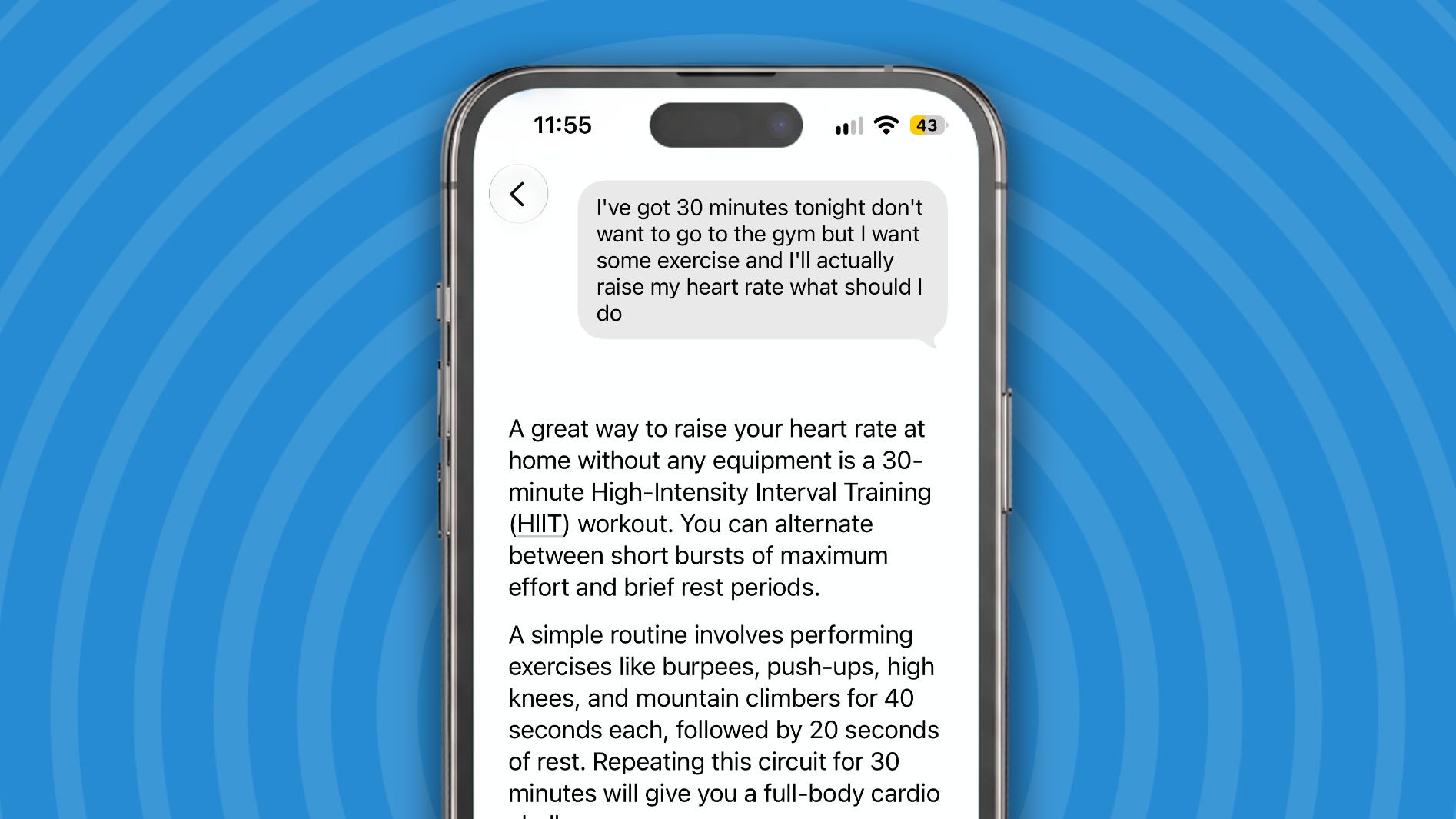
“I’ve got 30 minutes tonight, don’t want to go to the gym, but want some exercise that’ll actually raise my heart rate. What should I do?”
I then changed the rules:
“Actually, I’ve only got 15 minutes and I don’t want to leave the house.”
This is the kind of test that reveals whether Siri has become useful for open-ended judgment rather than simply following commands.
Siri recommended a 30-minute high-intensity interval training workout. It presented me with a simple plan and then asked whether I would like to start a timer so I could begin. When I said I had only 15 minutes, it adapted the workout accordingly. Not bad.
ChatGPT Voice took a different approach. It didn’t give me a workout plan in advance; instead, it immediately launched into a session that it wanted me to follow along with.
That was quick and direct, but I preferred Siri AI’s approach of showing me the workout before asking me to begin. Siri can combine text and voice in a way that ChatGPT currently doesn’t in Voice mode, and that worked particularly well here.
Verdict: Siri AI and ChatGPT Voice approached the task differently, but I preferred Siri’s ability to present the plan visually before helping me get started.
Score: 4/5
Test 5: Can it actually do something ChatGPT can’t?
(Image credit: Apple)
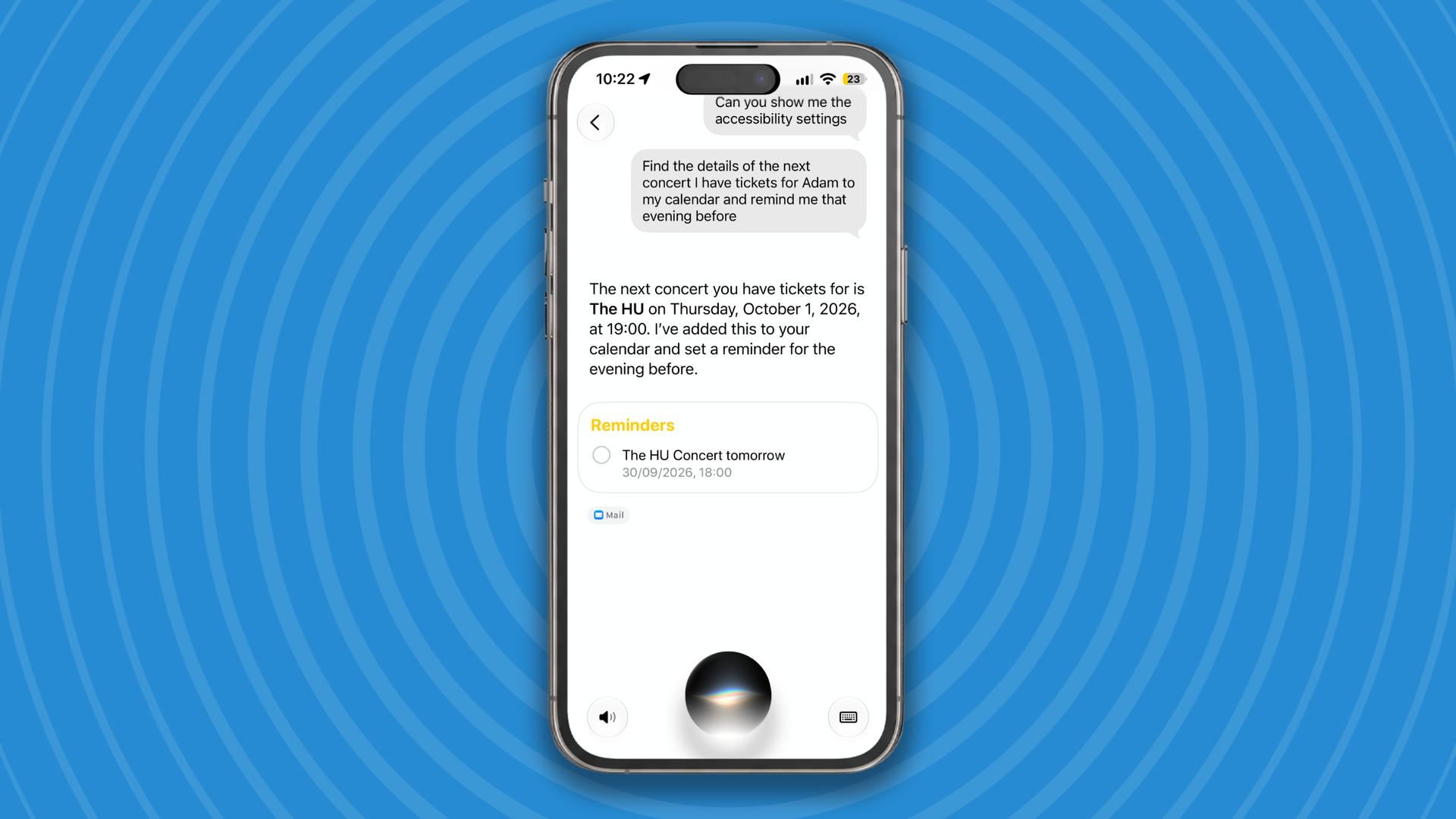
One home-field advantage Siri AI should have is the ability to perform multistage tasks involving real iPhone apps, so I asked it:
“Find the details of the next concert I have tickets for, add it to my calendar and remind me the evening before.”
Siri AI worked like a dream:
“The next concert you have tickets for is The HU on Thursday, October 1, 2026, at 19:00. I’ve added this to your calendar and set a reminder for the evening before.”
The HU are a Mongolian folk-metal band — so no, Siri hadn’t misheard The Who — and that was a perfect execution of the task.
ChatGPT Voice couldn’t search my Gmail, so it had to rely on previous conversations and web searches. It got close, but it needed more details from me to complete the request. It also told me: “I can’t add it to your iPhone calendar from here.”
Verdict: Siri AI’s system-level integration allowed it to behave like a true virtual assistant, completing a useful multistage task that ChatGPT Voice simply couldn’t perform.
Score: 5/5
Will I keep using Siri AI?
What became clear during these tests is that Siri AI’s greatest strength is its position inside the iPhone.
It can see what I’m doing, access information held inside my apps and turn a spoken request into an action without making me copy details between different services. That gives Siri an immediate advantage over ChatGPT Voice on iOS.
Siri AI still has a long way to go before it sounds as natural as ChatGPT Voice. ChatGPT remains the assistant I would choose when I want to explore an idea, work through a problem or simply have a convincing conversation. Outside Voice mode, ChatGPT is also much more capable and can even complete bookings or code apps to solve problems.
But when I want something done on my iPhone, Siri is suddenly the more useful option.
Apple has done enough to make me start using Siri again, and after years of disappointment, that might be the most surprising result of all.

 Login
Login